Pricing Correct Underwater photo colors · Free

AI Underwater Photo Color Corrector

← Browse all creative effects

Last updated

Bring back the reds and warm tones lost in blue or green underwater photos. Free, no signup.
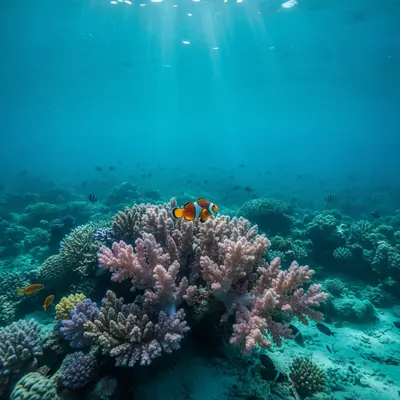
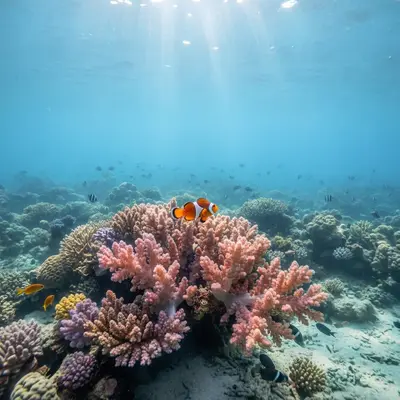
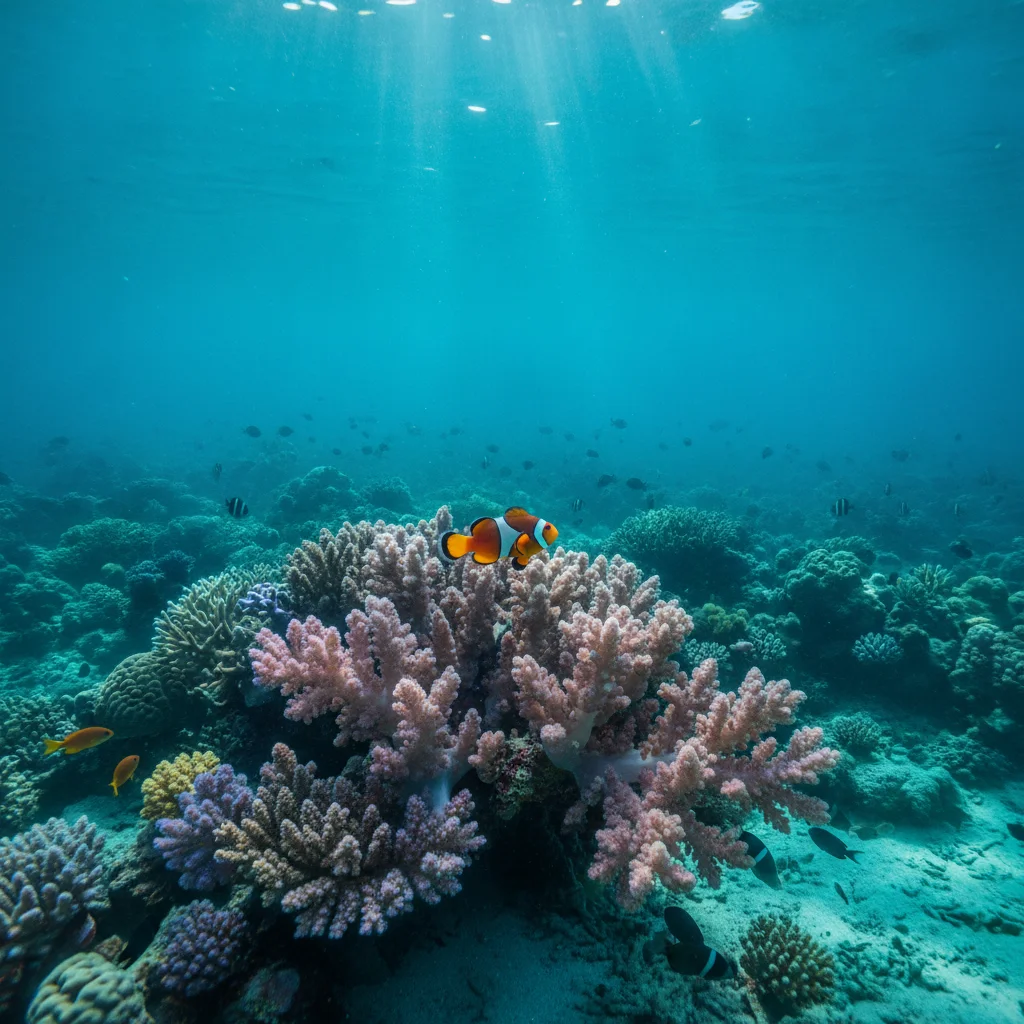
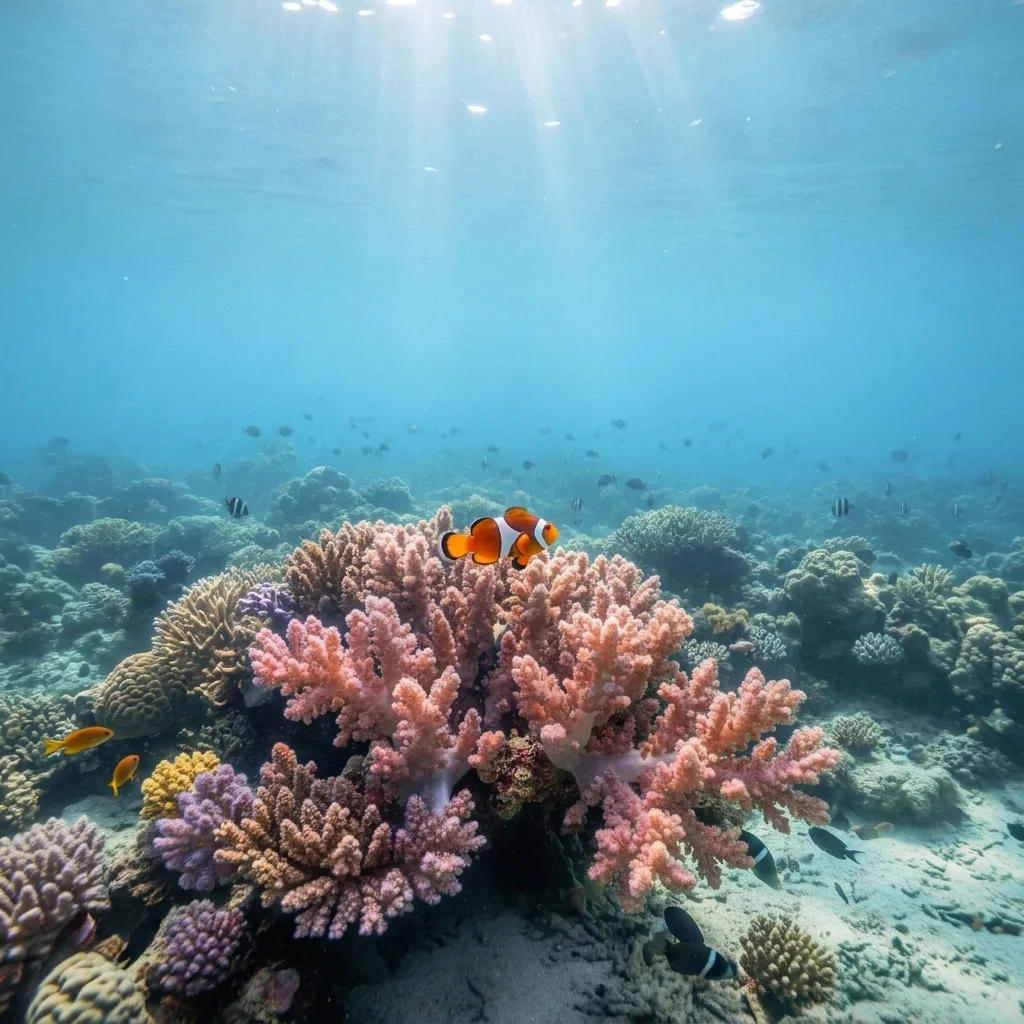
Reef photo with a heavy blue cast Same reef photo with natural warm colours

Upload photo to correct underwater photo colors

"remove the green tint from this underwater photo so it looks clear and natural, restore warm colours on the fish and sand"

Free to try · no sign-up · never used for AI training

Release to upload

<30stypical edit
1 freeedit weekly
Photo on your phone? Scan to open this editor there — free edit works on your phone too.

1 free edit every week·paid packs after

How it works

  1. Upload your photo

    Upload the underwater photo. Water absorbs red light first, so deeper shots lose reds and look blue or green. Shots with some natural light near the surface keep more colour to recover.

    Expect: Simple fixes usually finish in under a minute. Heavier damage or busy detail can take a little longer and may need a second pass.
  2. Describe what you want

    Describe the fix and the subjects. For example: 'remove the blue-green cast, restore natural warm colours, make the coral orange and pink and the diver's skin look natural, keep the water looking like water.' No marking needed.

    Tip: Name the things whose colour you know, like 'orange clownfish' or 'yellow wetsuit.' The AI uses them to judge the right balance.

    Copy one of these to get started:

    Blue reef photo remove the strong blue cast from this underwater reef photo and restore natural colours, make the coral look orange and pink, keep the water a light natural blue
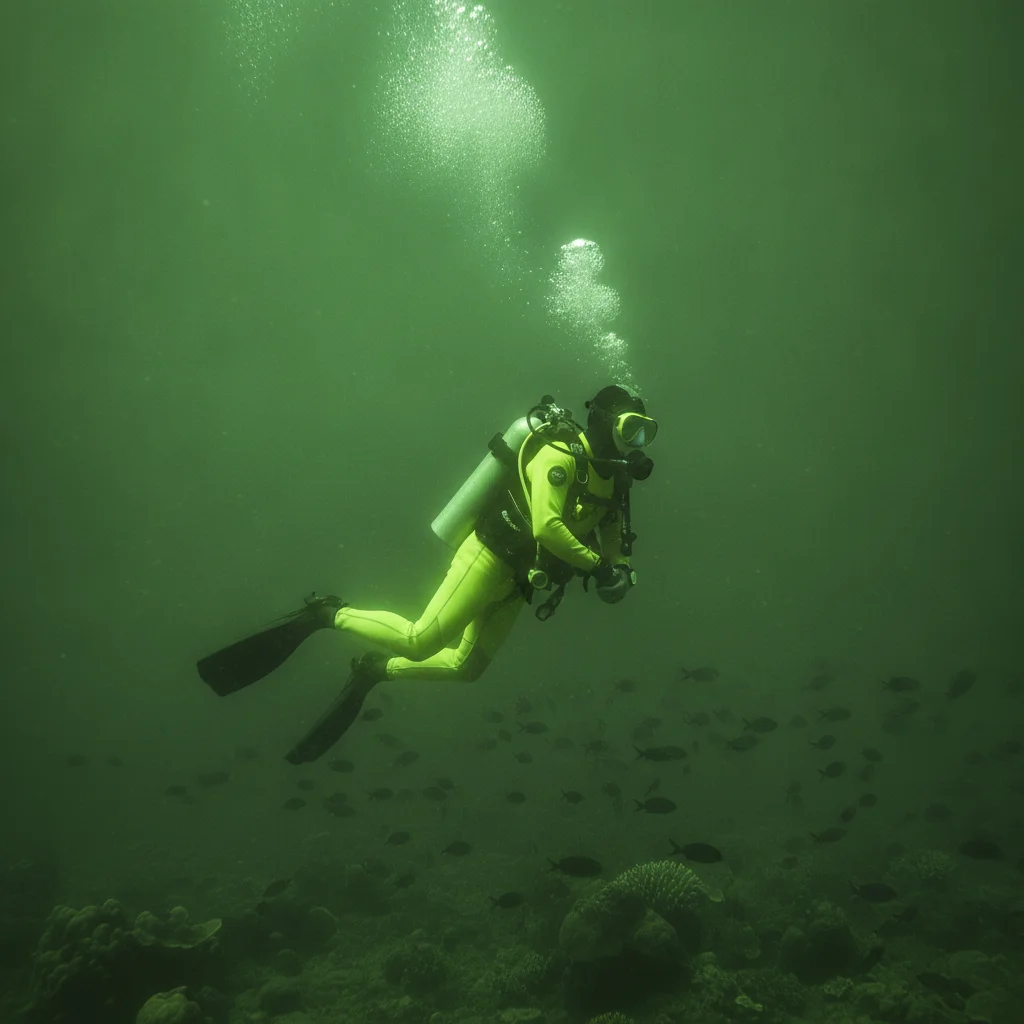
    Green water remove the green tint from this underwater photo so it looks clear and natural, restore warm colours on the fish and sand
    Diver or snorkeler correct the colour of this underwater photo so the diver's skin and wetsuit look natural, reduce the blue cast, keep the water blue
    Deep photo with almost no red restore as much natural colour as possible in this deep underwater photo with almost no red, keep it realistic and do not over-saturate
    3 more prompts
    Turtle or marine animal correct the blue cast on this underwater photo of a sea turtle so the shell and skin look natural brown and green, keep the water blue
    Pool photo correct the green-blue cast in this swimming pool photo so skin tones look natural and the water is clear light blue
    Gentle fix apply a gentle colour correction to this underwater photo, reduce the blue cast slightly but keep the underwater mood
  3. Review the result

    Check skin tones, known coloured objects and the water. A good fix looks natural, not over-saturated or orange. If the water has lost all its blue it can look unreal.

  4. Refine with markers if needed

    If a part still has a cast or one object turned the wrong colour, tap a marker on it and regenerate.

    Tip: Markers are for precision refinement, not a required step. Most edits work from the description alone.

See it in action

Reef photo with a heavy blue cast
Before
->
Same reef photo with natural warm colours
After

Blue coral reef

A snorkeler's reef photo where everything is blue.

Prompt: remove the strong blue cast from this underwater reef photo and restore natural colours, make the coral look orange and pink, keep the water a light natural blue
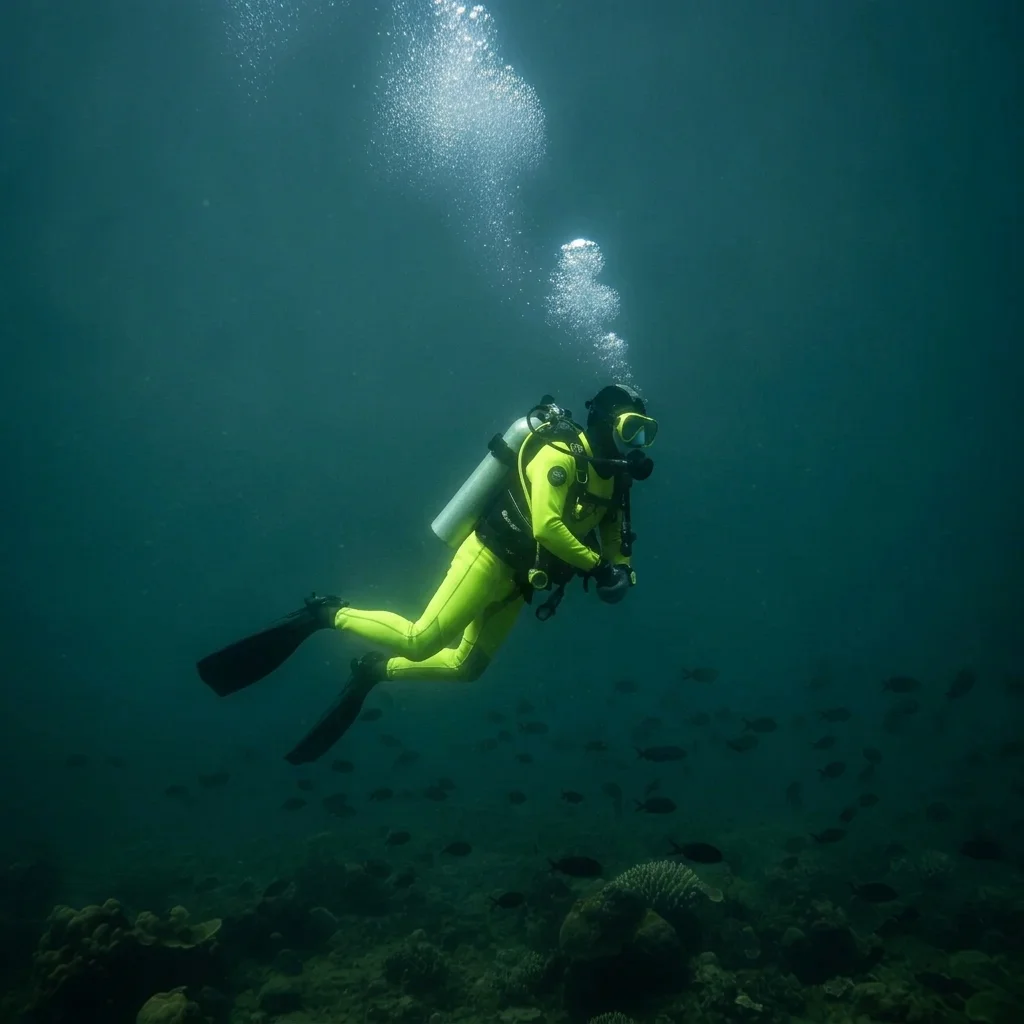
Diver photo with a strong green cast
Before
->
Same diver photo with natural skin and suit colours
After

Diver in green water

A diver in a green lake or quarry.

Prompt: correct the colour of this underwater photo so the diver's skin and wetsuit look natural, reduce the green cast, keep the water looking like water
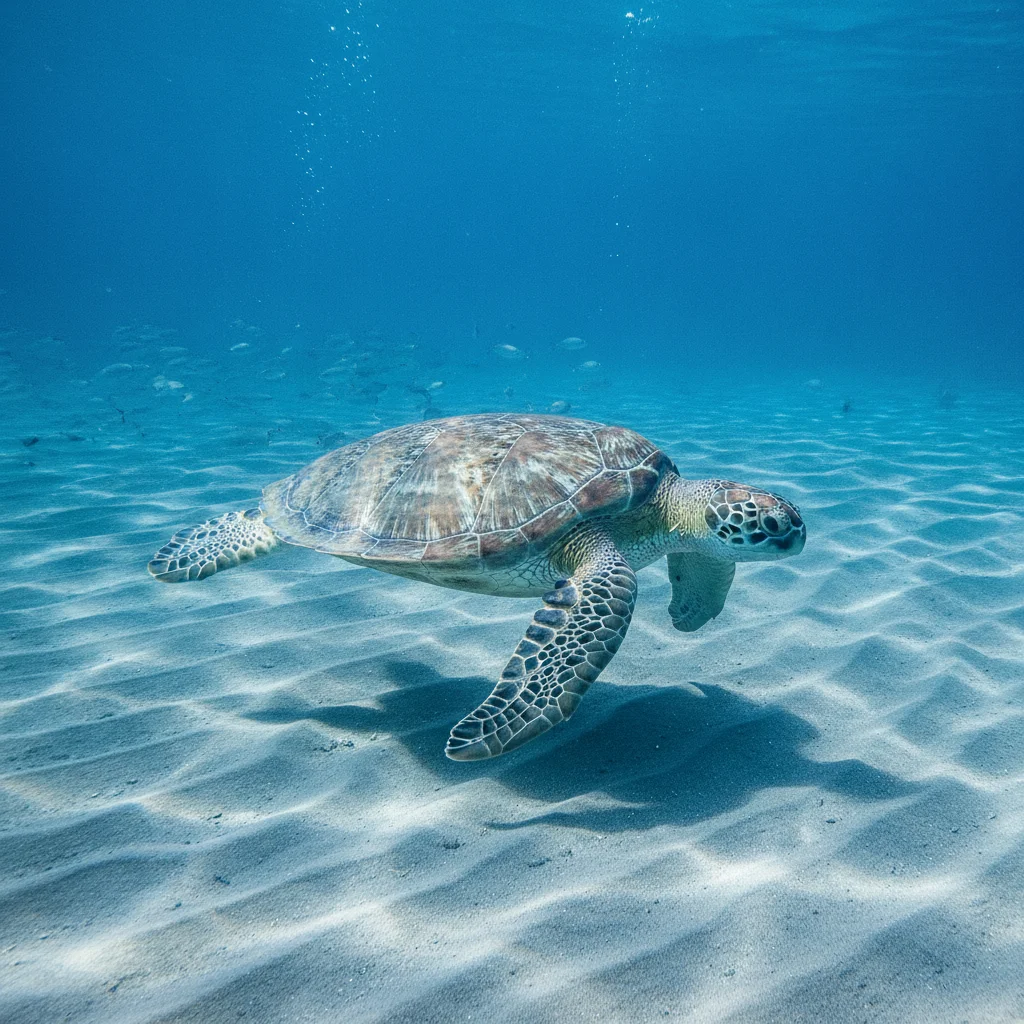
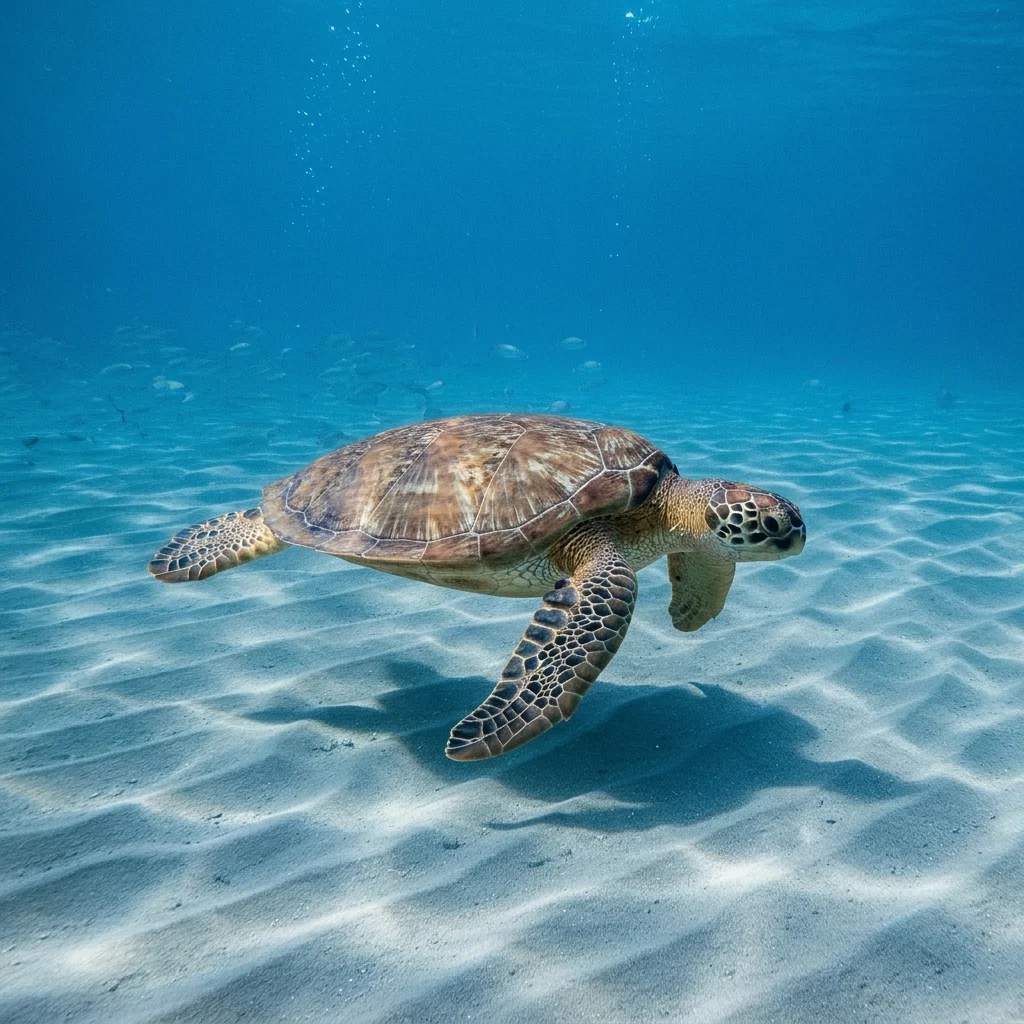
Sea turtle photo that looks overly blue
Before
->
Same photo with natural turtle colours
After

Sea turtle

A sea turtle photographed at depth.

Prompt: correct the blue cast on this underwater photo of a sea turtle so the shell and skin look natural brown and green, keep the water blue

Quick answers

Do I need to mark the subjects before describing what I want?

No. Describe the colours you want back, like 'natural orange coral,' and the AI applies it. Markers only help if one object comes out the wrong colour.

How do I correct underwater photo colours for free?

Upload the photo, type that you want the blue-green cast removed and the natural colours restored, and download the preview. The free edit is a preview, with no signup and no watermark.

Will the colours be exact?

No. The AI makes a plausible natural look from what the photo holds. It is a preview, not a colour-accurate record of the reef.

Why are my underwater photos blue?

Water absorbs red and orange light with depth, so photos look blue or green. A red filter or flash helps when shooting.

Does it work on deep dive photos?

Partly. If red light was almost fully absorbed, there is little to recover and results are more of a guess.

Can it fix blur or cloudy water?

Not reliably. This tool focuses on colour. Cloudy water appears in the photo and may remain.

How much does EditThisPic cost?

You get 1 free Standard edit per week — no account needed. After that, one-time credit packs start at $4.99 for 10 credits, valid 12 months, no subscription. A Standard edit uses 1 credit, Pro 2 and Ultra 3. Purchased downloads are clean with no watermark.

Ready to restore your underwater colours?

Free to try. No signup required.

1 free edit included·paid credit packs after