Free • No signup Change Flower color · Free

Change Flower Color in Photo

Tell the AI the new color you want. It changes just that object.

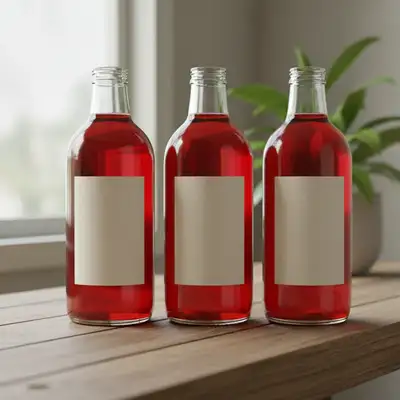
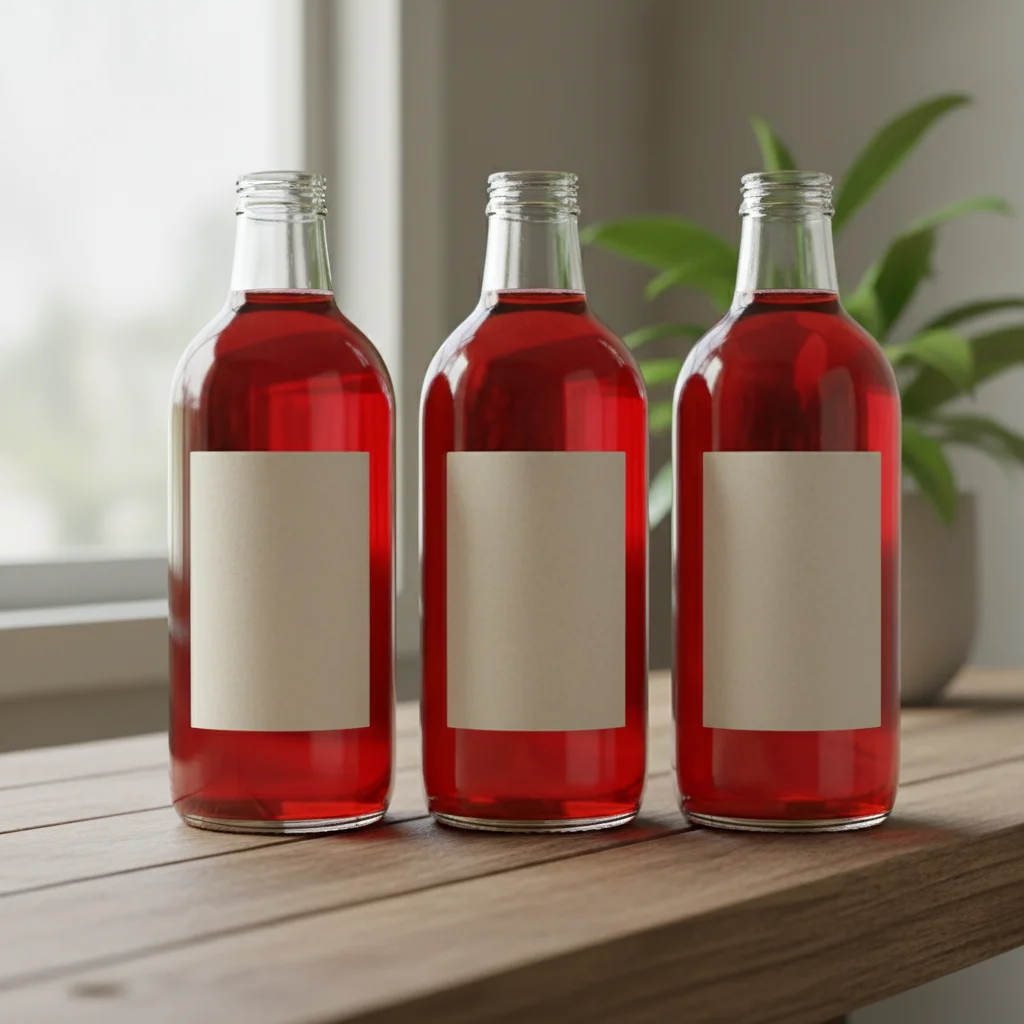
Red rose bouquet
Before
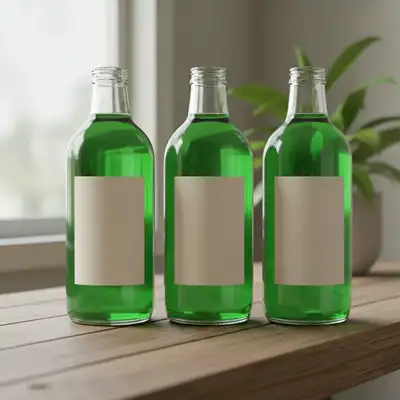
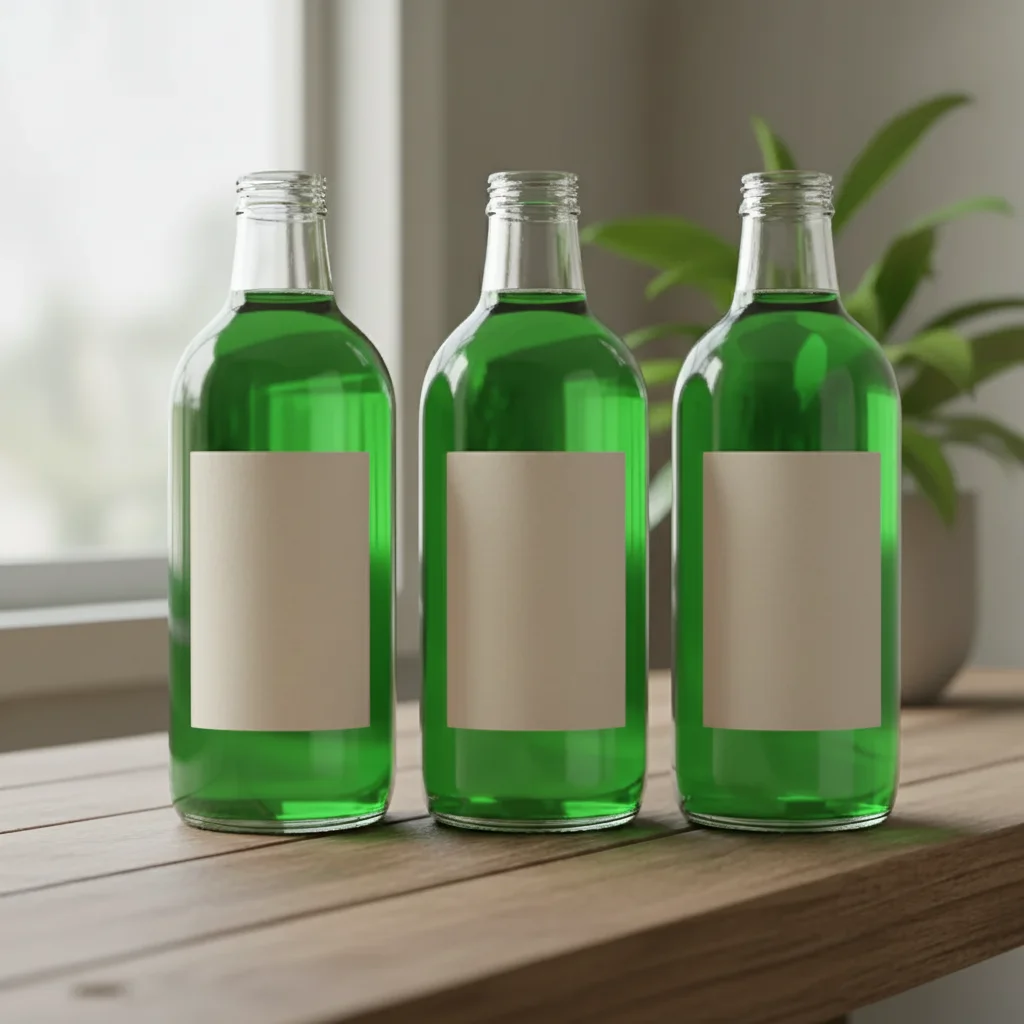
Blue rose bouquet
After

Change Flower Color in Photo

Drop your photo here

or click to browse

Release to upload

Free • No signup

Popular use cases:
  • change flower color
  • AI flower color editor
  • photo flower color tool
  • free flower color editing

Cost
Free No signup required
Time
Instant results in 15-30 seconds
Works on
Any device - browser, phone, tablet, desktop
Powered by
AI-powered photo editing

How it works

  1. Upload your photo

    Upload any photo for color work. Images with varied tones give the AI more to work with for flower color adjustments. JPG, PNG, WebP up to 7MB.

    Expect: Most edits complete in 20-45 seconds. Complex changes may need 1-2 refinements.
  2. Describe your edit

    Type what you want: 'Change the flower petals to a deep purple while keeping the stems green.' Be specific about details for best results. The AI understands natural language — no technical skills needed.

    Tip: Tap a marker on the specific object whose color you want to change.

    Copy one of these to get started:

    Blue Roses Change the red roses to deep blue while keeping stems and leaves green
    Purple Daisies Change the white daisies to vibrant purple with yellow centers
    Pink Sunflowers Change the sunflower petals from yellow to soft pink while keeping the dark center
    Wedding Colors Change the bouquet flowers to dusty rose and ivory to match a wedding palette
    2 more prompts
    Rainbow Bouquet Change each flower in the bouquet to a different color — red, orange, yellow, blue, purple
    Coral Lilies Change the white lilies to coral pink with subtle gradient from center to tips
  3. Review the result

    Compare the color adjustment against the original using the slider. Verify that tones look natural, skin colors weren't distorted, and the overall mood matches what you described.

  4. Refine if needed

    If certain areas got the wrong color treatment — like skin turning orange or shadows going muddy — tap markers on those spots and describe the correction you need.

    Tip: Markers are optional. Try without them first — the AI usually gets it right.
Try it free

Change Flower Color in Photo

Drop your photo here

or click to browse

Release to upload

Free • No signup

"Changed my wedding bouquet to match our color scheme for the save-the-date cards. Perfect match!" @BrideToBe

See it in action

Red rose bouquet
Before
->
Blue rose bouquet
After

Red Roses to Blue

Classic red roses transformed into stunning blue roses.

Prompt: Change the red roses to deep blue
White flower bouquet
Before
->
Dusty rose and ivory bouquet
After

White Bouquet to Wedding Colors

White flower arrangement changed to match a wedding palette.

Prompt: Change bouquet to dusty rose and ivory wedding colors

Detailed Guides by Scenario

📷

Interior Design & Renovation

Visualize flower color changes before painting, reupholstering, or purchasing — saving time and money on design decisions.

Common Scenarios

  • Testing how a flower looks in navy, sage, or terracotta before committing
  • Showing clients multiple flower color options using the same room photo
  • Matching flower color to existing decor in a renovation plan

Best Practices

  • Upload a photo with even lighting so the AI can accurately map the color boundary
  • Tap directly on the flower to mark it, then specify the exact color you want
  • Try describing the finish too — 'matte charcoal' vs. 'glossy charcoal' gives different results
📷

Fashion & Style Preview

Try different flower colors digitally before purchasing or coordinating an outfit.

Common Scenarios

  • Previewing a flower in multiple colors before buying online
  • Coordinating flower color with the rest of an outfit for an event
  • Creating mood boards that show flower color variations for a stylist or client

Best Practices

  • Mark the flower precisely — if nearby items share a similar color, the AI may change them too
  • Specify the fabric look: 'change to burgundy silk' captures both color and material
  • Process the same photo with 3-4 colors to build a comparison grid
📷

Product & Marketing Visuals

Generate flower color variants from a single product photo — perfect for catalogs, ads, and e-commerce listings.

Common Scenarios

  • Creating all color variants of a flower from one studio shot
  • Matching flower to brand colors for marketing campaigns
  • Showing seasonal flower color options without reshooting

Best Practices

  • Start with a neutral, well-lit product photo on a plain background for cleanest results
  • Use exact color names or hex codes when precision matters — 'Pantone Classic Blue' or '#0F4C81'
  • After changing flower color, verify shadows and highlights still look natural

If something looks off

AI changed the wrong area

Why: The AI couldn't determine exactly which area you meant from the description alone.

Try: Tap a marker on the specific area you want to edit, then regenerate with the same prompt

Tip: Markers tell the AI exactly where to focus. Use them when description alone is ambiguous.

Result looks unnatural or blurry

Why: The AI may need more specific guidance about the look you want.

Try: Change the flower petals to a deep purple while keeping the stems green, ensure natural lighting and sharp details that match the rest of the photo

Tip: Adding 'natural' and 'realistic' to your prompt helps the AI prioritize believability.

Color bled onto adjacent objects

Why: The AI couldn't precisely separate the target object from its neighbors.

Try: Tap a marker on the specific object and regenerate: 'only change the color of this object'

Tip: Tap a marker on the specific object whose color you want to change for precise results.

New color looks flat without the original texture

Why: The AI replaced the color but lost the surface detail like wood grain, fabric weave, or brushstrokes.

Try: Add 'preserve the original surface texture, reflections, and material properties' to your prompt

Tip: Mention the material: 'keep the wood grain visible' or 'preserve the matte finish.'

Metallic or glossy finish not preserved

Why: The AI treated the surface as matte when recoloring, losing the shine and reflections.

Try: Specify 'keep the metallic/glossy finish with natural reflections and highlights'

Tip: Include surface type in your prompt: 'glossy', 'metallic', 'satin', or 'matte' for accurate rendering.

Quick answers

Will it change only the petals?

By default, the AI changes flower petals while keeping stems, leaves, and centers natural. Specify in your prompt if you want different behavior.

Can I change a bouquet to match a color scheme?

Yes. Describe your color palette and the AI will adjust all flowers in the bouquet accordingly.

Is it free?

Yes. Free flower color editing with no signup.

Does it work with garden photos?

Yes. Works with single flowers, bouquets, garden beds, and floral arrangements.

Can I create colors that do not exist in nature?

Yes. Create blue roses, black tulips, or rainbow sunflowers — any color combination.

Will it look realistic?

Yes. The AI preserves petal texture, veining, and translucency while changing color, creating a natural appearance.

Can I change flower color on my phone?

Yes. EditThisPic works in any mobile browser -- iPhone, Android, tablet. No app download needed.

What photo formats does the change flower color in photo tool support?

JPG, PNG, WebP, and HEIC. Upload any common photo format and EditThisPic handles the rest.

Ready to change your colors?

Free to try. No signup required.

Try it free