Pricing Change Clothes · Free

Clothes Changer AI

← Browse all body & person tools

Last updated

Describe the outfit, or upload a reference photo of the garment — the AI redraws the clothing in about 30 seconds. Face, pose, and background stay put. No markers, no login, free preview and clean paid downloads.
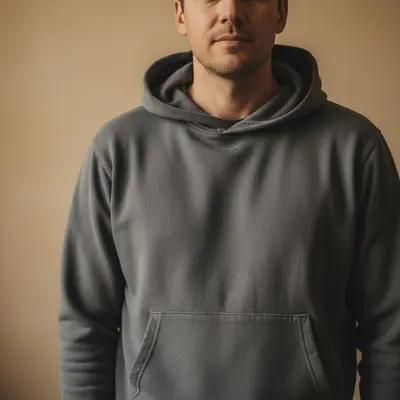
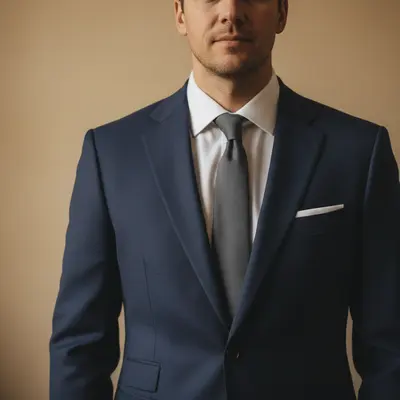
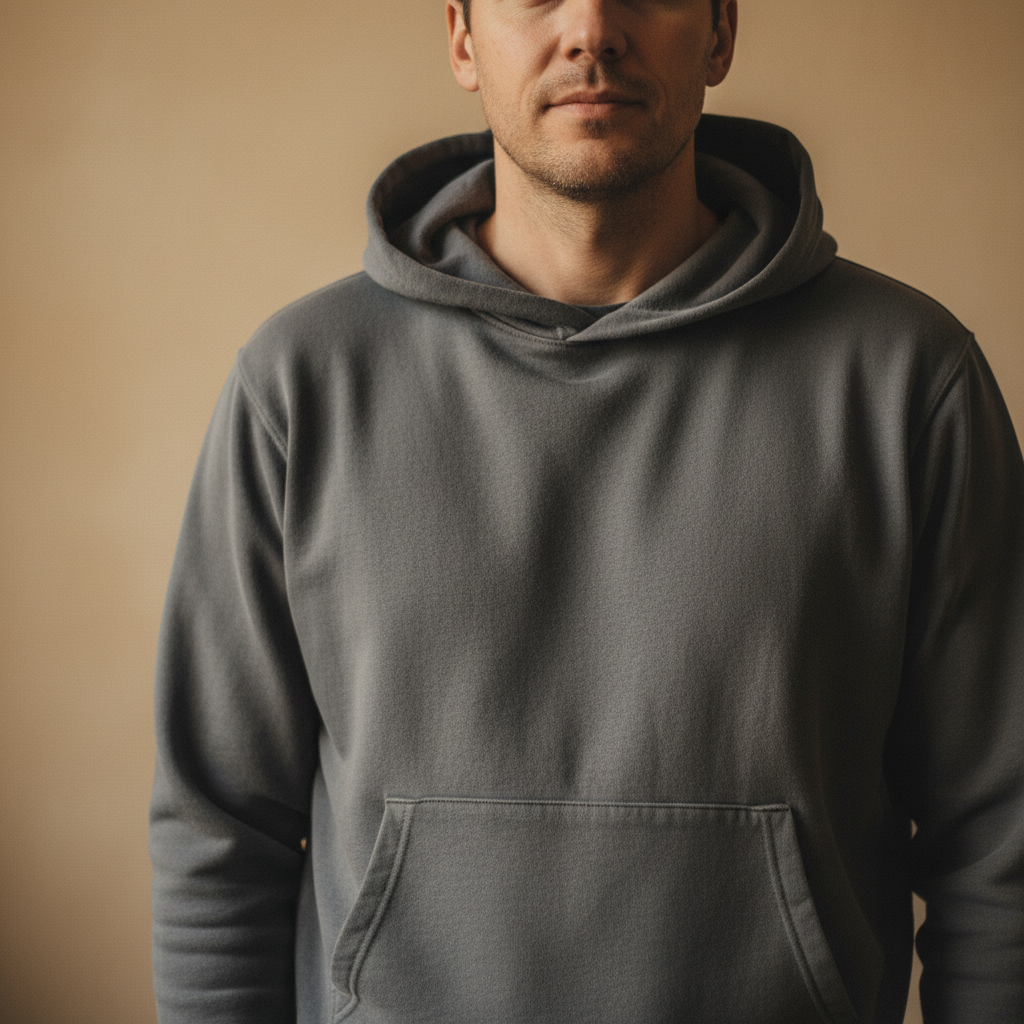
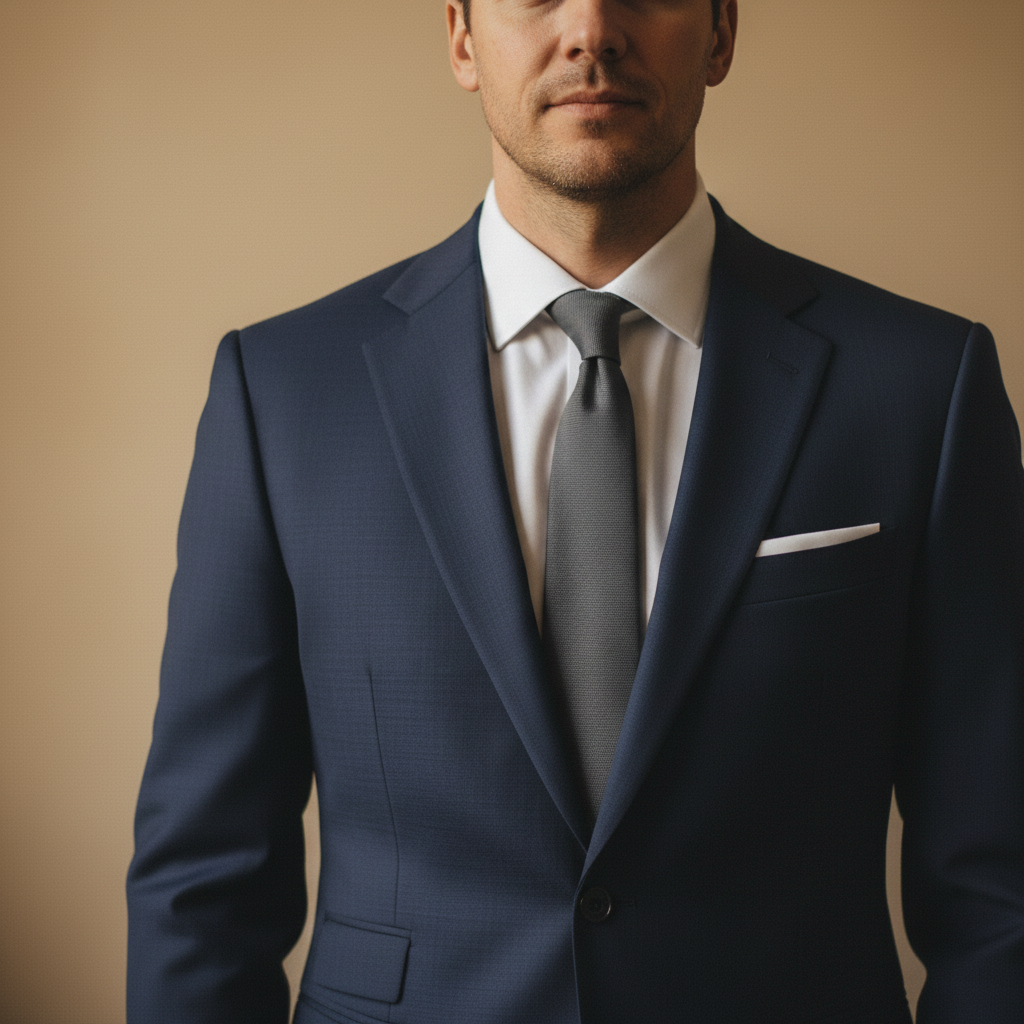
Man in grey hoodie, warm indoor lighting Same man in fitted navy suit and charcoal tie, lighting unchanged

Upload photo to change clothes

"replace the clothes with a relaxed-fit white crew-neck t-shirt and straight-leg mid-blue denim jeans, natural fabric wrinkles"

Free to try · no sign-up · photos are never shared

Release to upload

<30stypical edit
1 freeedit weekly
Photo on your phone? Scan to open this editor there — free edit works on your phone too.

1 free edit every week·packs from $4.99

Watch it happen: one sentence, one edit

How it works

  1. Upload a photo with the clothing clearly visible

    Drop your photo into EditThisPic — a portrait or full-body shot where the clothes aren't obscured. JPG, PNG, or WebP up to 7MB. Well-lit photos with clear fabric texture produce the sharpest swaps.

    Expect: Simple outfit swaps: 15–30 seconds. Layered or complex garments: 30–45 seconds and may benefit from a second pass.
  2. Describe the new outfit in detail

    Type what you want: 'change the outfit to a fitted charcoal blazer over a white shirt' or 'put her in a floral sundress with thin straps.' Include color, material, and fit for best results. For a specific garment, click '+ Add reference image' and upload a product photo, then type 'replace the outfit with the garment from the reference image.'

    Tip: Adding material words — 'silk,' 'cotton,' 'merino wool' — triggers matching fabric texture and drape in the output. 'Blue dress' gives you generic fabric; 'fitted navy silk midi dress' gives you a specific garment.

    Copy one of these to get started:

    Business suit for LinkedIn headshot change the outfit to a fitted navy blue business suit with a white dress shirt and solid charcoal tie, keep the face and background unchanged
    Casual everyday look replace the clothes with a relaxed-fit white crew-neck t-shirt and straight-leg mid-blue denim jeans, natural fabric wrinkles
    Virtual try-on from a reference image replace their outfit with the exact garment shown in the reference image, match the color, drape, and cut precisely
    Evening gown for an event put a floor-length fitted red silk evening gown on this person, slight sheen on fabric, lighting from the left, no accessories changed
    4 more prompts
    Color-only change on a solid shirt change the shirt color from red to forest green, preserve the collar shape, buttons, and all fabric texture exactly — only the hue changes
    Winter layered outfit change to a layered winter look: a chunky oatmeal cable-knit sweater under an open camel wool overcoat, visible knitwear texture
    Preserve accessories while changing top change only the shirt and jacket to a charcoal blazer over a light grey turtleneck, do not alter the watch, necklace, or earrings
    Wedding outfit planning change the outfit to a classic ivory A-line wedding gown with lace bodice and cathedral-length skirt, preserve bouquet and jewelry
  3. Review the result at full zoom

    Zoom to 100% on the neckline, sleeve edges, and waistband — these transition zones are where swaps sometimes show seams. Verify that accessories (watch, jewelry, earrings) are unchanged and the background behind the shoulders looks natural.

See it in action

Man in grey hoodie, warm indoor lighting
Before
->
Same man in fitted navy suit and charcoal tie, lighting unchanged
After

Grey hoodie to navy business suit — LinkedIn upgrade

A casual portrait shot that needed a professional look without a reshooting. One prompt swapped the hoodie for a full suit with matching shadows.

Prompt: change the outfit to a fitted navy blue business suit with a white dress shirt and charcoal tie, keep face and background unchanged
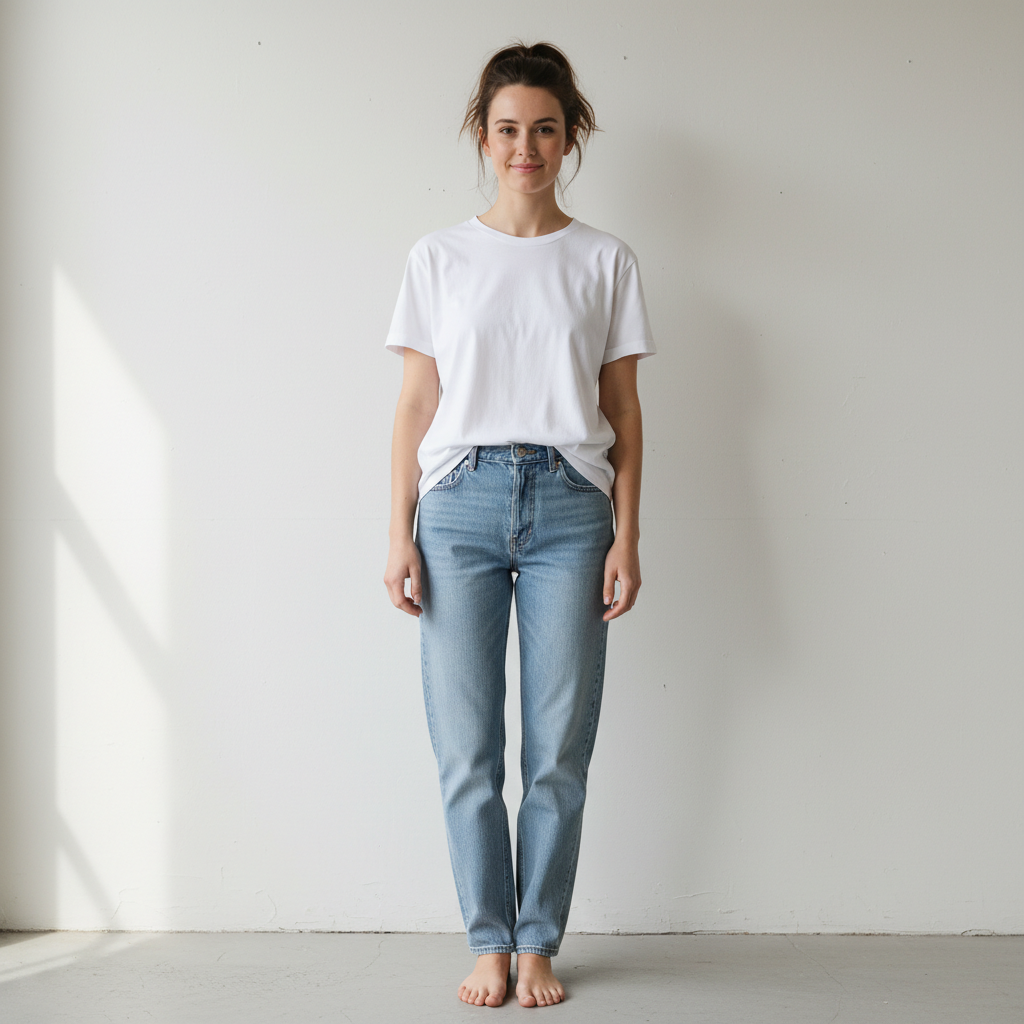
Person in a plain white t-shirt and light blue jeans, standing barefoot against a white wall with a diagonal shadow
Before
->
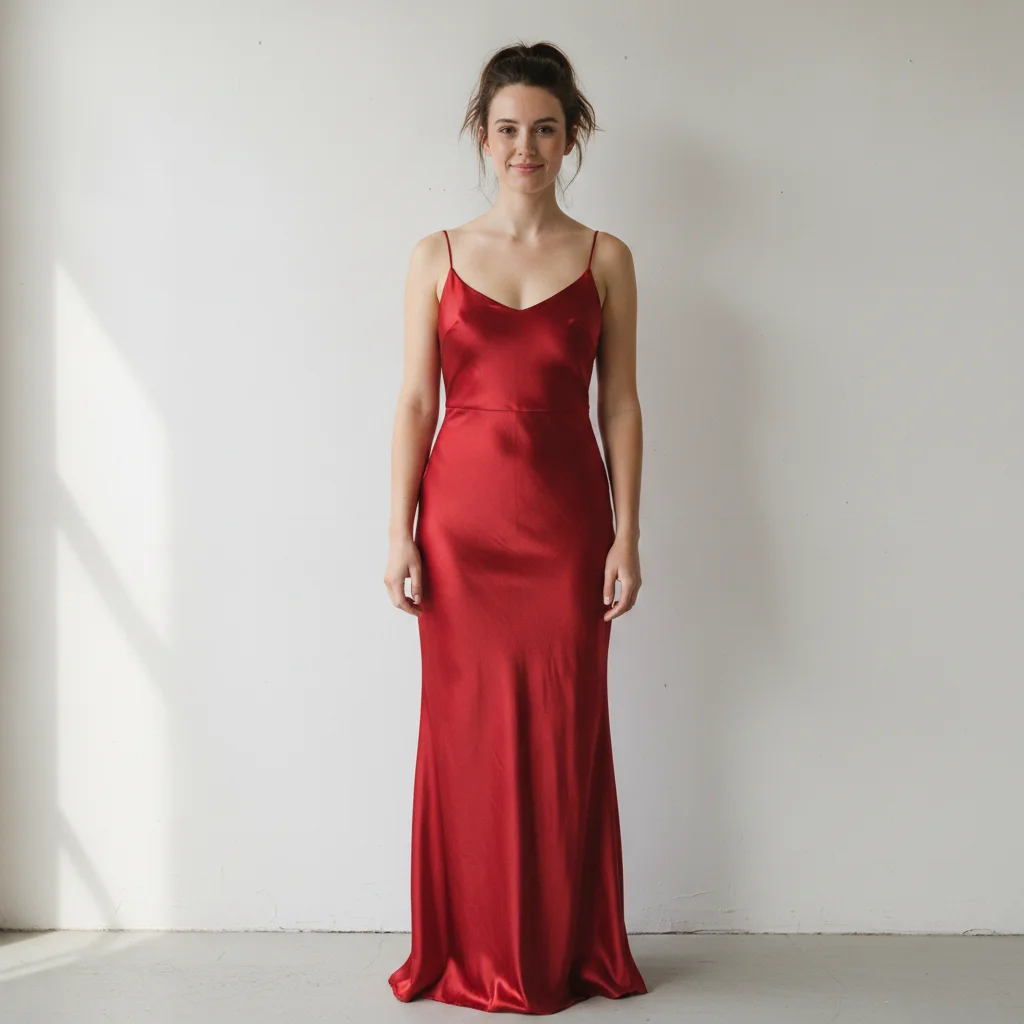
Same person now wearing a fitted floor-length red gown with thin spaghetti straps, same pose and shadow
After

White T-Shirt and Jeans Changed to a Red Silk-Look Evening Gown

A casual outfit was swapped for a fitted, floor-length red gown with thin spaghetti straps and a subtle sheen. Pose, hair, and the window-light shadow on the wall are unchanged.

Prompt: change this outfit to a fitted floor-length red silk evening gown with thin spaghetti straps and a slight sheen
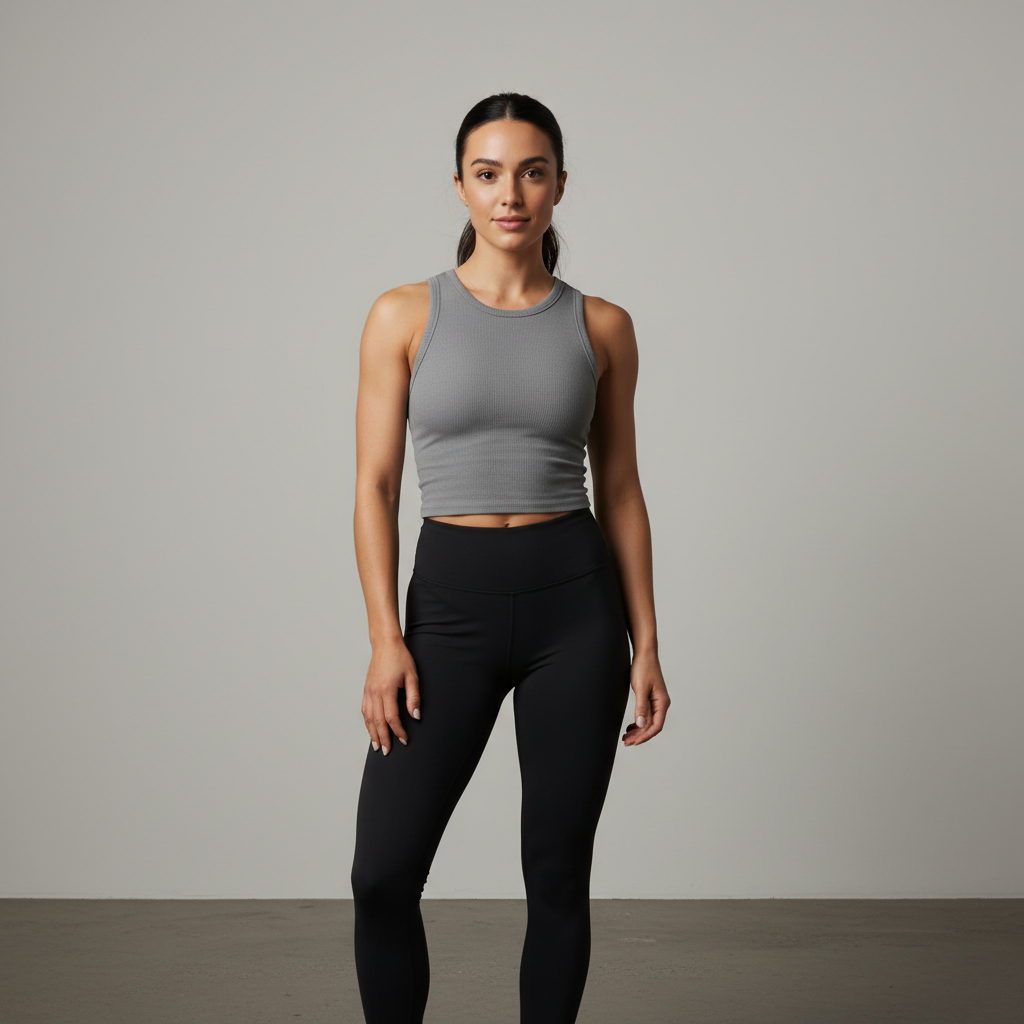
Person in a grey tank top and black leggings, studio background
Before
->
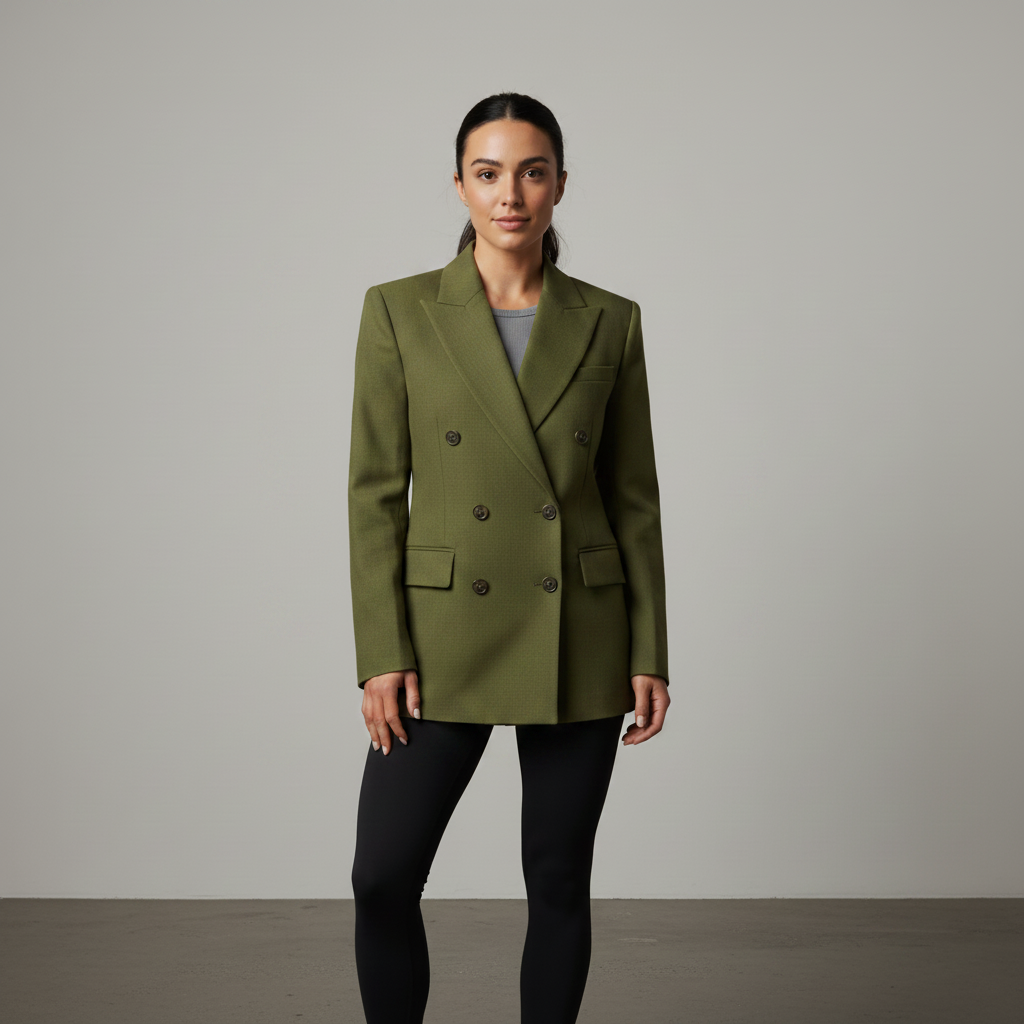
Same person wearing an olive double-breasted blazer over the same black leggings, studio background unchanged
After

Grey Tank Top to Olive Blazer

A studio portrait in a grey tank top and black leggings. The top is replaced with an olive double-breasted blazer generated from a text description — no reference garment was used — and the leggings stay the same.

Prompt: change my top to an olive green double-breasted blazer, keep the black leggings and pose the same

Quick answers

Do I need to mark the clothing before describing what I want?

No. Just type the outfit you want — 'change to a fitted navy suit' or 'put her in a red dress.' The AI identifies clothing automatically.

Is there a free clothes changer AI with no signup?

Yes. EditThisPic changes clothes in photos free to preview with no account and no login. Upload your photo, describe the outfit or upload a reference image, and buy to download the clean result in about 30 seconds. Works in any browser on desktop or mobile.

How do I change clothes in a photo with AI for free?

Go to EditThisPic, upload your photo, type the outfit description — for example 'change to a fitted navy suit with white shirt' — and click Generate. The AI swaps the clothing in about 30 seconds. Preview it free with no account required, and the purchased download is clean.

Can I use a reference image to try on a specific garment?

Yes. Click '+ Add reference image' and upload a product photo of the garment you want. Then type 'replace their outfit with the exact garment from the reference image, match the color, drape, and cut.' This works for trying on specific items before buying or creating multi-model product photos.

How does EditThisPic compare to BitStudio AI clothes changer?

EditThisPic is free to try with no signup, and purchased downloads are clean. BitStudio requires creating an account and has a credit system with paid tiers. Both use AI garment swapping — EditThisPic is faster to start with no registration friction. For quick virtual try-on, the no-signup workflow is faster end-to-end.

Will the AI preserve my face and background when changing clothes?

Yes. Adding 'keep the face and background unchanged' to your prompt locks those areas. The AI changes only the clothing zone. Face, hair, accessories, and background are left intact by default when you specify the outfit scope clearly.

Does the clothes changer AI work on any body type?

Yes. The AI maps the new garment to the actual body in the photo, adapting to the subject's proportions, pose, and shoulder width. Standing, seated, and side-angle poses all work. Arms-crossed poses occasionally need one refinement pass.

Can I change just one garment and keep the rest of the outfit?

Yes. Be specific about scope: 'change only the jacket to a camel trench coat, keep the shirt, trousers, shoes, and all accessories exactly as they are.' The more precisely you name what to leave unchanged, the less likely the AI is to touch adjacent garments.

How much does EditThisPic cost?

You get 1 free edit per week — no account needed. After that, one-time credit packs start at $4.99 for 10 edits, valid 12 months, no subscription. Power users who edit daily can pick Studio Membership, a monthly workspace at $49.99/mo for 300 edits. Purchased downloads are clean with no watermark.

Ready to change clothes in your photo?

Free to try. No signup required.

1 free edit included·Credit packs from $4.99