Free • No signup Fix Photos with ex · Free

Your ex ruined all your best photos?

Reclaim your memories. Remove your ex from photos in seconds—no trace left behind.

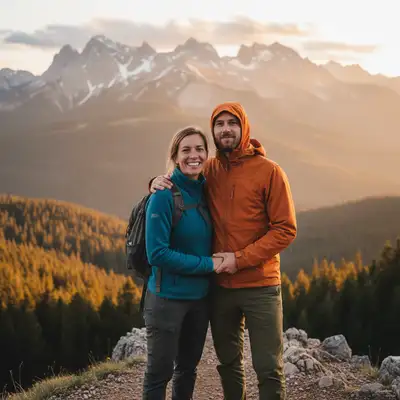
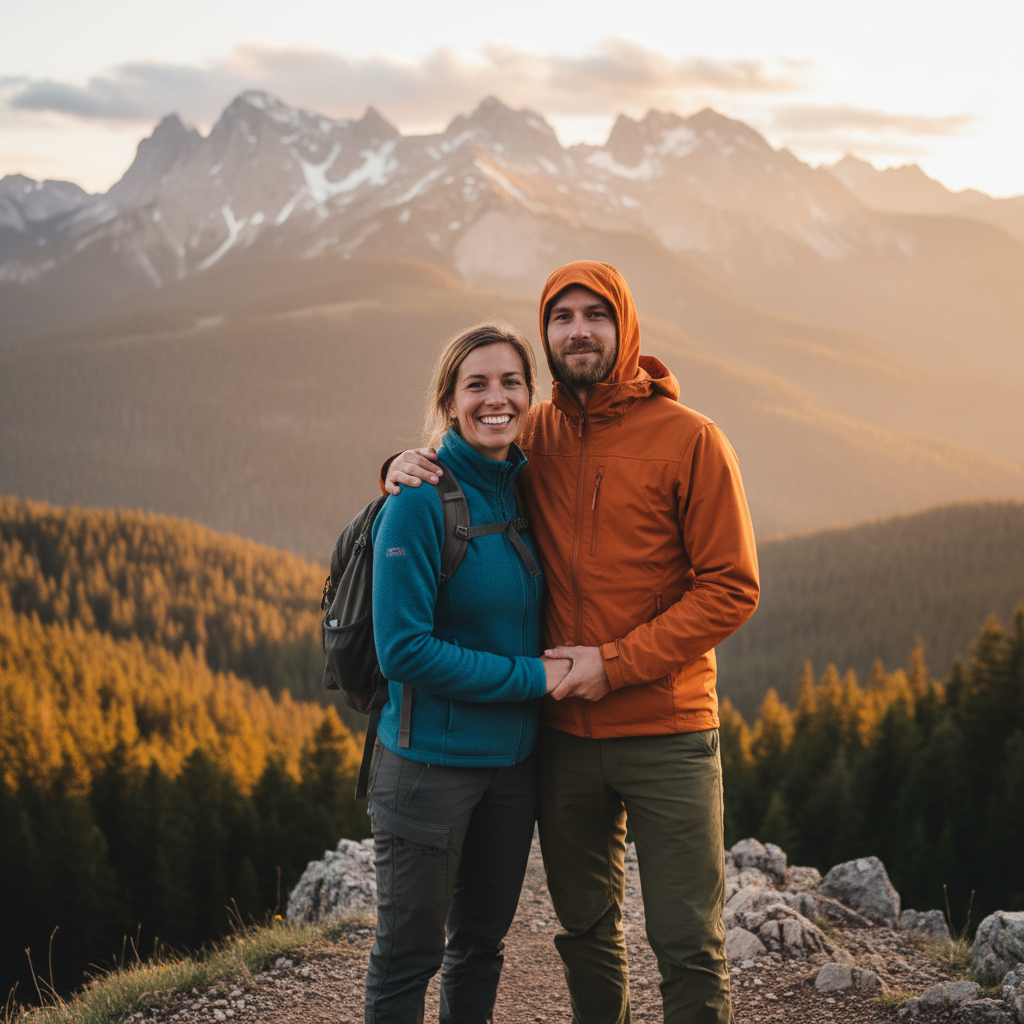
Couple photo at mountain viewpoint with ex visible on right
Before
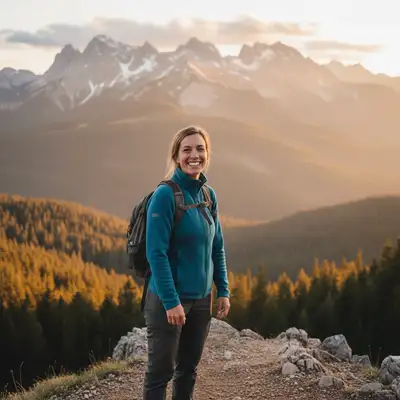
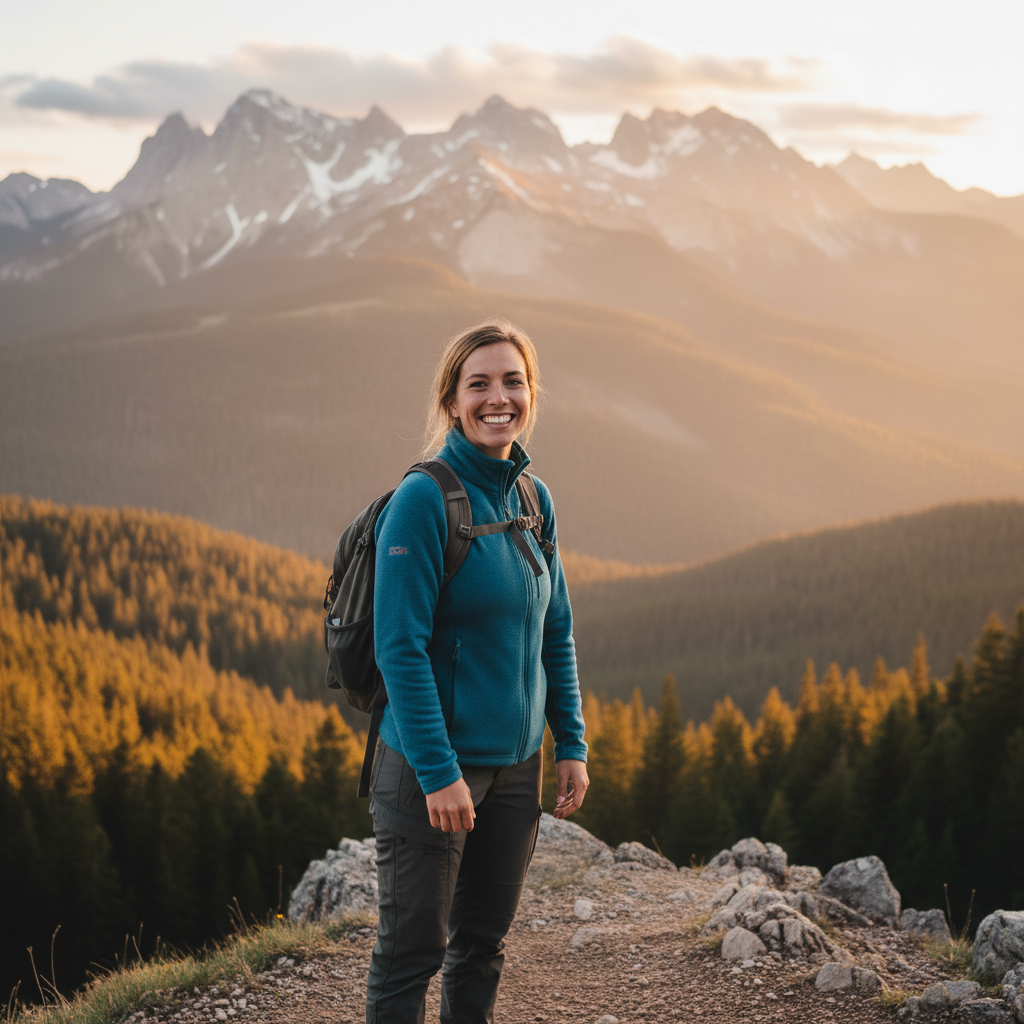
Same photo with ex removed, mountain background naturally extended
After

Your Ex Ruined All Your Best Photos? | EditThisPic

Drop your photo here

or click to browse

Release to upload

Free • No signup

Advertisement
Popular use cases:
  • Remove ex from photos
  • Delete ex from pictures
  • Breakup photo editing
  • Remove person from vacation photos
  • Dating app photos
  • Post-breakup healing
  • Reclaim memories

Cost
Free No signup required
Time
Instant results in 15-30 seconds
Works on
Any device - browser, phone, tablet, desktop
Powered by
AI-powered photo editing
Scenario Prompt Time
Simple couple photo remove my ex from this photo and fill naturally 20s
Group photo at event remove the person in [describe clothing] from group 30s
Vacation photo at landmark remove the person on the left and extend scenery 25s
Close couple pose remove ex and all visible arms/hands around me 40s

How it works

  1. Upload your photo

    Drop your photo into EditThisPic. JPG, PNG, and WebP up to 7MB work best. Any photo where your ex is visible will work—vacation photos, event shots, couple photos, group pictures, selfies.

    Expect: Simple photos (ex clearly visible): 20-30 seconds. Complex photos (crowded backgrounds, ex partially hidden): 40-60 seconds.
  2. Describe who to remove

    Type 'remove my ex from this photo' or 'remove the person on the left.' That's it. The AI identifies the person, erases them completely, and fills in the background naturally. You can also say 'remove the guy' or 'remove the woman in the red jacket' to be specific.

    Tip: Be specific if there are multiple people. 'Remove the man on the right' works better than just 'remove my ex' in group photos.

    Copy one of these to get started:

    My ex is in all my vacation photos remove my ex from this photo and fill in the background naturally
    I want to remove the person next to me remove the person on the left/right and blend the background
    Ex is in a group photo at an event remove the man/woman in the [red shirt/black jacket] from this group photo
    Ex is in the background of my photo remove the person in the background and fill naturally
    3 more prompts
    Couple photo I want to keep just my part remove my ex and extend the scenery where they were standing
    Multiple photos from same trip remove the person next to me, keep everything else the same
    Ex's arm or hand still visible around me remove the person and any visible arms or hands from around me
  3. Review the result

    Check that your ex is completely gone and the background looks natural. Zoom in to verify there are no traces left, no weird artifacts, and the scenery fills in smoothly. The goal is a photo that looks like they were never there.

  4. Refine if needed (optional)

    If any traces remain or the background looks off, tap a marker directly on the problem area and try 'fix this area naturally' or 'blend this background better.' This is rarely needed for clear photos.

    Tip: If removing your ex leaves an awkward gap, try 'remove this person and extend the background naturally' to improve the fill.
Try it free

Your Ex Ruined All Your Best Photos? | EditThisPic

Drop your photo here

or click to browse

Release to upload

Free • No signup

"I had amazing travel photos ruined by my ex. This let me keep the memories without the pain. Life-changing after a breakup." @MovingForward

See it in action

Couple photo at mountain viewpoint with ex visible on right
Before
->
Same photo with ex removed, mountain background naturally extended
After

Vacation couple photo at landmark

Beautiful travel photo at a scenic viewpoint ruined by ex standing next to them. One prompt removed the ex completely and extended the background landscape naturally.

Prompt: remove my ex from this photo and fill in the background naturally
Wedding group photo with ex in black suit on left
Before
->
Same group photo with ex removed, guests naturally positioned
After

Group photo at wedding with ex in frame

Wedding guest photo where ex was standing in the group. Wanted to keep the memory without the painful reminder. AI removed them and naturally filled the gap between other guests.

Prompt: remove the person in the black suit on the left side of the group
Advertisement

If something looks off

AI removed the wrong person from the photo

Why: The description was ambiguous or multiple people matched the description. The AI needs clearer direction about which specific person to remove.

Try: remove the person in the [describe clothing/position more specifically], the one on the far left/right

Tip: Use specific details: clothing color, position (left/right/center), or physical characteristics to identify the exact person.

Background looks weird or blurry after removal

Why: Complex backgrounds or challenging perspective can make the AI's fill less natural. The original background may have had patterns or structures the AI struggled to reconstruct.

Try: remove this person and fill the background more naturally, match the surrounding textures

Tip: Try Smart mode (4 credits) for complex backgrounds. It uses advanced reasoning to create more natural fills.

Ex's arm or shadow is still visible

Why: The AI removed the main body but missed partial elements like arms around you, hands on your shoulder, or shadows cast by the person.

Try: remove all traces of this person including arms, hands, shadows, and reflections

Tip: Be explicit about removing all visible traces. Tap markers on any remaining parts for targeted removal.

Gap looks awkward where ex was standing

Why: Simply removing someone can leave composition looking empty or unbalanced, especially in close couple photos.

Try: remove this person and extend the background to fill the space naturally, recompose the image

Tip: Adding 'extend the background' or 'crop and reframe' helps create a better final composition.

AI didn't remove anyone at all

Why: The prompt may have been too vague, or the AI couldn't confidently identify which person you meant.

Try: tap a marker directly on the person, then type 'remove this person completely and fill naturally'

Tip: When descriptions fail, markers are the most reliable way to specify exactly what to remove.

Quick answers

Can I really remove my ex from photos completely?

Yes. The AI erases the person and fills in the background naturally using surrounding context. It reconstructs scenery, patterns, and textures where they were standing. The result looks like they were never in the photo. Works best when your ex is clearly visible and the background isn't extremely complex.

Do I need to mark my ex before removing them?

Usually no. Just type 'remove my ex' or 'remove the person on the left' and the AI identifies and removes them automatically. Markers are only needed if your description is ambiguous (like in group photos) or if you want to be absolutely precise about who to remove.

What if my ex is in multiple photos from the same trip?

You'll need to edit each photo separately. Upload one photo at a time and use 'remove the person next to me' for consistency. The process takes 20-30 seconds per photo, so you can work through a batch fairly quickly.

Will this work if my ex is touching me or we're close together?

Yes, but it's more challenging. The AI can separate you from your ex even in close couple poses. You may need to be specific: 'remove the person on my right and their arm around me.' For very intimate poses, you might need to refine the result or use Smart mode for better separation.

What if I want to keep the photo but crop my ex out instead?

That's a valid alternative for some photos. Try 'crop this photo to remove the person on the left' or 'reframe this to focus on me and remove the other person.' However, AI removal often works better because it preserves the full scene and composition.

Can I remove my ex from group photos without affecting others?

Yes. Be specific about which person to remove: 'remove the man in the blue shirt' or 'remove the woman on the far right.' The AI will target only that person and preserve everyone else. For crowded photos, using a marker to tap on your ex helps ensure accuracy.

Is this better than just cropping them out?

Usually yes. Cropping cuts off parts of the scene and changes composition, sometimes making the photo awkward. AI removal keeps the full scene intact and fills the gap naturally. You preserve more of the background, location, and memory—just without the painful reminder.

Ready to reclaim your photos?

Free to try. No signup required.

Try it free