Pricing Restore Torn photo · Free

Restore a Torn Photo

← Browse all restore tools

Last updated

Repair rips, missing corners, and tears across faces so a torn print can be shared, framed, or printed again.
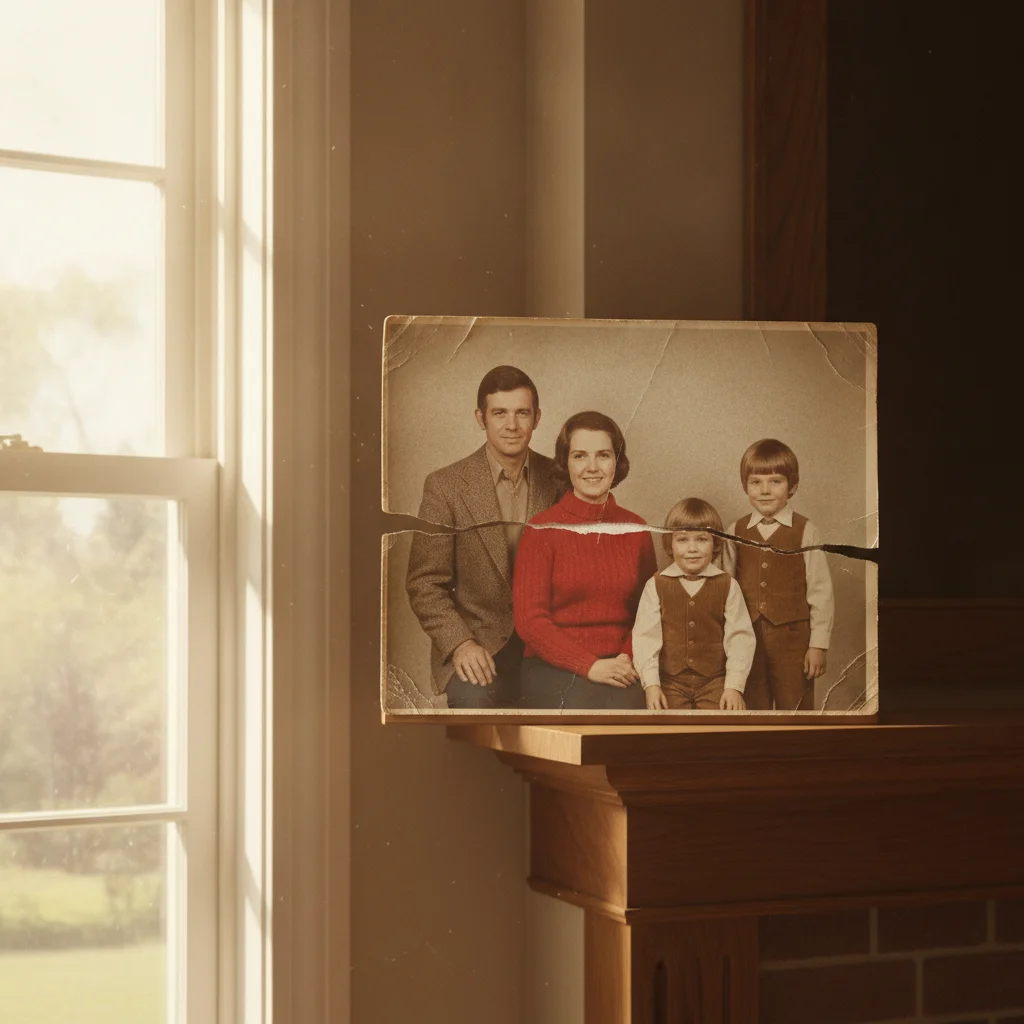
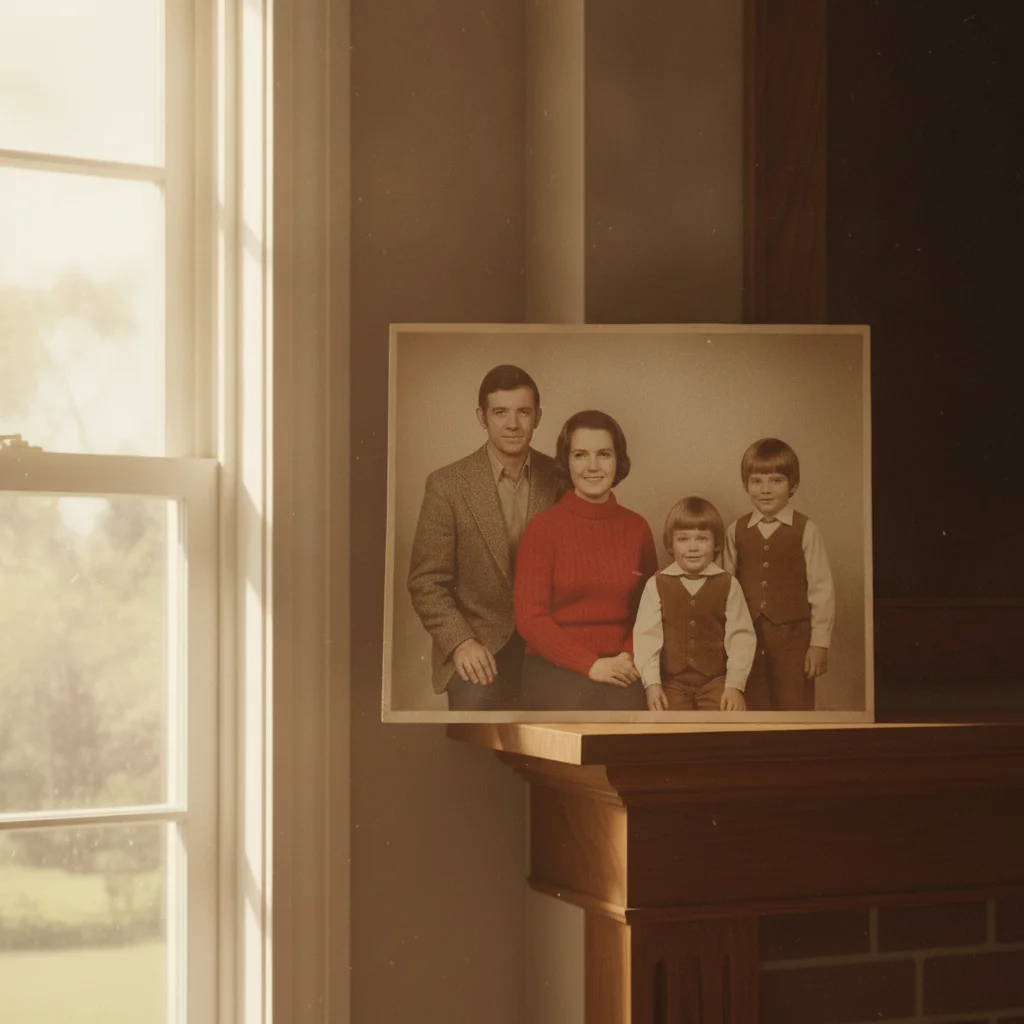
Family portrait photo with a tear across the middle Family portrait photo restored with the tear repaired

Upload photo to restore torn photo

"rebuild the missing corner of this torn photo, matching the color, lighting, and texture of the rest of the print"

Free to try · no sign-up · photos are never shared

Release to upload

<30stypical edit
1 freeedit weekly
Photo on your phone? Scan to open this editor there — free edit works on your phone too.

1 free edit every week·paid packs after

How it works

  1. Upload or scan the torn print

    Scan the photo if you can, or photograph it flat in even daylight with no glare — JPG, PNG, or WebP up to 7MB. If the photo tore into separate pieces, lay them together in their original position and photograph them as one image.

    Expect: A clean split with both edges present repairs well. A missing corner or strip is reconstructed from the surrounding image, so review it closely before you rely on it.
  2. Describe the restoration

    Type what happened to the photo: 'repair the tear running through the middle and rebuild the missing piece in the top left corner, matching the surrounding detail.' Mention any faces near the tear so they're handled carefully.

    Tip: Name the tear's location and size — 'a two-inch tear across the bottom edge' locates it far better than 'fix the damage.'

    Copy one of these to get started:

    Tear across the middle repair the tear running across the middle of this photo and blend the repair seamlessly with the surrounding image
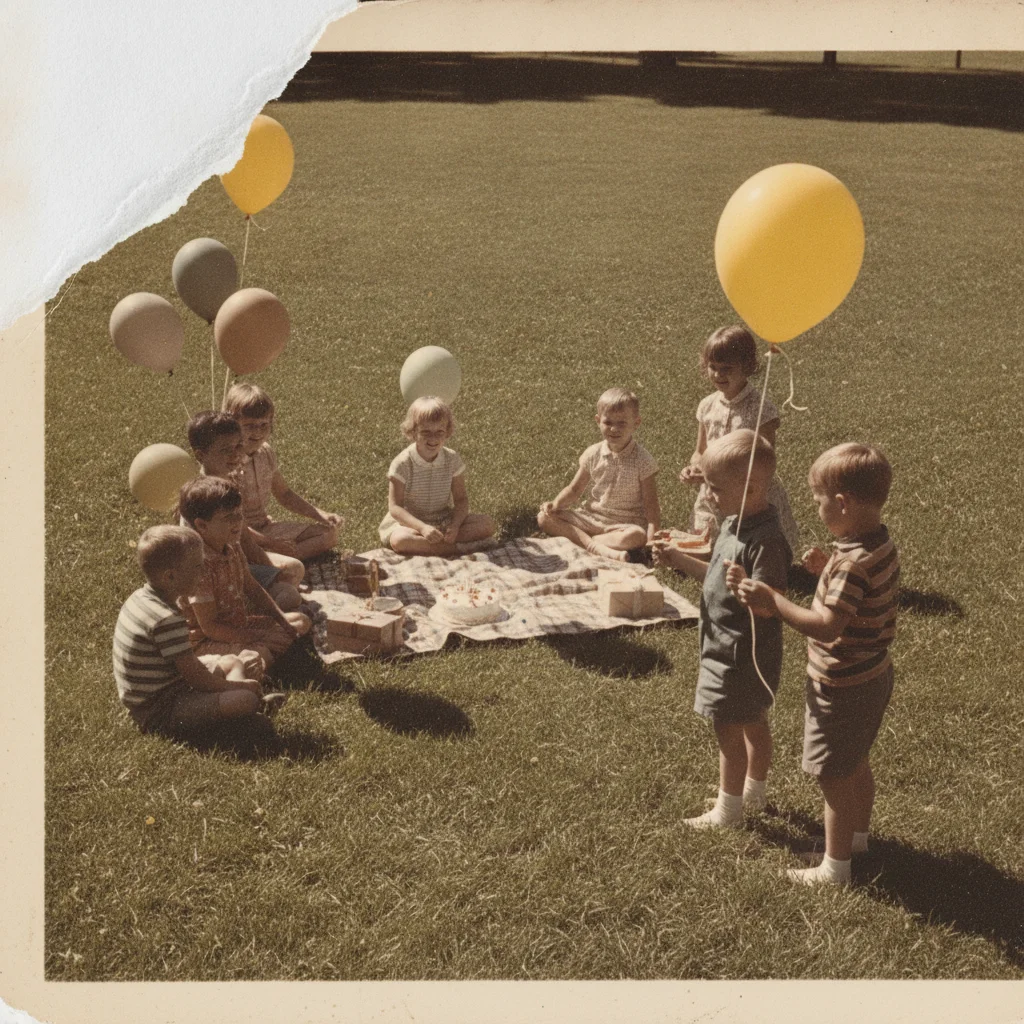
    Missing corner rebuild the missing corner of this torn photo, matching the color, lighting, and texture of the rest of the print
    Tear across a face repair the tear that crosses the face in this photo, rebuilding the features naturally and matching the rest of the portrait
    Pieces held together restore this photo — merge the torn pieces into one seamless image and repair the visible seams between them
    3 more prompts
    Small edge nicks repair the small torn nicks along the edges of this photo without touching the rest of the image
    Tear plus creases repair the tear and smooth out the creases and fold lines across this old photo
    Full restoration pass restore this torn photo completely — repair all tears, rebuild missing pieces, and clean up surface wear while keeping the original character
  3. Review closely

    Zoom in on the repaired line and any rebuilt area. Check that faces, edges of clothing, and background details line up naturally with the rest of the photo before you download or print it.

  4. Refine with a marker if needed

    If one small area still looks off, tap a marker on that spot and describe what should be there. Markers are optional and only needed for precision touch-ups, not for the main repair.

See it in action

Family portrait photo with a tear across the middle
Before
->
Family portrait photo restored with the tear repaired
After

Restore a Torn Photo — Family Portrait

A family portrait torn across the middle, repaired into one seamless print.

Prompt: repair the tear running across the middle of this photo and blend the repair seamlessly with the surrounding image
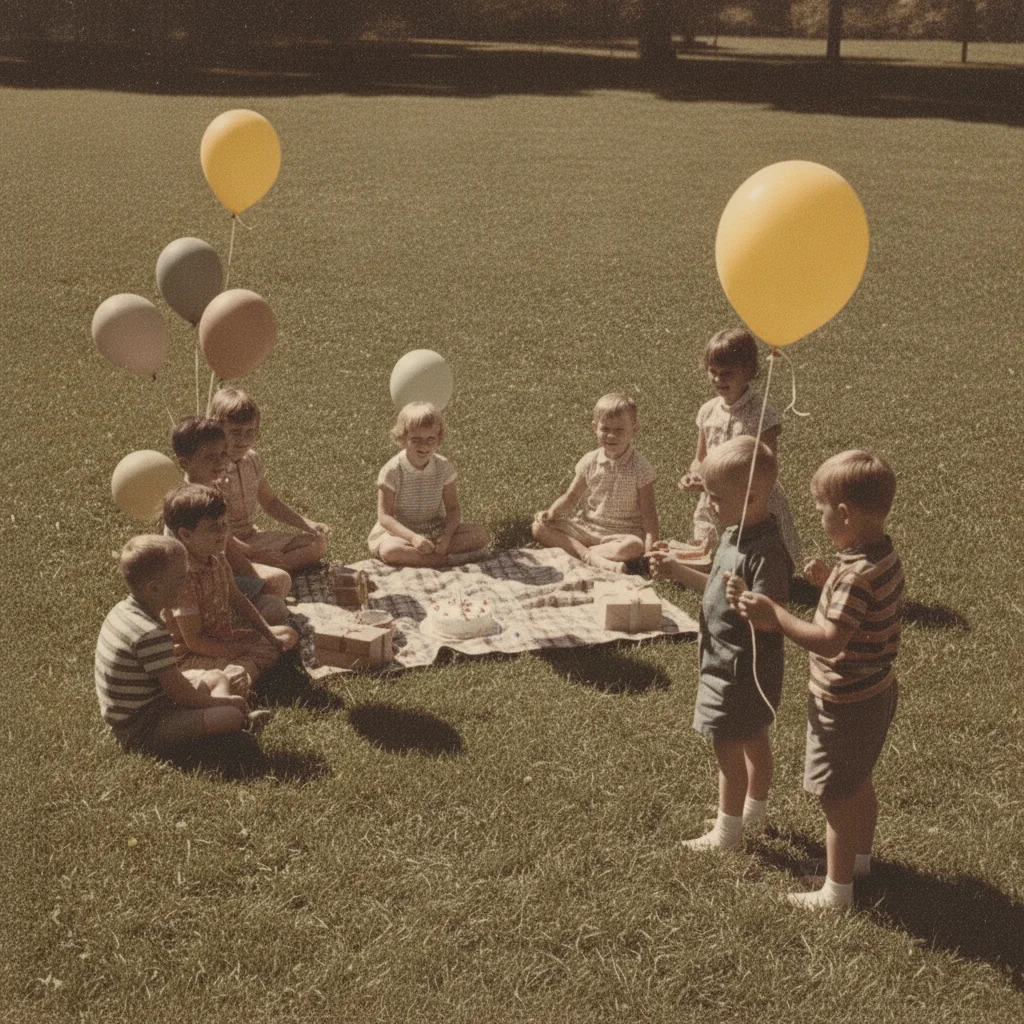
Old photo missing its top left corner
Before
->
Old photo with the missing corner rebuilt
After

Restore a Torn Photo — Missing Corner

A photo missing its top-left corner, rebuilt to match the rest of the scene.

Prompt: rebuild the missing corner of this torn photo, matching the color, lighting, and texture of the rest of the print
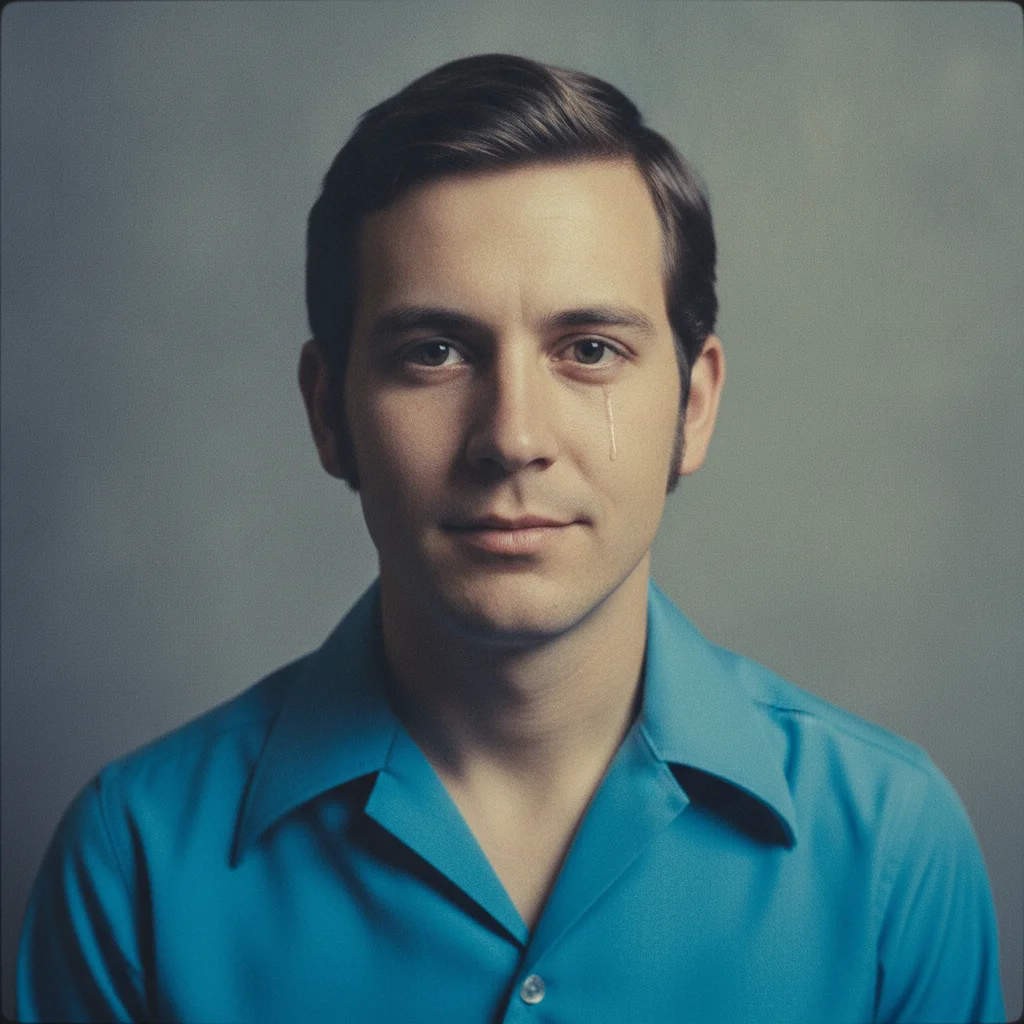
Portrait photo with a tear near the subject's face
Before
->
Portrait photo restored with the tear repaired near the face
After

Restore a Torn Photo — Tear Near a Face

A close-up portrait with a tear running near the subject's face, repaired without altering the likeness.

Prompt: repair the tear that crosses the face in this photo, rebuilding the features naturally and matching the rest of the portrait

Quick answers

Do I need to mark or select the tear before restoring the photo?

No. Describe the tear in plain language — 'repair the tear across the top corner' — and the AI locates it. Tap markers exist only if you want to refine one specific spot afterward.

Is the torn photo restoration free?

Yes. EditThisPic repairs a torn photo for free with one Fast edit per week, no signup or credit card required. Credit packs and a subscription are available for more edits.

Can AI really fix a photo torn into pieces?

Yes, if the pieces are photographed together in their original position. The AI merges the seams and repairs the tear lines; it works from what's visible in your photo of the pieces, not from a physical repair.

What if a piece of the photo is missing entirely?

The AI rebuilds a missing piece plausibly from the surrounding image and context. The larger the missing area, the more that result is a reasonable reconstruction rather than a recovery of what was actually there.

Will a torn face come back looking exactly like the original?

It comes back as a close, natural likeness, not a guaranteed exact match — especially if the tear ran directly through the face. Compare it against any other photo of the same person if you have one.

What photo formats can I upload?

JPG, PNG, and WebP up to 7MB. The restored photo downloads in the same format you uploaded.

How much does EditThisPic cost?

You get 1 free edit per week — no account needed. After that, one-time credit packs start at $4.99 for 10 edits, valid 12 months, no subscription. Power users who edit daily can pick Studio Membership, a monthly workspace at $49.99/mo for 300 edits. Purchased downloads are clean with no watermark.

Ready to repair your torn photo?

Free to try. No signup required.

1 free edit included·paid credit packs after