Free • No signup Swap Faces between photos · Free

Swap Faces Between Photos

Upload two photos and swap a face from one onto a person in the other. AI handles blending.

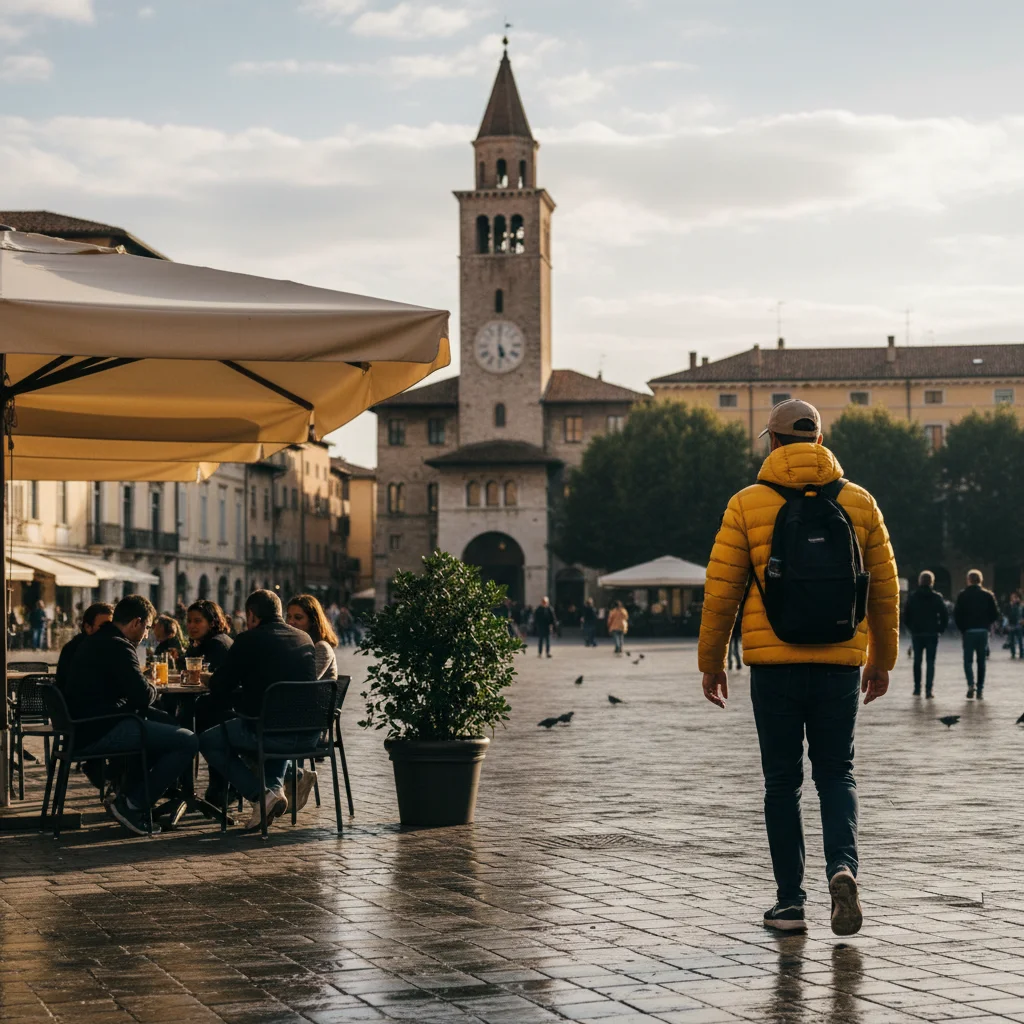
Group photo with one person eyes closed
Before
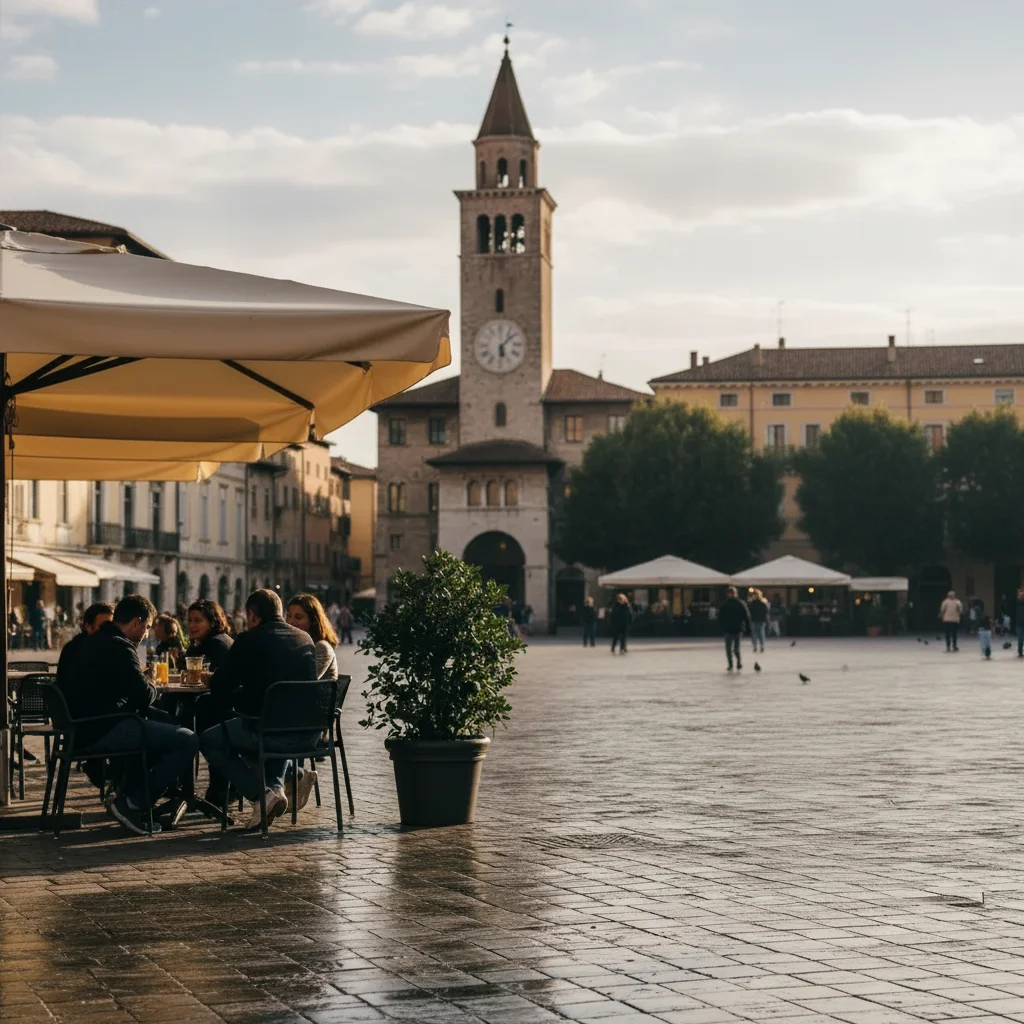
Group photo with all eyes open after face swap
After

Swap Faces Between Photos

Drop your photo here

or click to browse

Release to upload

Free • No signup

Popular use cases:
  • swap faces between photos
  • AI faces between photos editor
  • photo faces between photos tool
  • free faces between photos editing

Cost
Free No signup required
Time
Instant results in 15-30 seconds
Works on
Any device - browser, phone, tablet, desktop
Powered by
AI-powered photo editing

How it works

  1. Upload your photo

    Upload a clear, front-facing portrait. Good lighting on the face and visible facial features give the AI the best foundation for faces between photos editing. JPG, PNG, WebP up to 7MB.

    Expect: Most edits complete in 20-45 seconds. Complex changes may need 1-2 refinements.
  2. Describe your edit

    Type what you want: 'swap the face from the reference photo onto the person in this photo.' Be specific about details for best results. The AI understands natural language — no technical skills needed.

    Tip: Upload the person you want to add as a reference image for seamless insertion.

    Copy one of these to get started:

    Fix closed eyes using reference photo replace the closed-eyes face in photo 1 with the open-eyes face from photo 2, match the lighting and blend naturally
    Swap better expression from another shot swap the face of the person in photo 1 with their smiling face from photo 2, keep everything else in photo 1 unchanged
    Fix one person in group photo replace the face of the person on the right in photo 1 with their face from photo 2 where they look better, keep everyone else unchanged
    Fix blurry face from another shot replace the blurry face in photo 1 with the sharp clear version of the same person from photo 2, match the angle and lighting
    4 more prompts
    Swap face onto different body put the face from photo 2 onto the body in photo 1, match the lighting direction and skin tone perfectly
    Wedding photo fix from second camera angle replace the groom's awkward expression in photo 1 with his natural smile from photo 2, blend seamlessly and match the wedding lighting
    Professional headshot swap swap the face from my professional headshot in photo 2 onto the person in photo 1, adjust for any angle difference and match lighting
    Fix squinting from bright sun replace the squinting face in photo 1 with the relaxed open-eyes version from photo 2, keep the same person's features and body
  3. Review the result

    Zoom in on facial details — check that skin tones look natural, edges blend seamlessly, and no artifacts appear around the hairline, jawline, or eyes. Use the before/after slider to compare.

  4. Refine if needed

    If specific facial features need adjustment — asymmetric eyes, unnatural skin smoothing, or hairline artifacts — tap markers on those spots and describe the fix. Fine-tune until the result looks like a natural photo.

    Tip: Markers are optional. Try without them first — the AI usually gets it right.
Try it free

Swap Faces Between Photos

Drop your photo here

or click to browse

Release to upload

Free • No signup

"Group photo where one person blinked. Swapped their face from another shot and nobody can tell." @GroupPhotoFixer

See it in action

Group photo with one person eyes closed
Before
->
Group photo with all eyes open after face swap
After

Closed eyes fixed

Group photo with previously closed eyes replaced by open smiling expression.

Prompt: replace the closed-eyes face with the open-eyes face from reference
Photo with awkward expression
Before
->
Photo with natural smiling expression
After

Better expression swapped

Portrait with improved expression swapped from another photo.

Prompt: swap the face with the smiling expression from reference

Detailed Guides by Scenario

📷

Fix Group Photos

Save group photos where one person blinked, looked away, or had a bad expression by swapping their face from a better shot taken seconds later.

Common Scenarios

  • Someone blinked in the group photo — swap their face from another shot where their eyes were open
  • One person looked away or had an awkward expression in an otherwise perfect group shot
  • Multiple people need face fixes — swap each one from a better photo, one face at a time

Best Practices

  • Upload the group photo you want to keep as photo 1 (main), and the shot with the better face as photo 2 (reference)
  • Identify the person by position or clothing: 'the person on the right in the blue shirt'
  • Photos taken seconds apart at the same event produce the most natural swaps
📷

Professional & Headshot Swaps

Combine the best face from a professional headshot with a natural body pose from another photo for polished results.

Common Scenarios

  • Swapping a professional headshot expression onto a casual body pose for LinkedIn or team pages
  • Fixing a corporate photo where one team member had a bad angle or expression
  • Updating old team photos by swapping in a newer headshot without reshooting

Best Practices

  • Use the body/pose photo as photo 1 and the headshot with the better face as photo 2
  • Professional headshots with even lighting make ideal reference images
  • Mention 'match the lighting direction' when the two photos have different lighting setups
📷

Creative & Fun Swaps

Swap faces between friends, family, or any two photos for fun, social media content, or creative projects.

Common Scenarios

  • Swapping faces between two friends for a funny social media post
  • Putting your face onto a friend's body for a humorous comparison
  • Creating creative content by swapping faces between completely different photos

Best Practices

  • Front-facing photos with similar head angles produce the most realistic swaps
  • Photos with similar lighting conditions blend most naturally
  • For dramatic swaps between very different photos, mention 'adjust lighting and skin tone to match'

If something looks off

AI changed the wrong area

Why: The AI couldn't determine exactly which area you meant from the description alone.

Try: Tap a marker on the specific area you want to edit, then regenerate with the same prompt

Tip: Markers tell the AI exactly where to focus. Use them when description alone is ambiguous.

Result looks unnatural or blurry

Why: The AI may need more specific guidance about the look you want.

Try: swap the face from the reference photo onto the person in this photo, ensure natural lighting and sharp details that match the rest of the photo

Tip: Adding 'natural' and 'realistic' to your prompt helps the AI prioritize believability.

Person's edges show halos or artifacts

Why: The boundary between the person and the background wasn't cleanly handled.

Try: Tap markers along the person's outline and regenerate: 'clean up the edges for a seamless blend'

Tip: Upload the person you want to add as a reference image for seamless insertion.

Added person's lighting doesn't match the scene

Why: The source photo of the person had different lighting than the target scene.

Try: Add 'match the lighting direction and color temperature of the scene' to your prompt

Tip: Use source photos with similar lighting conditions — both outdoor or both indoor — for best results.

Face swap looks uncanny or distorted

Why: The face angle or expression didn't align well between the two photos.

Try: Try with photos where both faces have a similar angle and expression for more natural results

Tip: Face swaps work best when both photos have a similar head angle and neutral or matching expressions.

Quick answers

Do I need to mark the faces?

No, describe which face to swap and upload the reference photo with the better face. The AI handles alignment.

Is this free?

Yes, 1 free edit per week. Plans from $3.99/mo for unlimited.

Does it work on mobile?

Yes, works in any mobile browser.

How do I upload a second photo for the face swap?

Upload your main photo first, then click '+ Add reference image' below the upload area to add the second photo containing the face you want to swap in. Photo 1 is the scene you keep, photo 2 provides the better face.

Do the photos need the same angle?

Similar angles work best, but the AI can handle moderate differences in head tilt and rotation.

Can I swap multiple faces?

Do one face at a time for best results. Save the result, then swap the next face.

What photo formats does the swap faces between photos tool support?

JPG, PNG, WebP, and HEIC. Upload any common photo format and EditThisPic handles the rest.

How long does it take to swap faces between photos?

Usually 20-45 seconds. Upload your photo, describe what you want, and the AI delivers the result.

Do I need to download an app to swap faces between photos?

No app needed. EditThisPic runs entirely in your web browser on any device -- desktop, laptop, phone, or tablet.

Ready to edit your group photos?

Free to try. No signup required.

Try it free