AI Photo Editor for OfferUp Photos
Listing photos that get buyers messaging, shot with just your phone.
Drop your photo here
or click to browse
Free • No signup
Release to upload
Built for Local Marketplace Sellers
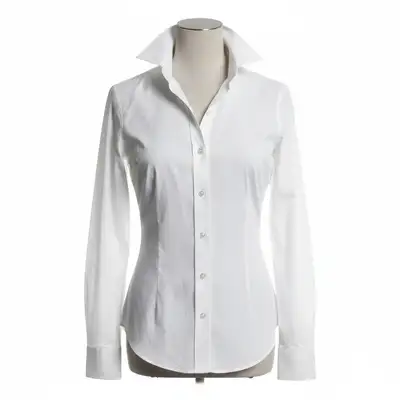
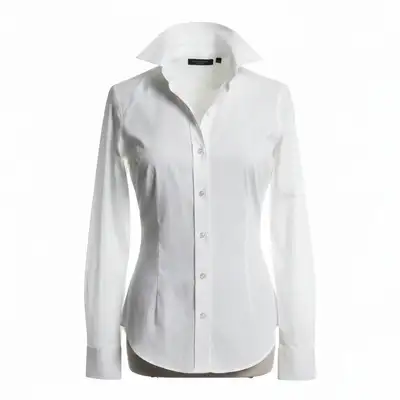
On OfferUp, buyers scroll fast. They decide in seconds whether to tap your listing or keep scrolling. Professional-looking photos get 3x more views and faster sales. But you're selling from home, not a studio. EditThisPic lets you snap a quick photo, then clean it up so your item looks its best without the clutter behind it.
Tools Sellers Use Most
Remove Background
Replace messy garage or room backgrounds with clean white
Enhance Lighting
Fix dark phone photos to show true item colors
Remove Shadows
Eliminate harsh shadows that hide item details
Remove Objects
Remove clutter visible around your item
How to AI Photo Editor for OfferUp Photos
-
Upload your item photo
Drop your phone photo into EditThisPic. JPG, PNG, WebP up to 7MB. Works on furniture, electronics, clothing, toys, tools, and anything you're selling locally.
Simple background removal: 15-20 seconds. Multiple edits: 25-35 seconds. -
Describe what you need
Type your edit: 'remove the messy background and show clean white' or 'brighten this photo to show true colors' or 'remove the clutter around the item.' The AI understands marketplace photography needs.
Include 'clean white background' or 'neutral grey background' to get that professional marketplace look. -
Review for accuracy
Check that the item looks accurate and appealing. Colors should be true, details should be visible, and the item should pop against the background. Buyers want to see exactly what they're getting.
-
Refine specific areas if needed
If the AI cut off part of the item or left some clutter, tap markers on those spots and regenerate. Specify exactly what to fix.
For items with complex edges like plants or fabric fringe, a second pass cleans up details.
Copy-Paste Prompts for OfferUp Sellers
remove the background and replace with clean solid white, keep only the item
White backgrounds make items pop and look professional in the OfferUp grid
brighten the photo to show true colors and details, even lighting throughout
Buyers need to see actual colors - dark photos kill sales
remove all the background clutter and show the item on a clean neutral surface
Messy backgrounds make buyers think the item is also messy
replace background with clean neutral grey, professional furniture listing style
Grey backgrounds work great for furniture and larger items
Show 4 more prompts
remove harsh shadows and show item with soft even lighting, no dark spots
Shadows hide details buyers want to see before they message you
remove background, show electronics on clean white with soft shadow underneath
Soft shadow adds depth while keeping the professional look
remove the price tag and sticker from the item, show clean surface
Old retail stickers make items look less valuable
clean up the background, show clothing laid flat on pure white surface
Flat lay on white is the standard for clothing resale
| Edit Type | Prompt | Time | |
|---|---|---|---|
| White background | remove background, show on clean white |
15s | Try This → |
| Fix dark photo | brighten to show true colors |
15s | Try This → |
| Remove clutter | remove clutter, keep only item |
25s | Try This → |
| Furniture listing | replace background with neutral grey |
20s | Try This → |
Real OfferUp Photo Transformations


Couch cleaned up from garage background
Used sofa photographed in a cluttered garage transformed into a clean, professional listing photo.
remove the background and replace with clean neutral grey, professional furniture listing style
Gaming console brightened for sale
Dark basement photo of a gaming console fixed to show true colors and details.
brighten the photo to show true colors and details, remove background and show on clean white
Bike ready for quick sale
Mountain bike photographed against a messy fence transformed into a clean listing.
When Things Go Wrong
AI cut off part of the item
Why: The AI couldn't distinguish between the item edge and the busy background.
Tap markers on the cut-off area and regenerate: 'keep this part of the item, only remove background'
Items with colors similar to the background need markers for precision.
Background removal left messy edges
Why: Complex edges like fabric fringe, plant leaves, or cables are hard for AI to detect perfectly.
A second pass focused only on edges usually fixes this quickly.
Colors look different after editing
Why: The AI adjusted the overall lighting which can shift color balance.
Add 'maintain accurate product colors' to prevent unwanted color shifts.
AI changed the wrong area
Why: Without markers, the AI guessed which area you meant based on your description.
Tap a marker on the specific area you want changed, then regenerate with the same prompt
Markers tell the AI 'I mean THIS area specifically.' Use them when description alone is ambiguous.
Item looks flat or lost depth
Why: Removing the background also removed natural shadows that give dimension.
A subtle shadow under the item makes it look grounded, not floating.
Frequently Asked Questions
Do I need to mark areas before describing edits?
No! Just describe what you want: 'remove background' or 'brighten photo.' The AI understands these common requests. Only use markers when you need precision - like if the AI cuts off part of your item.
Will buyers be able to tell the photo was edited?
Not if you edit honestly. Removing a messy background, fixing lighting, and cleaning up clutter are standard practices. The goal is showing your item at its best, not hiding flaws. Buyers want to see what they're buying.
What's the best background color for OfferUp?
White works for most items - it's clean, neutral, and makes items pop in the OfferUp grid. Grey works great for furniture and larger items. Avoid busy backgrounds that distract from your item.
How do I photograph items for best results?
Take your photo in decent light (near a window works). Get the whole item in frame with a bit of space around edges. EditThisPic handles the rest - we'll clean up the background and fix the lighting.
Can I edit multiple photos for my listing?
Edit one photo at a time. Use similar prompts for consistency across your listing photos. Pro tip: show the item from different angles - front, back, close-up of details.
Does this work for any item I'm selling?
Yes! EditThisPic works on furniture, electronics, clothing, toys, tools, appliances, sporting goods - anything you can photograph. The AI understands different item types and adjusts accordingly.
Is EditThisPic's AI photo editor for offerup photos really free?
Yes — you get 1 free edit per week, no account needed. For unlimited edits, plans start at $3.99/month.
Can I offerup photos on my phone?
Yes. EditThisPic works in any mobile browser — iPhone, Android, tablet. No app download needed.
Ready to sell faster?
Free to try. No signup required. Better photos, quicker sales.
Upload Your PhotoTrusted by 15,000+ users