Pricing Add Clouds · Free

Add Clouds to a Photo

← Browse all add & replace tools

Last updated

Fill a flat or blown-out sky with clouds by typing what kind you want.
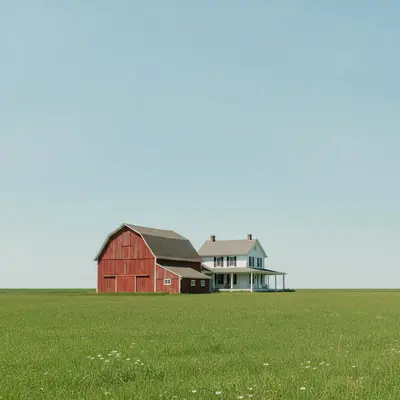
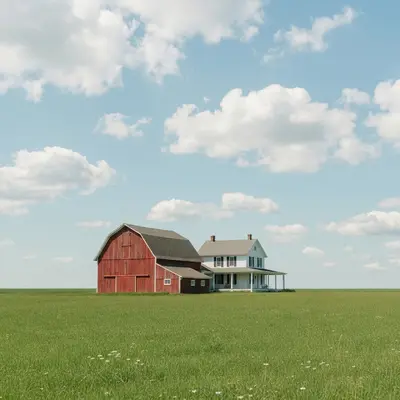
Farm house and barn under a plain empty blue sky Same farm under a blue sky with puffy white clouds

Upload photo to add clouds

"replace the blown-out white sky with a pale blue sky and thin wispy clouds, keep the house and garden exactly as they are"

Free to try · no sign-up · never used for AI training

Release to upload

<30stypical edit
1 freeedit weekly
Photo on your phone? Scan to open this editor there — free edit works on your phone too.

1 free edit every week·paid packs after

How it works

  1. Upload a photo with a flat, empty or white sky

    Choose a photo where the sky is a plain blue, a washed-out white or a grey blank. These are the easiest because there is nothing to hide. If the sky already has clouds, say in your prompt whether to keep or replace them.

    Expect: A plain sky gives the most natural result. A white sky may also need a colour change, which you can describe.
    Tip: Clean horizons are easier than skies crossed by many branches or wires.
  2. Describe the clouds you want

    Type the cloud style in plain words: 'add soft white cumulus clouds across the blue sky, bright daylight, keep the house and the field unchanged.' Name the type, such as wispy, puffy, dramatic storm clouds or golden sunset clouds. No marking required.

    Tip: Match the cloud type to the light. Soft white clouds suit sunny scenes, dark clouds suit moody ones.

    Copy one of these to get started:

    Soft white clouds in a blue sky add soft white cumulus clouds across the empty blue sky, bright daylight, keep the buildings, trees and ground unchanged
    Fix a blown-out white sky replace the blown-out white sky with a pale blue sky and thin wispy clouds, keep the house and garden exactly as they are
    Dramatic storm clouds add dark dramatic storm clouds across the sky with a few gaps of light, keep the field and barn unchanged
    Golden sunset clouds add warm orange and pink clouds across the sky as if at sunset, keep the landscape and the sea unchanged
    3 more prompts
    Wispy cirrus clouds add thin high wispy cirrus clouds in a soft blue sky, keep the mountains and the lake unchanged
    Overcast but textured sky replace the plain grey sky with a textured overcast sky with soft layered clouds, keep the street and buildings unchanged
    Clouds behind a building add a few puffy white clouds behind the building in a clear blue sky, keep the building edges sharp and unchanged
  3. Check the horizon and the light

    Look at the line where sky meets land. Edges should be clean without a halo. Then check the light: clouds should suit the shadows on the ground, so a sunny field should not sit under heavy storm clouds.

  4. Use markers if the AI changed the wrong area

    If it altered a rooftop, tree or the ground instead of just the sky, tap a marker on the sky and run the prompt again. Markers are optional and only needed when the first result touches areas you wanted left alone.

    Tip: Mark the middle of the empty sky, not the horizon.

See it in action

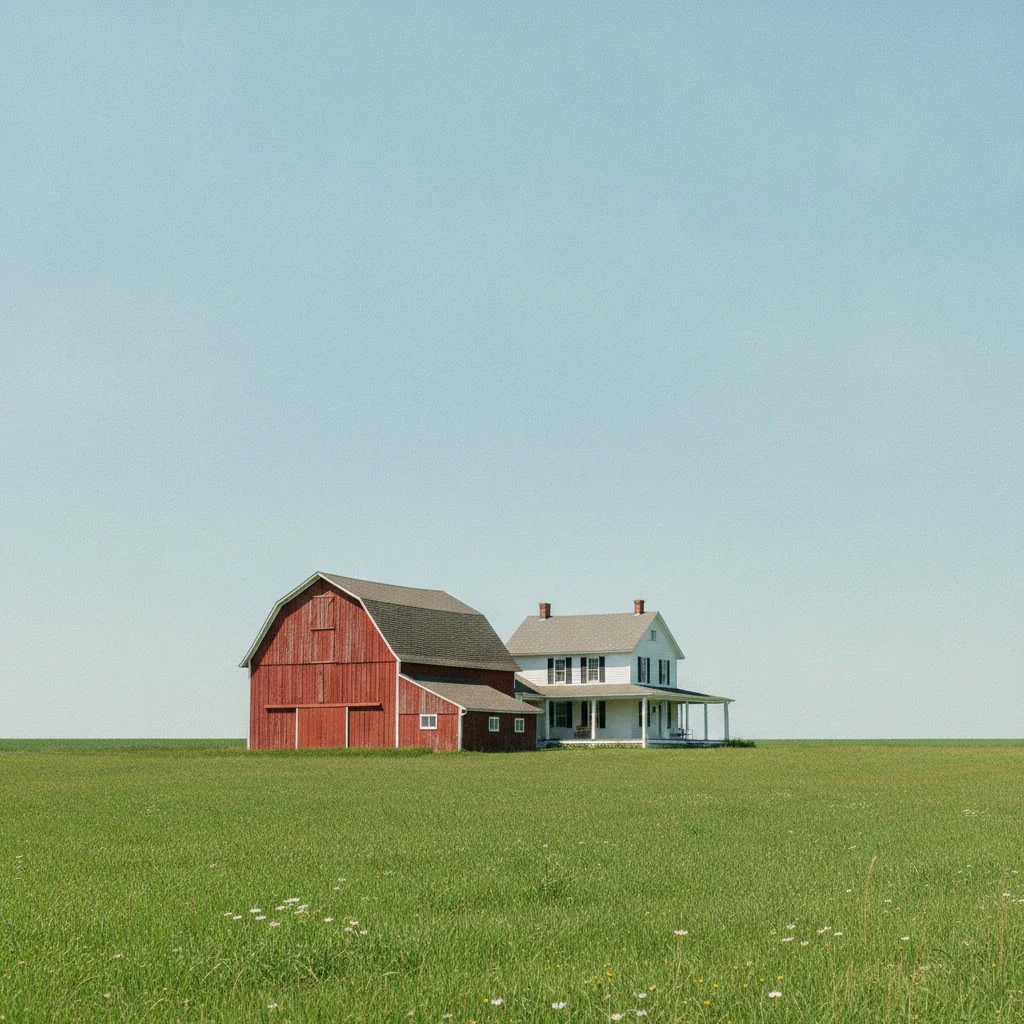
Farm house and barn under a plain empty blue sky
Before
->
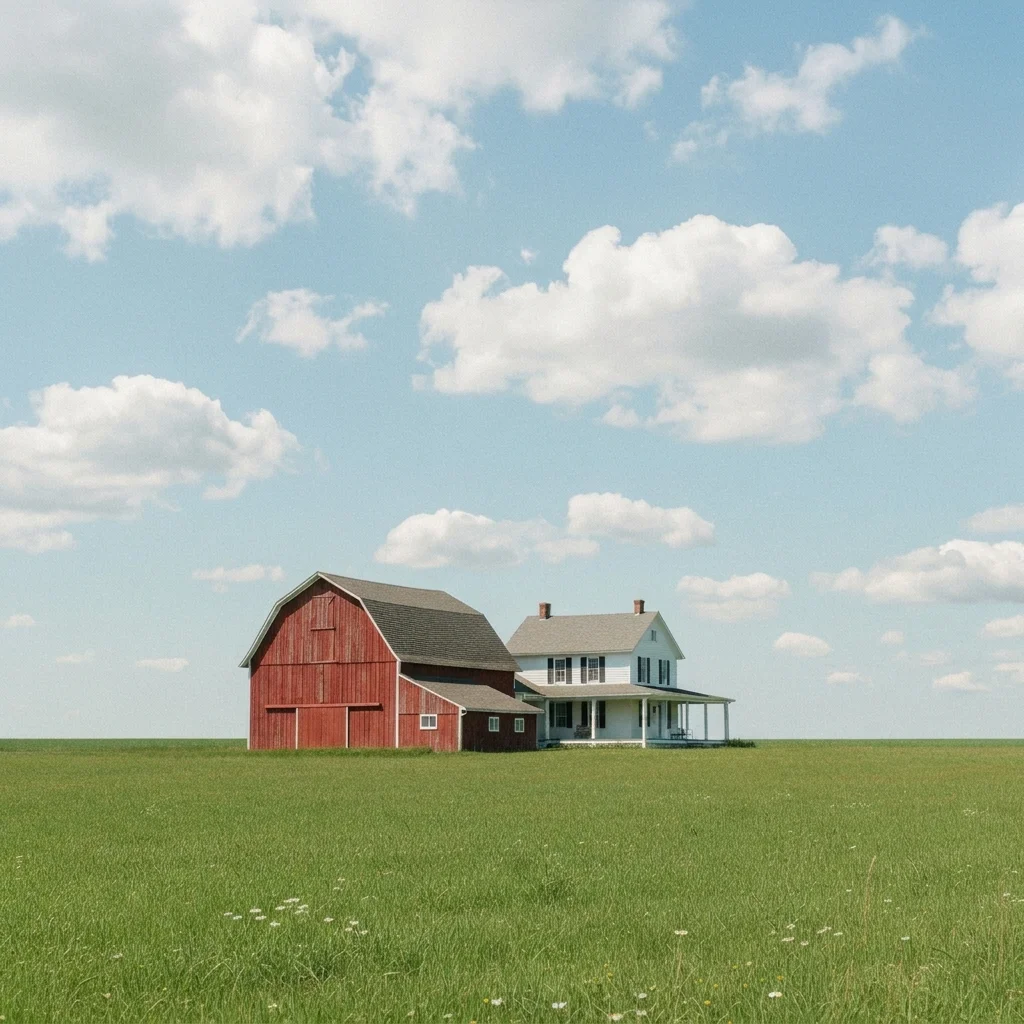
Same farm under a blue sky with puffy white clouds
After

Plain blue sky above a farm house gets puffy clouds

A farm house under a flat blue sky. Soft cumulus clouds are added while keeping the house and field untouched.

Prompt: add soft white cumulus clouds across the empty blue sky, keep the farm house, barn and field unchanged
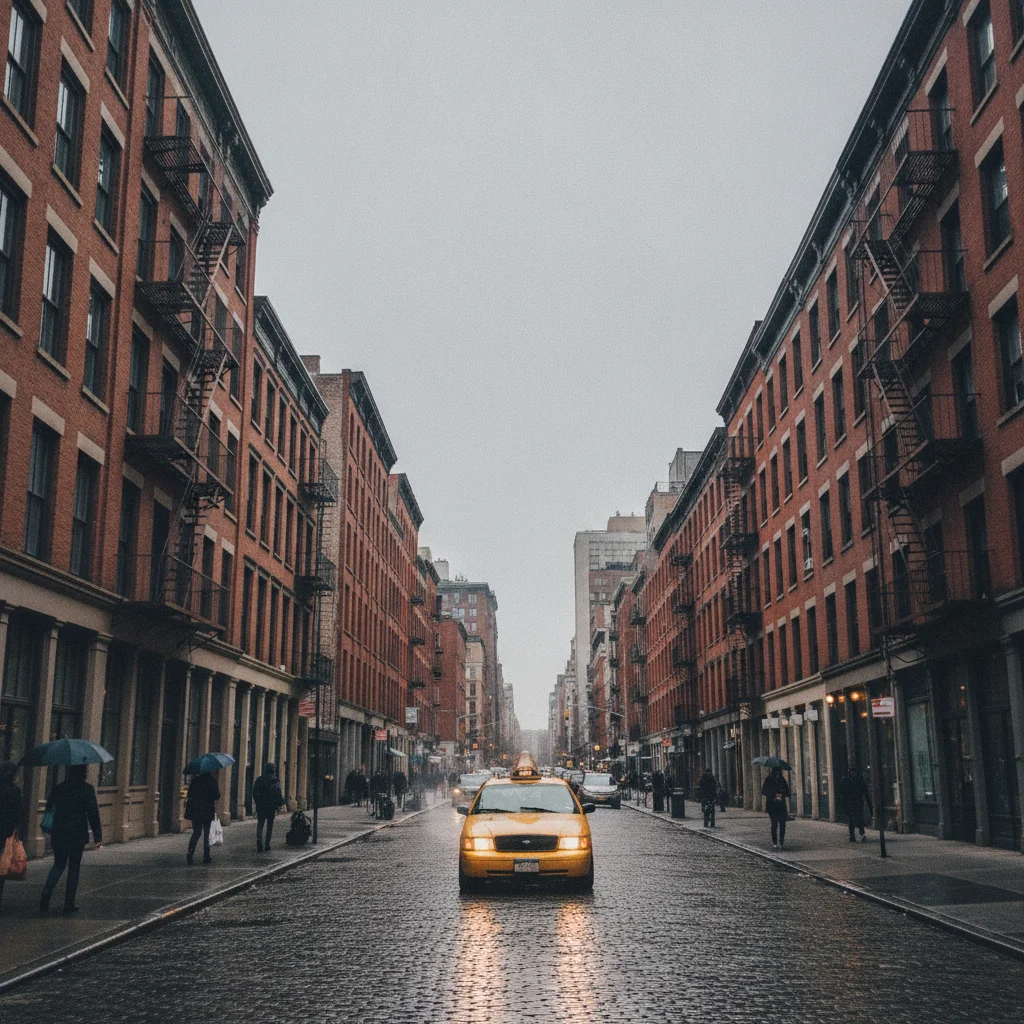
City street under a flat grey sky
Before
->
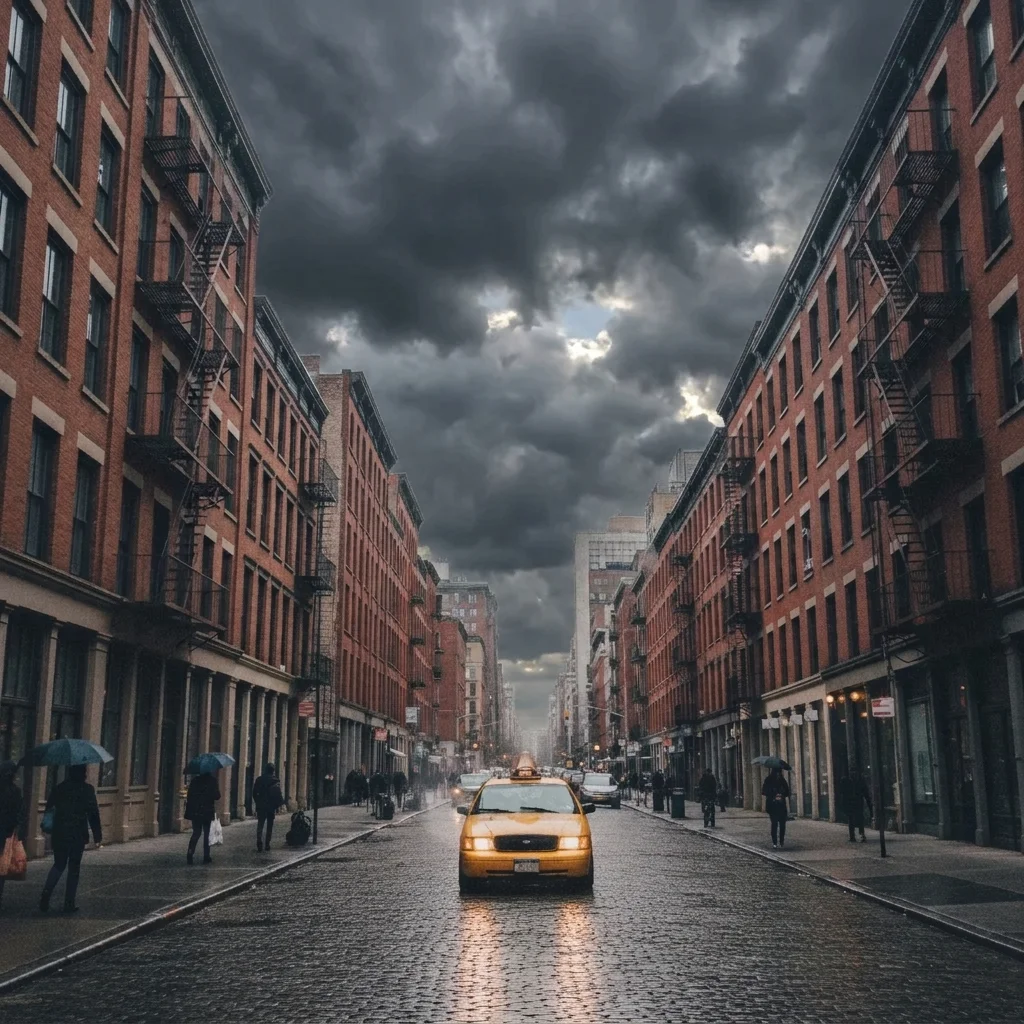
Same street under dramatic dark clouds with gaps of light
After

Flat grey city street sky made dramatic

A downtown street under a plain grey sky. The prompt adds darker layered clouds for a moody look.

Prompt: add dark dramatic clouds with a few gaps of light, keep the buildings, the street and the cars unchanged

Quick answers

Do I need to mark the sky before adding clouds?

No. Describe it, like 'add soft white clouds to the empty sky, keep the buildings unchanged.' The AI finds the sky from the photo. Markers are optional and help only if it changes a roof, wall or the sea.

Is there a free way to add clouds to a photo with no login?

Yes. Upload your photo, describe the clouds and get a free preview edit with no signup and no watermark. Results are AI generated, so check the horizon and the light before sharing.

Can it fix a blown-out white sky?

Often yes, by replacing it with a blue or cloudy sky. If the white also bleeds onto rooftops or leaves, edges may look rough, so check them and use a marker to guide the fix.

Can I choose the type of clouds?

Yes. Name them in your prompt: puffy cumulus, thin cirrus, dark storm clouds, sunset clouds or a layered overcast sky. Match them to the light in the photo.

Does it change the rest of the photo?

It aims to leave the ground and buildings as they are. Always ask it to keep them unchanged, and compare the result with your original.

How much does EditThisPic cost?

You get 1 free Standard edit per week — no account needed. After that, one-time credit packs start at $4.99 for 10 credits, valid 12 months, no subscription. A Standard edit uses 1 credit, Pro 2 and Ultra 3. Purchased downloads are clean with no watermark.

Ready to add clouds to your sky?

Free to try. No signup required.

1 free edit included·paid credit packs after