Free • No signup Add Item · Free

AI Item Adder

← Browse all add & replace tools

Last updated

Add any specific item to a photo from a reference image — AI composites it with matched lighting, scale, and shadows. No Photoshop needed.
01Photo 1
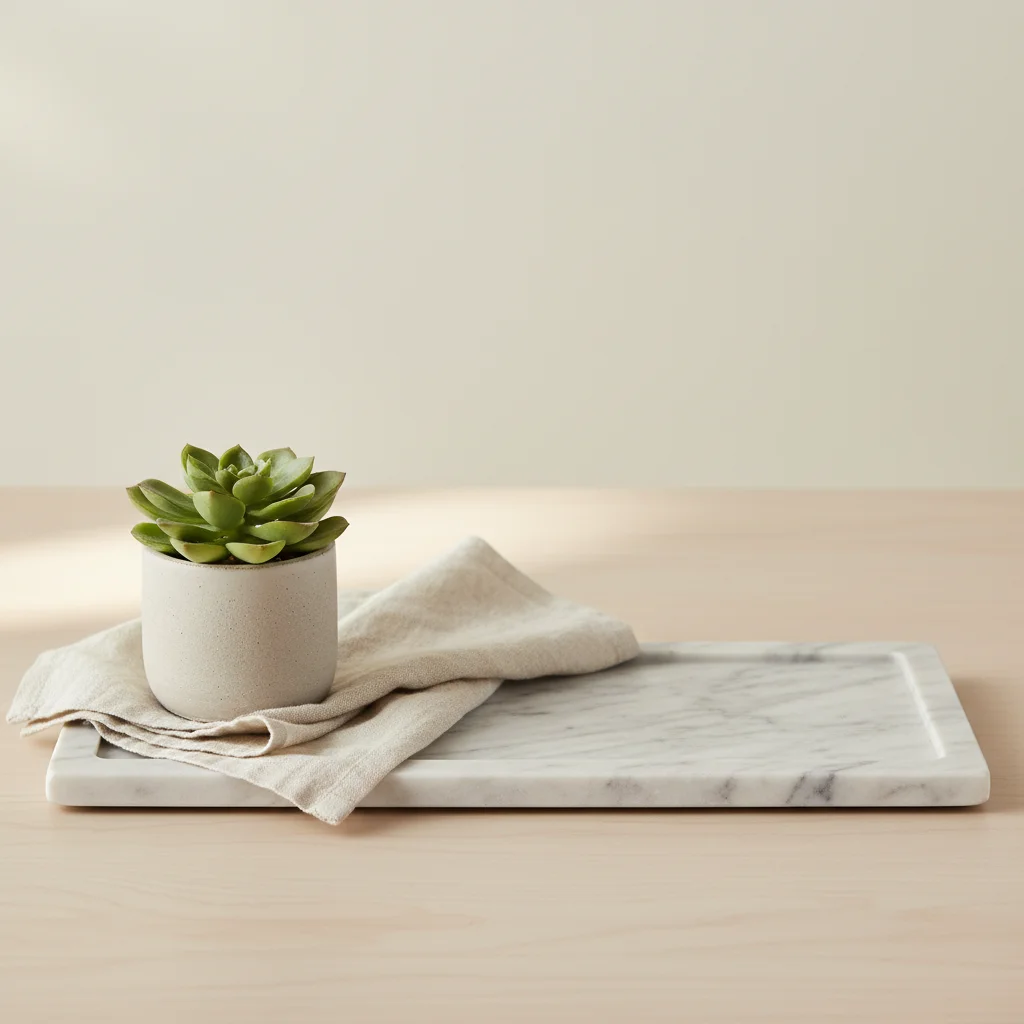
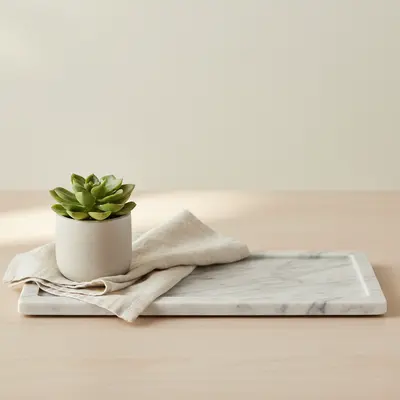
Marble tray with plant and napkin but empty space on the right
02Photo 2
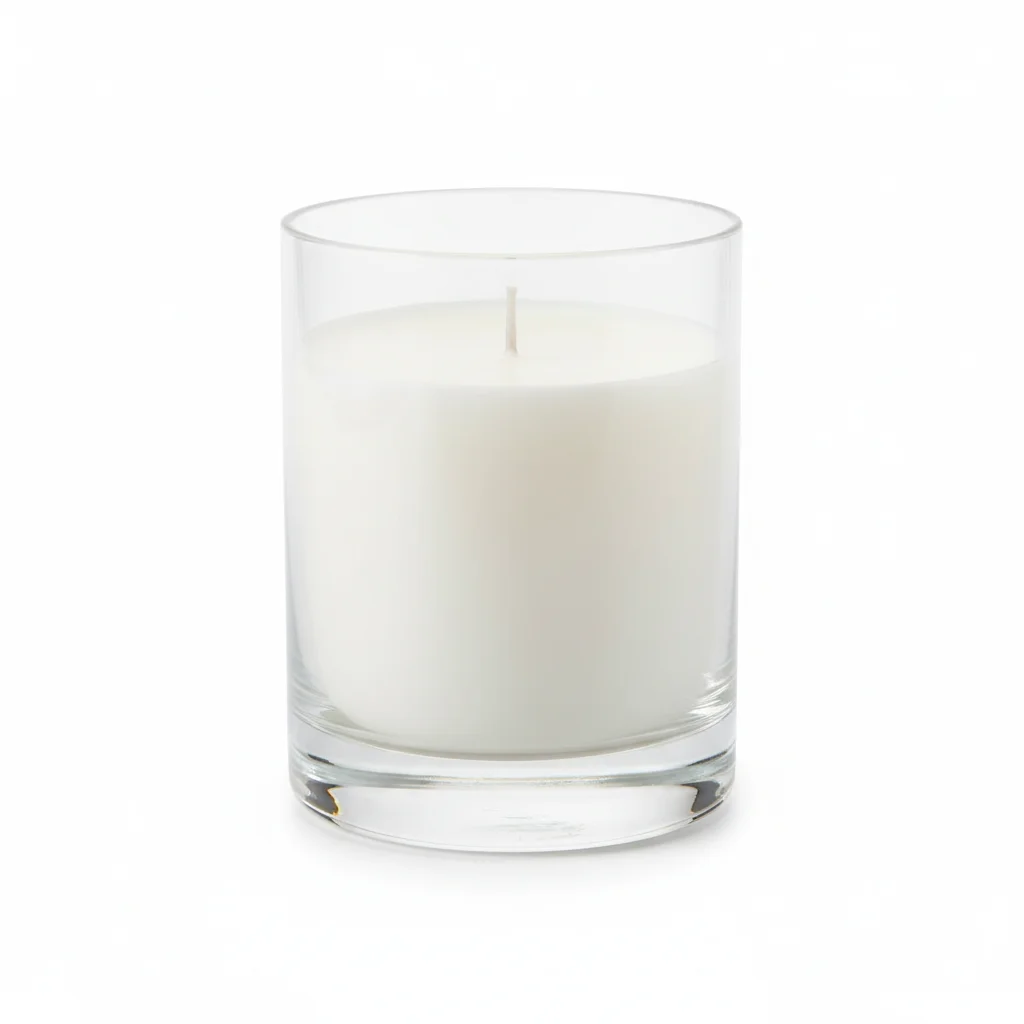
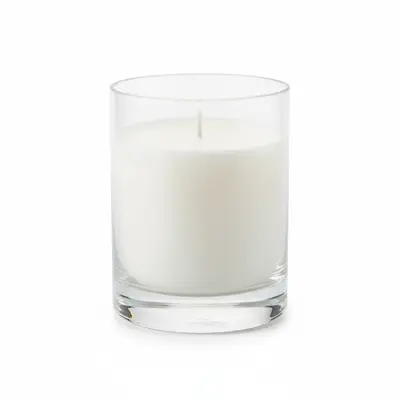
The specific candle to be composited
03Result
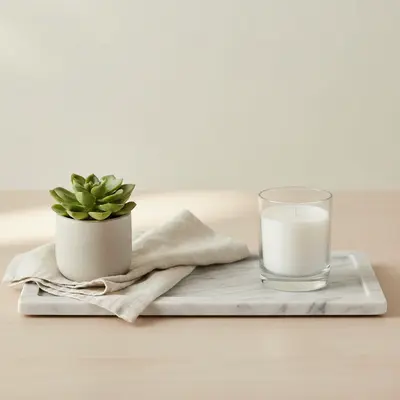
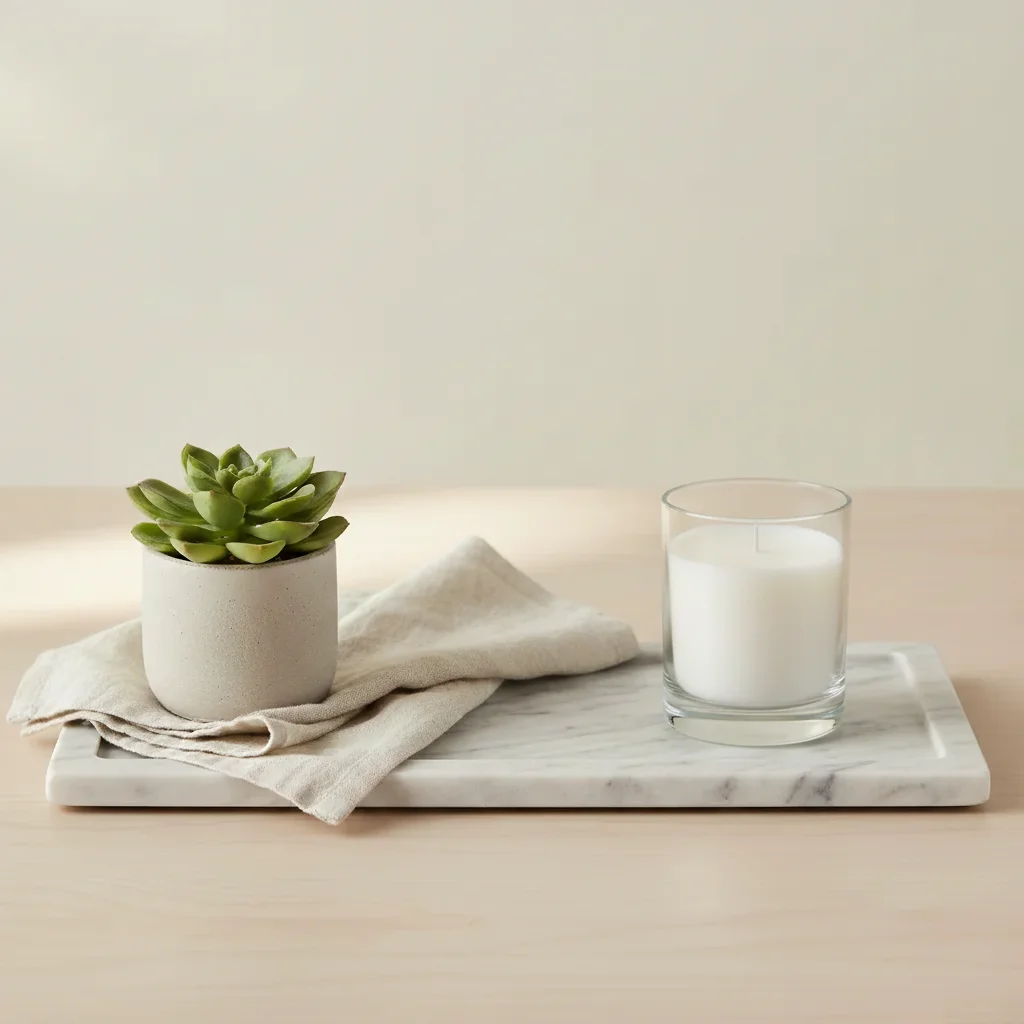
Same tray with a candle naturally added on the right side

Upload photo to add item

"add this item from the reference image in the lower left corner of the flat lay, aligned with the other objects, overhead lighting, clean white surface"

Release to upload

50,000+photos edited
<30stypical edit
1 freeedit weekly

1 free edit·then from $4.99

How it works

  1. Upload your two photos

    Drop your main scene photo into EditThisPic. Then click '+ Add reference photo' and upload a photo of the specific item you want to include. This two-photo flow is what lets the AI composite the exact item — not a generic version of it — into your scene. JPG, PNG, WebP up to 7MB each.

    Expect: Single item additions with clear reference: 25-30 seconds. Reflective or transparent items may need 2 attempts.
  2. Point the AI to your specific item

    The reference photo tells the AI which item to extract and add. It reads the shape, material, color, and texture from your reference image. You don't need to mask anything — just make sure the item you want is clearly visible in the reference photo.

    Tip: A reference photo where the item is front and center, with minimal background clutter, gives the AI the clearest signal.

    Copy one of these to get started:

    Add item to a surface add this item from the reference photo on the counter in the background, casting a subtle shadow, matching the warm kitchen lighting
    Add item to a styled flat lay add this item from the reference image in the lower left corner of the flat lay, aligned with the other objects, overhead lighting, clean white surface
    Add item to outdoor scene add this item from the reference photo on the wooden picnic table, with natural sunlight from the right and a soft shadow beneath it
    Add item to a shelf arrangement add this item from the reference photo on the middle shelf between the two plants, at a realistic scale, with consistent ambient indoor lighting
    2 more prompts
    Add item to a tabletop scene add this item from the reference image to the right side of the dining table, with the same overhead pendant light illumination as the rest of the table
    Add item to a bedroom scene add this item from the reference photo on the nightstand to the left of the bed, with soft bedside lamp lighting casting a warm glow on it
  3. Describe the placement and context

    Tell the AI exactly where to put it: 'add this item on the kitchen counter near the back wall' or 'place it in the foreground on the left.' Include orientation, size relative to nearby objects, and lighting cues if the scene has a strong directional light.

    Tip: Describe neighboring objects to anchor the placement: 'next to the blue vase' or 'in front of the window.'

    Copy one of these to get started:

    Add item to a surface add this item from the reference photo on the counter in the background, casting a subtle shadow, matching the warm kitchen lighting
    Add item to a styled flat lay add this item from the reference image in the lower left corner of the flat lay, aligned with the other objects, overhead lighting, clean white surface
    Add item to outdoor scene add this item from the reference photo on the wooden picnic table, with natural sunlight from the right and a soft shadow beneath it
    Add item to a shelf arrangement add this item from the reference photo on the middle shelf between the two plants, at a realistic scale, with consistent ambient indoor lighting
    2 more prompts
    Add item to a tabletop scene add this item from the reference image to the right side of the dining table, with the same overhead pendant light illumination as the rest of the table
    Add item to a bedroom scene add this item from the reference photo on the nightstand to the left of the bed, with soft bedside lamp lighting casting a warm glow on it

See it in action

Marble tray with plant and napkin but empty space on the right
Main Photo
The specific candle to be composited
Reference
Same tray with a candle naturally added on the right side
Result

Candle added to a lifestyle shot

A styled tabletop scene — AI composited a specific candle from a reference product photo onto the marble tray with matched studio lighting.

Prompt: Add this candle from the reference photo to the right side of the marble tray. It should cast a soft shadow and be lit by warm light from the left.
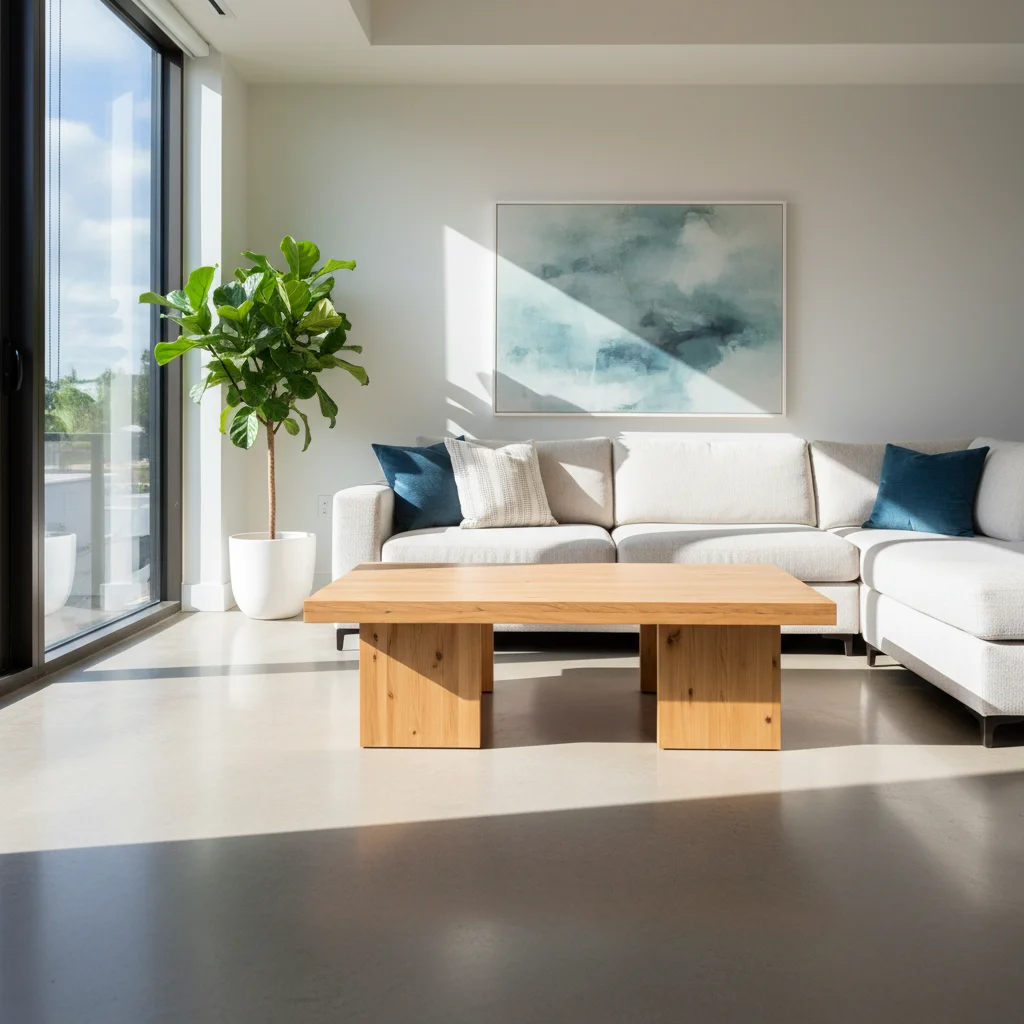
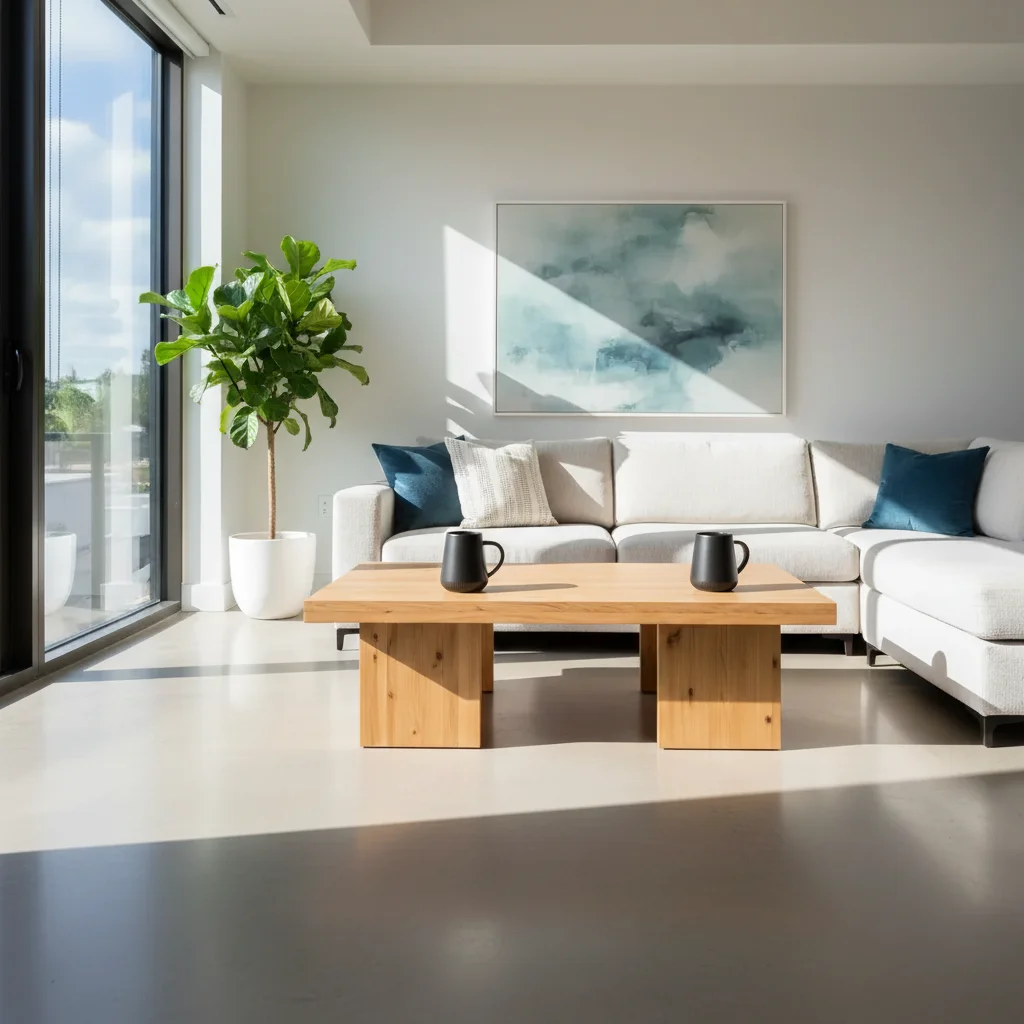
Living room with empty coffee table in the foreground
Main Photo
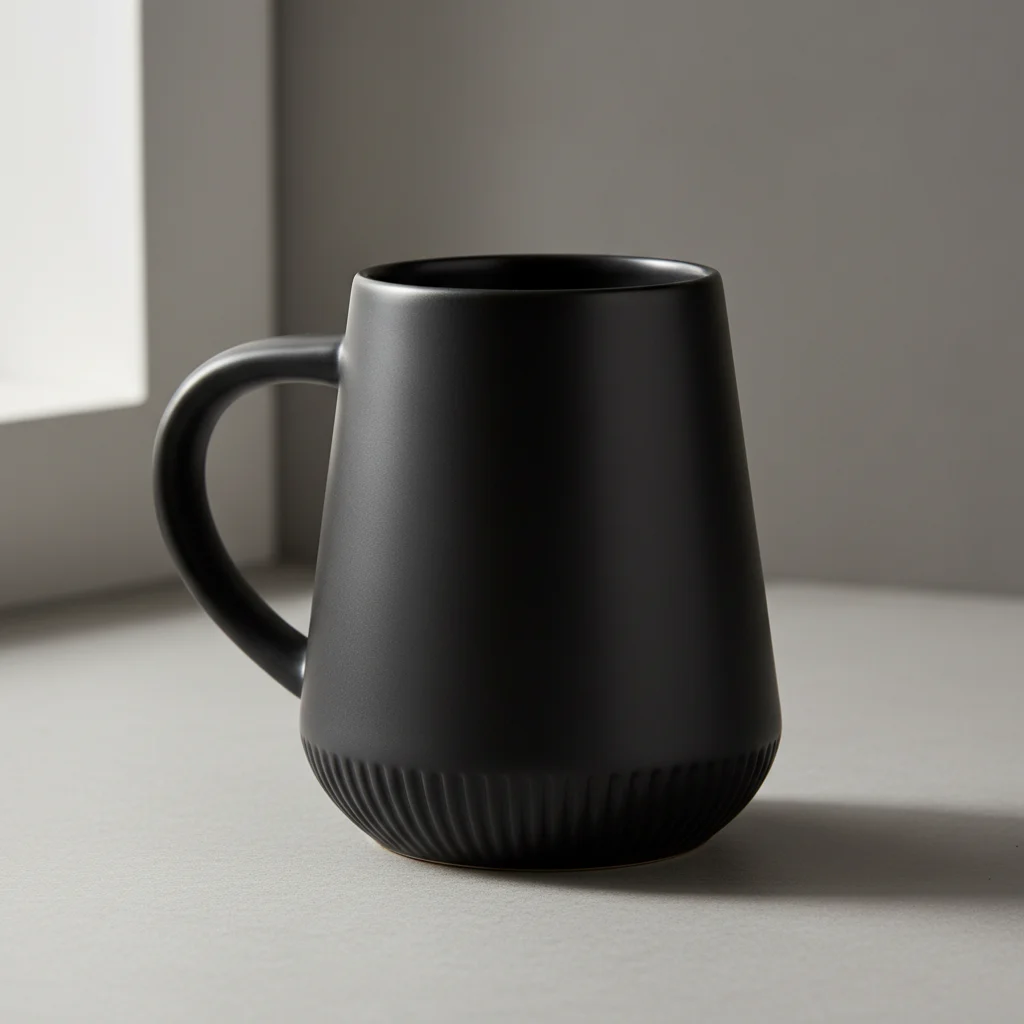
Reference image for AI Item Adder
Reference
Same living room with a product naturally placed on the coffee table
Result

Product placed in a lifestyle scene

An e-commerce product (photographed on white) placed into a real living room scene for a catalog lifestyle shot.

Prompt: add this item from the reference photo on the coffee table in the foreground, sharp focus, matching the natural daylight from the left window with soft shadow below

Overhead flat lay with reading accessories and empty space on the right
Main Photo
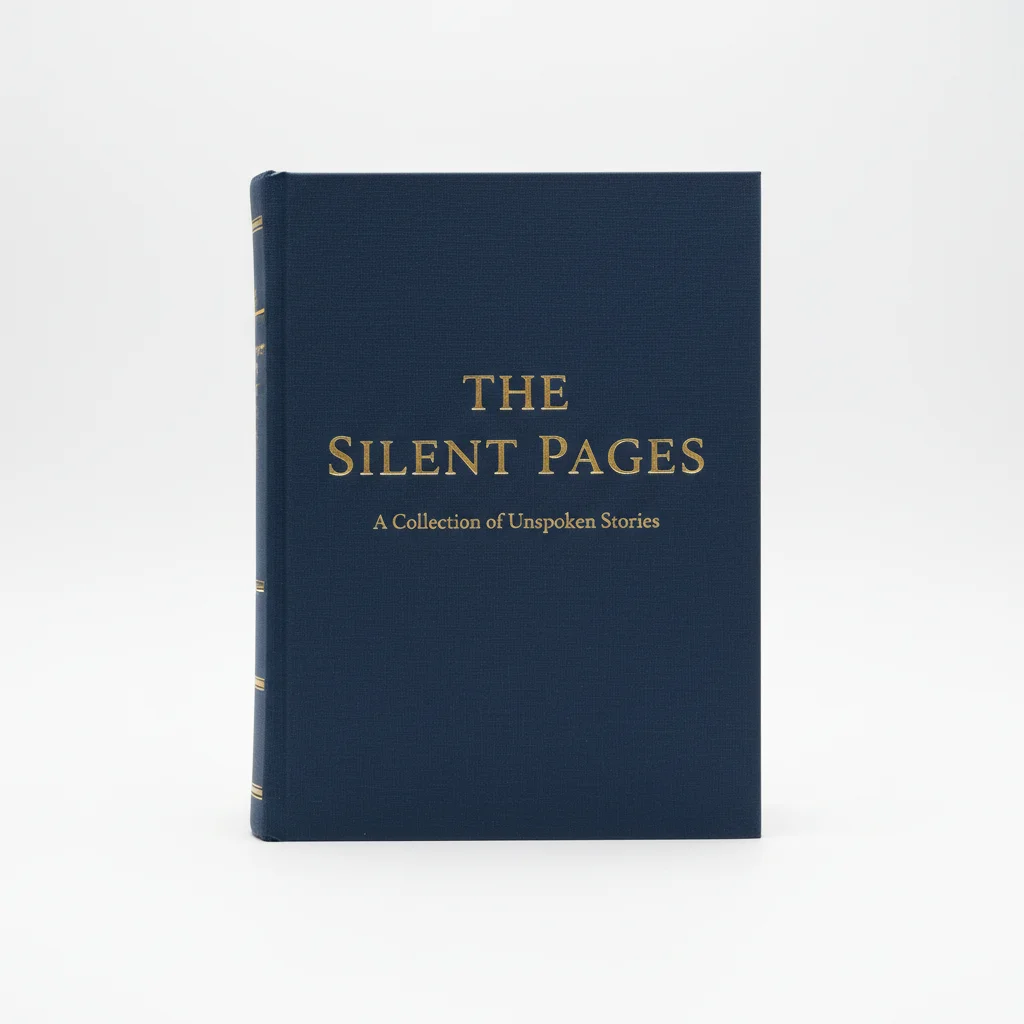
Reference image for AI Item Adder
Reference
Same flat lay with a book naturally added on the right side
Result

Book added to a reading corner flat lay

An overhead flat lay of a reading nook — AI added a specific book from a reference photo with consistent overhead lighting.

Prompt: add this book from the reference image flat on the rug to the right of the coffee cup, spine facing the camera, soft overhead diffused lighting

Quick answers

Do I need TWO photos for this?

Yes. This tool requires two images: your main photo (the scene) and a reference photo of the specific item you want to add. EditThisPic uses the reference to extract the exact item and composite it naturally into your main scene — matching its lighting, scale, and shadows to the rest of the photo.

How do I add a specific item to a photo for free?

Upload your main photo to EditThisPic, then click '+ Add reference photo' to upload a photo of the item. Describe the placement: 'add this item on the shelf on the right side.' The AI composites it in about 30 seconds. No account or signup required, and there's no watermark on the result.

What resolution should the reference photo be?

A clear, reasonably sharp photo works fine — you don't need professional studio shots. The item should be clearly visible and fill a reasonable portion of the frame. Blurry or very small references produce lower-quality extractions. Phone photos in good lighting are ideal.

Can I add the same item to multiple different photos?

Yes. Upload each main scene photo and use the same reference photo of the item each time. This is a great way to create consistent product lifestyle shots across multiple backgrounds or environments without reshooting the item itself.

Can I add an item from a product website photo?

Yes. Screenshots of product pages, e-commerce listings, or catalog photos all work as reference images. The AI extracts the item even from photos with white backgrounds, gradient backgrounds, or complex lifestyle staging. Clean white-background product shots often give the cleanest extraction results.

How much does EditThisPic cost?

You get 1 free edit per week — no account needed. After that, credit packs start at $1.99 for 3 edits. Monthly plans start at $4.99/mo for 20 edits with unused credits rolling over. All edits are full resolution with no watermark.

Ready to add your item?

Upload your main photo and the item you want to add. Free, no account required.

1 free edit included·Credit packs from $4.99