Free • No signup Convert Mosaic · Free

AI Mosaic Tile Art Maker

Just describe the mosaic style you want and AI transforms your photo.

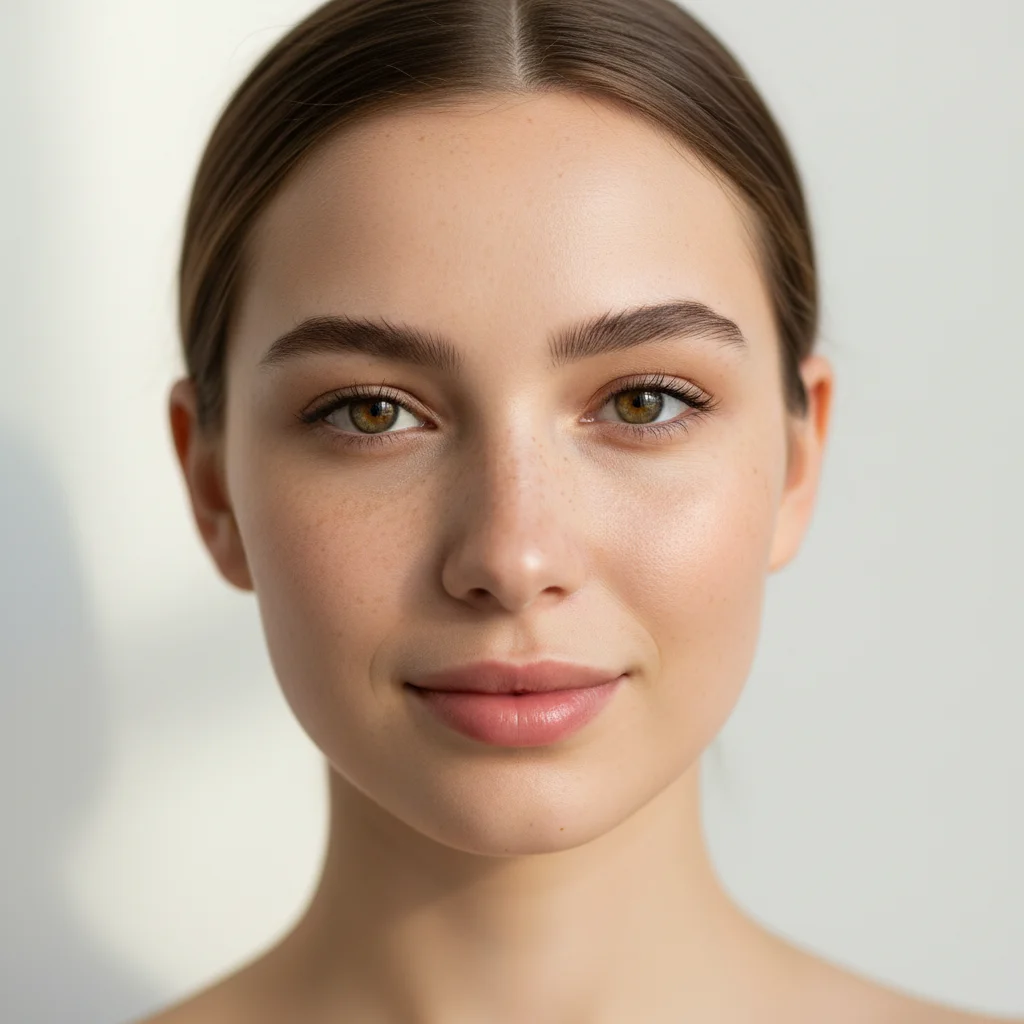
Original portrait photo
Before
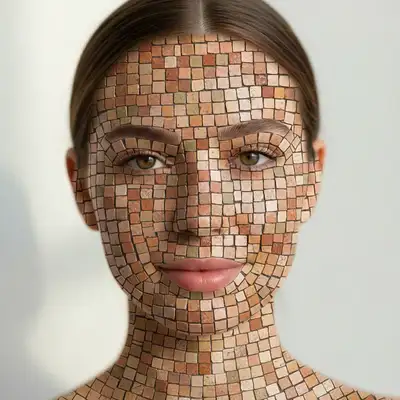
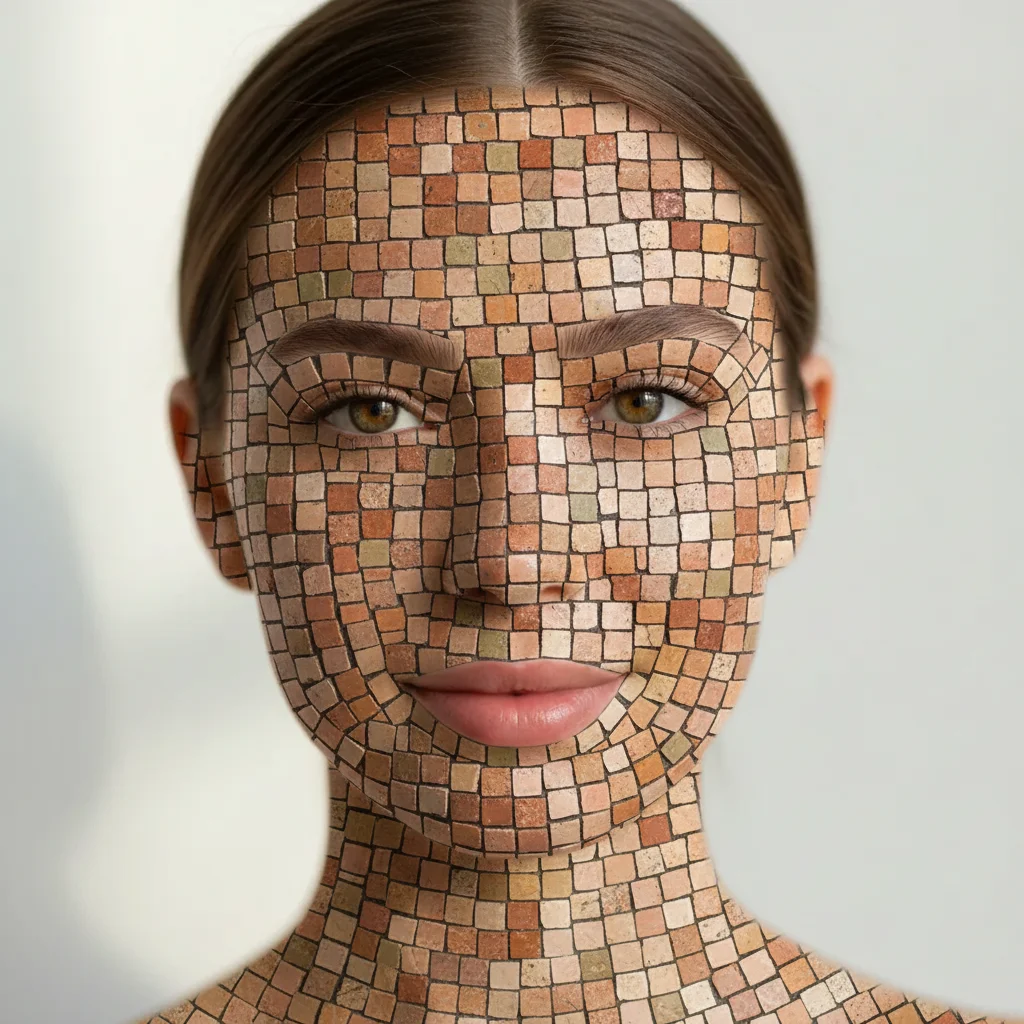
Portrait converted to Roman mosaic with stone tiles and grout
After

Convert Photo to Mosaic Tile Art

Drop your photo here

or click to browse

Release to upload

Free • No signup

Advertisement
Popular use cases:
  • classical art reproductions
  • historical reconstructions
  • decorative wall art
  • Mediterranean aesthetics
  • museum-quality prints
  • architectural visualization

Cost
Free No signup required
Time
Instant results in 15-30 seconds
Works on
Any device - browser, phone, tablet, desktop
Powered by
AI-powered photo editing
Scenario Prompt Time
Roman mosaic convert to ancient Roman mosaic tile art with small square stone tiles and visible grout lines 25s
Byzantine gold transform into Byzantine mosaic with gold and jewel-toned glass tiles and dark grout 25s
Modern pixel convert to modern pixel mosaic with uniform square tiles and minimal grout 20s
Large colorful transform into mosaic art with large irregular tiles in vibrant colors and white grout 25s
Glass shimmer convert to glass mosaic tile art with reflective surface and subtle shimmer effect 25s

How it works

  1. Upload your photo

    Upload a clear photo showing the area you want to edit. Good lighting and sharp focus help the AI deliver better mosaic results. JPG, PNG, WebP up to 7MB.

    Expect: Simple mosaic effects: 20-30 seconds. Complex multi-size tile patterns with specific grout colors: may need 2 refinements.
  2. Describe what you want

    Type your instruction: 'convert to mosaic tile art' or 'transform into ancient Roman mosaic with small square tiles and white grout.' Be specific about tile size (large vs. tiny), shape (square vs. irregular), and grout visibility. No marking needed—the AI understands 'mosaic' as a complete style transformation.

    Tip: Specify tile material like 'glass mosaic tiles' or 'stone tesserae' for different aesthetic textures.

    Copy one of these to get started:

    Classic Roman mosaic convert to ancient Roman mosaic tile art with small square stone tiles and visible grout lines
    Byzantine gold mosaic transform into Byzantine mosaic with gold and jewel-toned glass tiles and dark grout
    Modern pixel mosaic convert to modern pixel mosaic with uniform square tiles and minimal grout
    Large colorful tile mosaic transform into mosaic art with large irregular tiles in vibrant colors and white grout
    3 more prompts
    Glass mosaic with shimmer convert to glass mosaic tile art with reflective surface and subtle shimmer effect
    Monochromatic stone mosaic transform into monochromatic stone mosaic using only black, white, and gray tiles
    Wall art print for living room convert mosaic at high quality suitable for a large canvas print. Rich detail, vibrant tones, and strong composition that works as wall art
  3. Generate and review

    Click Generate and watch your photo transform into mosaic tile art. Check tile size consistency, grout line visibility, and color tessellation. Zoom in to verify individual tiles have realistic texture and the pattern follows image contours naturally.

  4. Refine with markers if needed

    If certain areas need different tile sizes or more detail, tap markers on those spots and regenerate. This is optional—most mosaic conversions work perfectly without markers.

    Tip: Markers are for precision refinement, not required. Try without them first.
Advertisement
Try it free

Convert Photo to Mosaic Tile Art

Drop your photo here

or click to browse

Release to upload

Free • No signup

"The mosaic effect is stunning! Transformed my photo into a gorgeous Roman-style tile artwork with perfect grout lines." @historybuff88

See it in action

Original portrait photo
Before
->
Portrait converted to Roman mosaic with stone tiles and grout
After

Portrait as Roman Mosaic

Converted portrait into classical Roman mosaic with small square stone tiles and grout lines.

Prompt: convert to ancient Roman mosaic tile art with small square stone tiles and visible grout lines
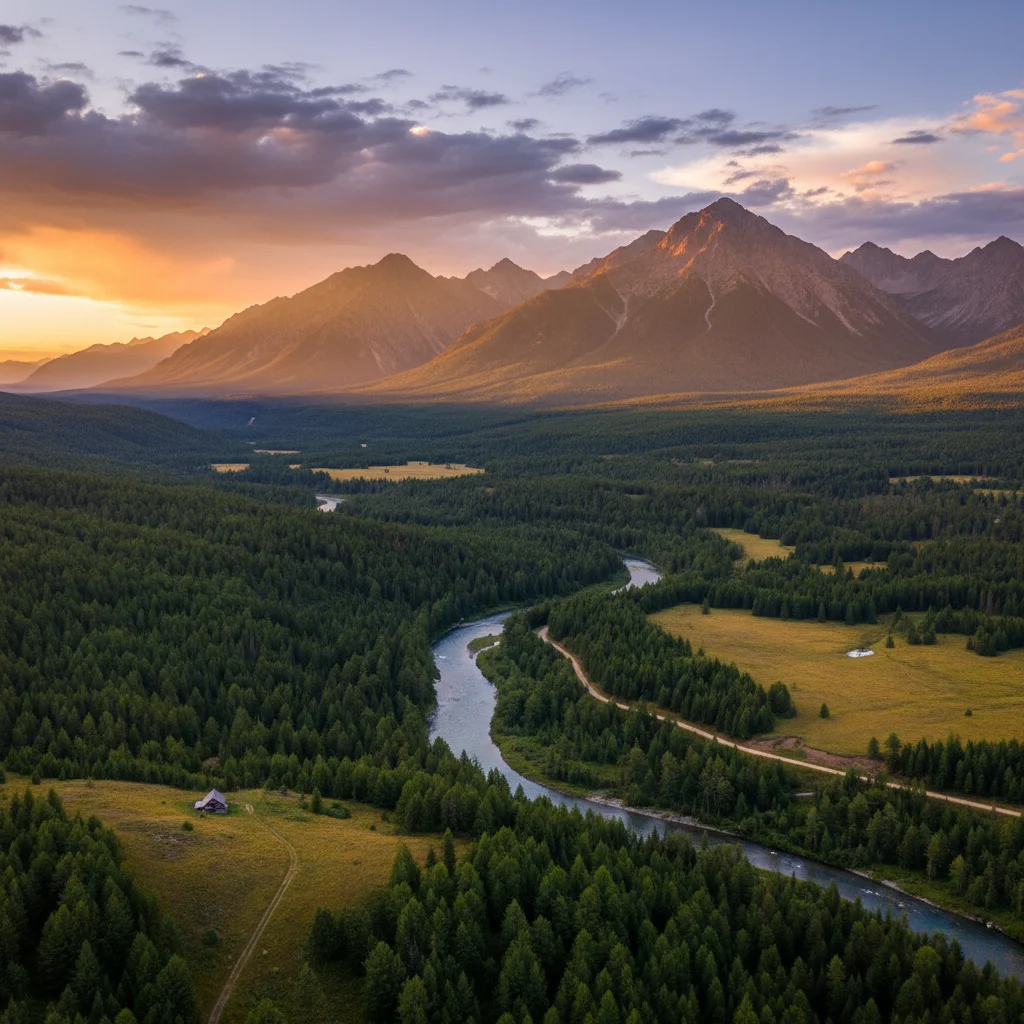
Original landscape photo
Before
->
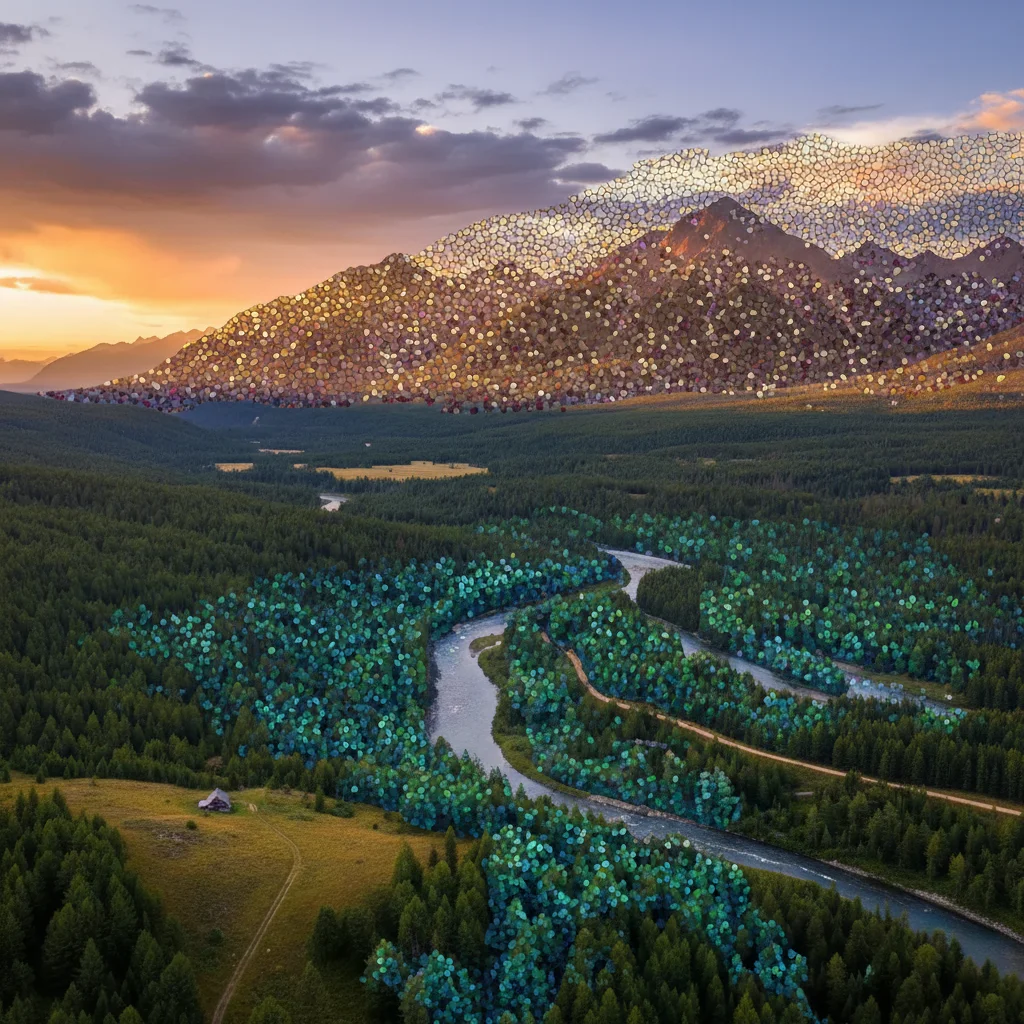
Landscape as Byzantine gold mosaic with jewel-toned glass tiles
After

Landscape as Byzantine Gold Mosaic

Transformed landscape into ornate Byzantine mosaic with jewel tones and gold accents.

Prompt: transform into Byzantine mosaic with gold and jewel-toned glass tiles and dark grout

Detailed Guides by Scenario

📷

Art & Decoration

Transform your photos into mosaic artwork for wall prints, framed art, and home decoration.

Common Scenarios

  • Converting a favorite photo into a mosaic print for your living room wall
  • Creating a series of mosaic portraits of family members as matching wall art
  • Turning landscape or travel photos into mosaic art for office decoration

Best Practices

  • Start with a high-resolution photo — printed art needs sharp detail even after the style transform
  • Request a specific aspect ratio if the print will go in a particular frame
  • Try 'bold mosaic' vs. 'subtle mosaic' to control how dramatic the transformation looks
📷

Social Media & Content

Create scroll-stopping social media content by converting photos to mosaic — perfect for profiles, stories, and viral posts.

Common Scenarios

  • Making a unique mosaic profile picture that stands out in feeds
  • Creating a mosaic version of a trending meme or photo challenge
  • Building a themed Instagram series where every post uses mosaic transformation

Best Practices

  • Pair the transformation with a catchy caption that references the art style
  • For Instagram stories, add text overlays after the mosaic conversion for maximum engagement
  • Process several photos in the same session to maintain a consistent style across posts
📷

Gifts & Personal Keepsakes

Turn meaningful photos into mosaic keepsakes — custom gifts, cards, and personalized items that people actually treasure.

Common Scenarios

  • Creating a mosaic portrait as a birthday or anniversary gift
  • Designing mosaic wedding invitations or save-the-dates from engagement photos
  • Making a mosaic memorial portrait for a loved one

Best Practices

  • Choose photos with clear faces and good lighting — the transformation preserves detail best from quality originals
  • For gifts, print on canvas or premium paper to complement the mosaic aesthetic
  • Request 'warm tones' or 'cool tones' to match the recipient's home decor

If something looks off

Tiles are too large or image looks blocky

Why: The AI used large tile size, reducing detail and making the mosaic look pixelated.

Try: Request smaller tiles: 'convert to mosaic with small tiles' or 'fine-detail mosaic with tiny tiles'

Tip: Smaller tiles = more detail preservation. Specify 'small' or 'micro' for photorealistic mosaics

Grout lines are invisible or too subtle

Why: The prompt didn't emphasize grout, so AI minimized the lines between tiles.

Try: Emphasize grout: 'convert to mosaic tile art with prominent visible white grout lines'

Tip: Real mosaics have visible grout—mention 'visible grout lines' or specify grout color

Tiles all look the same size and uniform (no variation)

Why: Modern pixel mosaic style uses uniform tiles. Traditional mosaics have size variation.

Try: Request variation: 'transform into mosaic with varied tile sizes and irregular shapes'

Tip: 'Irregular' and 'varied sizes' create organic handmade mosaic look instead of digital grid

Colors are too dull or muddy

Why: The AI reduced color saturation to mimic aged stone tiles.

Try: Request vibrancy: 'convert to mosaic tile art with vibrant colorful glass tiles'

Tip: 'Glass tiles' typically produces more vibrant colors than 'stone tiles'

Tiles don't follow image contours, look random

Why: The mosaic pattern didn't align with the photo's natural edges and shapes.

Try: Request contour-following: 'convert to mosaic where tile patterns follow the subject shapes and contours'

Tip: High-contrast base photos help the AI place tiles that follow natural boundaries

AI changed the wrong area or added effects I didn't want

Why: The AI couldn't determine exactly which area you meant from description alone. This happens with ambiguous requests.

Try: Tap a marker on the specific area you want to change, then regenerate with the same prompt

Tip: Markers tell the AI 'I mean THIS area specifically.' Use them when description alone is ambiguous.

Quick answers

Do I need to mark areas before converting to mosaic?

No! Just describe what you want: 'convert to mosaic tile art' or 'transform into Roman mosaic.' The AI converts your entire image. Only use markers if you want different tile sizes or styles on specific areas—like fine detail on the face and larger tiles on the background.

How do I make it look like real handmade mosaic, not digital?

Include authentic mosaic characteristics: 'visible grout lines,' 'irregular tile shapes,' or 'varied tile sizes.' Specify material like 'stone tesserae' or 'glass tiles' for realistic texture. Real mosaics have imperfect tiles and visible grout—avoid 'smooth' or 'uniform' if you want handmade authenticity.

Is there a free mosaic maker that doesn't require login?

Yes. EditThisPic converts photos to mosaic tile art with AI, completely free with no account needed. Just upload, describe your desired mosaic style, and download your tessellated artwork with no watermark.

What's the difference between Roman, Byzantine, and modern mosaic styles?

Roman mosaics use small uniform stone tiles in naturalistic designs. Byzantine mosaics feature gold and jewel-toned glass tiles in religious iconography. Modern pixel mosaics use perfectly uniform square tiles like digital pixels. Specify your preferred style in the prompt for accurate historical or contemporary results.

Can I control the tile size in the mosaic?

Yes. Request 'tiny micro tiles' for fine detail, 'small tiles' for classical mosaic, or 'large tiles' for bold contemporary style. You can also specify: 'convert to mosaic with 5mm tiles' for precise sizing. Smaller tiles preserve more photo detail; larger tiles create abstract tessellation.

Is EditThisPic's AI mosaic converter really free?

Yes — you get 1 free edit per week, no account needed. For unlimited edits, plans start at $3.99/month.

Can I convert mosaic on my phone?

Yes. EditThisPic works in any mobile browser — iPhone, Android, tablet. No app download needed.

What photo formats does the AI mosaic converter support?

JPG, PNG, WebP, and HEIC. Upload any common photo format and EditThisPic handles the rest.

Ready to create mosaic tile art from your photo?

Free to try. No signup required.

Try it free