Pricing Edit Portrait photography · Free

AI Photo Editor for Portrait Photographers

← Browse all creative effects

Last updated

Clean backgrounds, fix distractions, retouch portraits — describe what needs changing and AI handles it.
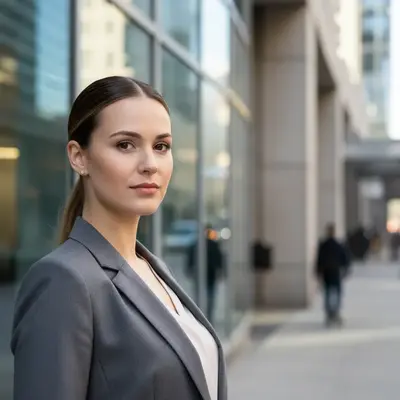
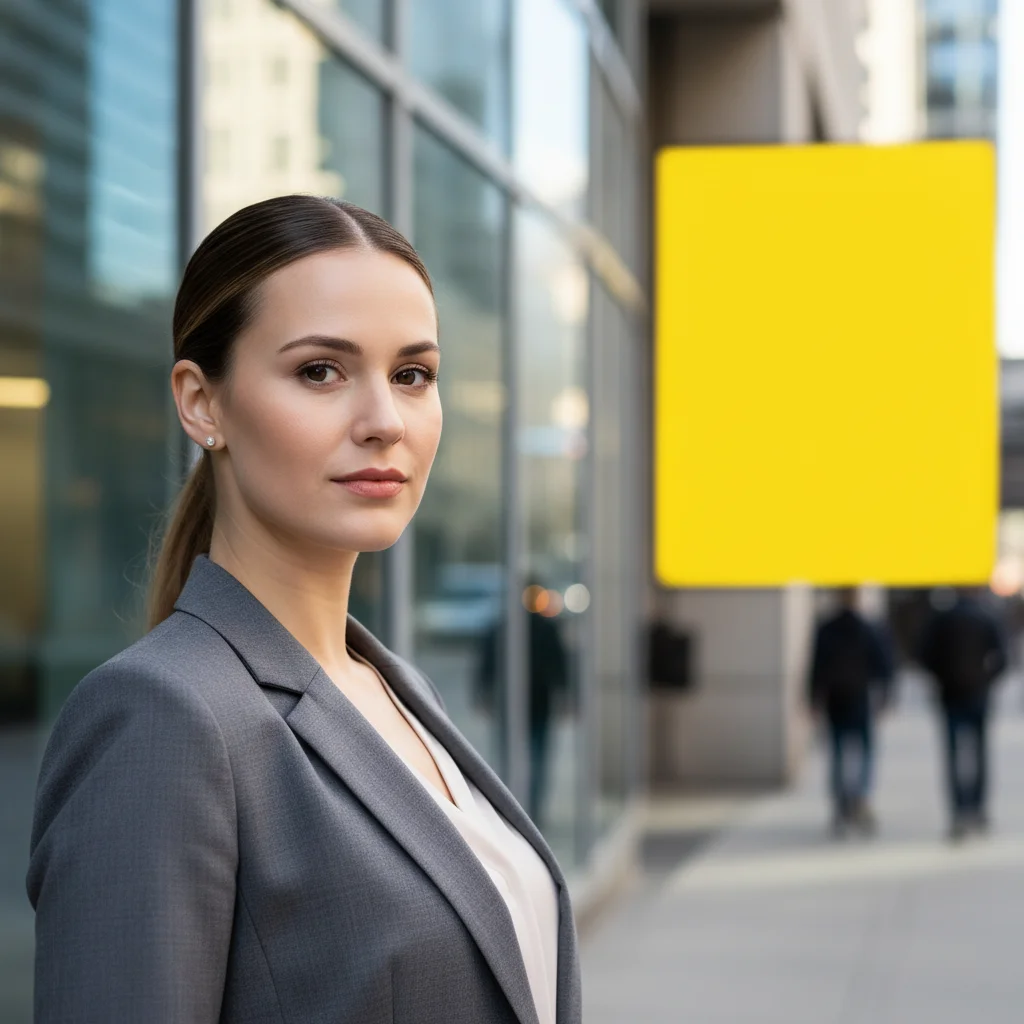
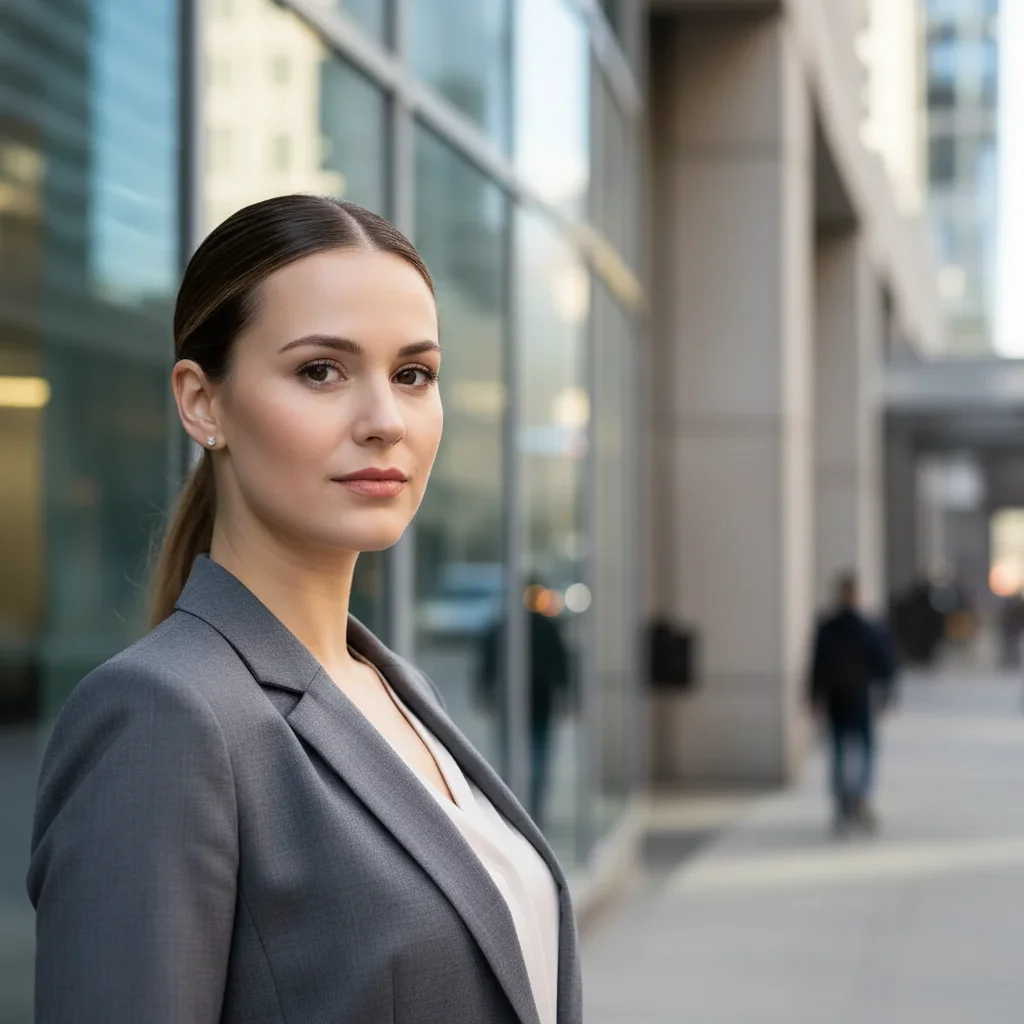
Portrait with distracting yellow sign in background Clean portrait with sign removed

Upload photo to edit portrait photography

"smooth the skin on the face, reduce redness around the nose and cheeks, keep it natural-looking"

Free to try · no sign-up · photos are never shared

Release to upload

<30stypical edit
1 freeedit weekly
Photo on your phone? Scan to open this editor there — free edit works on your phone too.

1 free edit every week·packs from $4.99

How it works

  1. Upload the portrait

    Drop the headshot, lifestyle portrait, or environmental portrait into EditThisPic. Works with any format. Best results on photos where the subject is clearly the focus and the element to change is identifiable.

    Expect: Most portrait edits process in 20-35 seconds. Complex background work may take up to 45 seconds.
  2. Describe what needs fixing

    Type the edit clearly: 'remove the bin visible on the right side of the background', 'smooth the skin and reduce the redness on the cheeks', 'darken the background behind the subject', 'remove the pole behind the subject's left shoulder'. Describe position, colour, or context to identify the right element. No marking or selecting needed.

    Tip: For skin retouching, describe the outcome you want: 'smooth the skin while keeping a natural texture'. Over-specifying can lead to plastic-looking results.

    Copy one of these to get started:

    Distracting object in background remove the wheelie bin visible in the background on the right side and fill with the wall behind it
    Skin smoothing and redness fix smooth the skin on the face, reduce redness around the nose and cheeks, keep it natural-looking
    Harsh shadow on face soften the harsh shadow across the right side of the face and even out the lighting
    Background too busy or bright blur the background slightly to reduce the distraction and make the subject stand out more
    4 more prompts
    Pole or post behind subject remove the lamp post that's appearing behind the subject's left shoulder and fill with the background
    Flyaway hair fix clean up the flyaway hairs around the subject's head against the background
    Under-eye circles reduce the dark circles under the eyes naturally, keep the overall face looking realistic
    Replace background with clean colour replace the outdoor background with a clean light grey studio background
  3. Review the result

    Check the subject's edges remain clean after background edits. For retouching, check that skin looks natural and not over-processed. For background fixes, verify the fill matches surrounding background content.

See it in action

Portrait with distracting yellow sign in background
Before
->
Clean portrait with sign removed
After

Background distraction removal

A distracting element visible over the subject's shoulder. Quick removal that doesn't require re-shooting the session.

Prompt: remove the bright yellow sign visible over the subject's right shoulder and fill with the neutral background behind
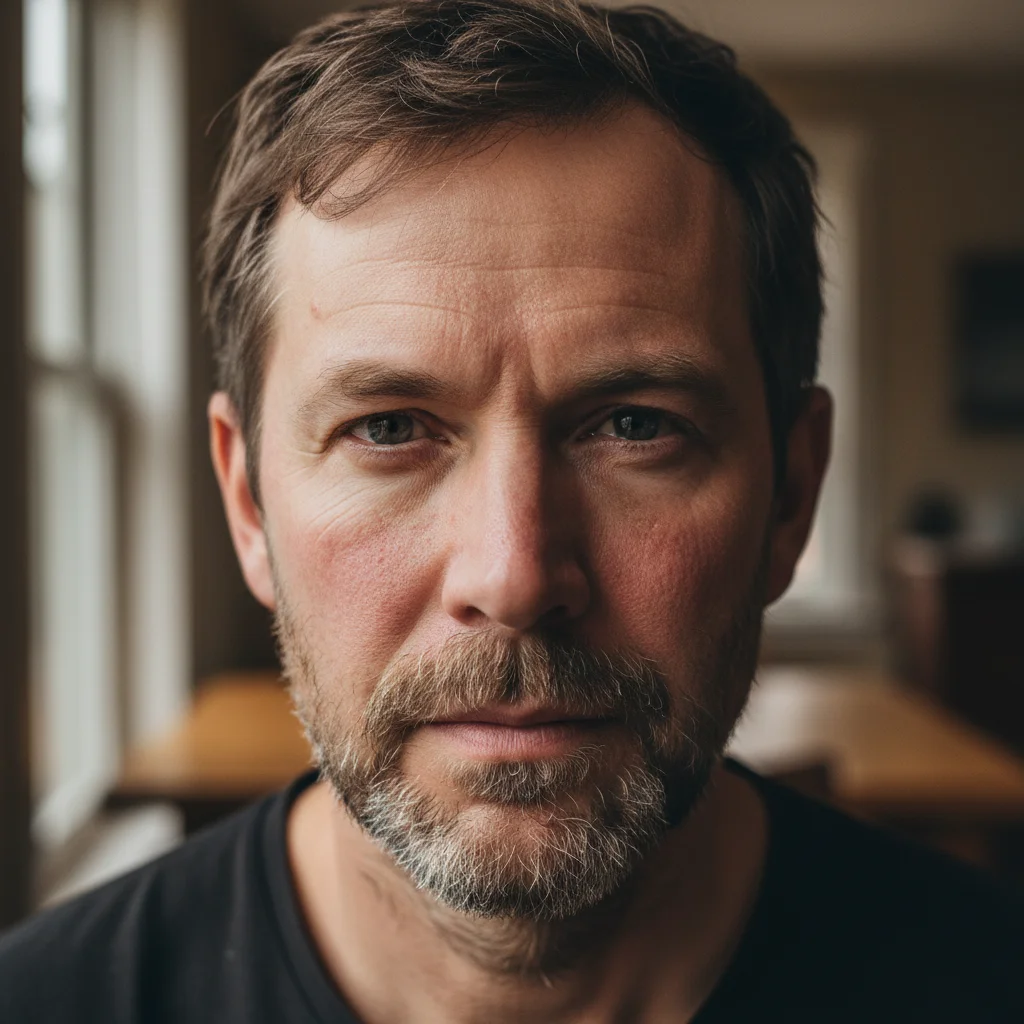
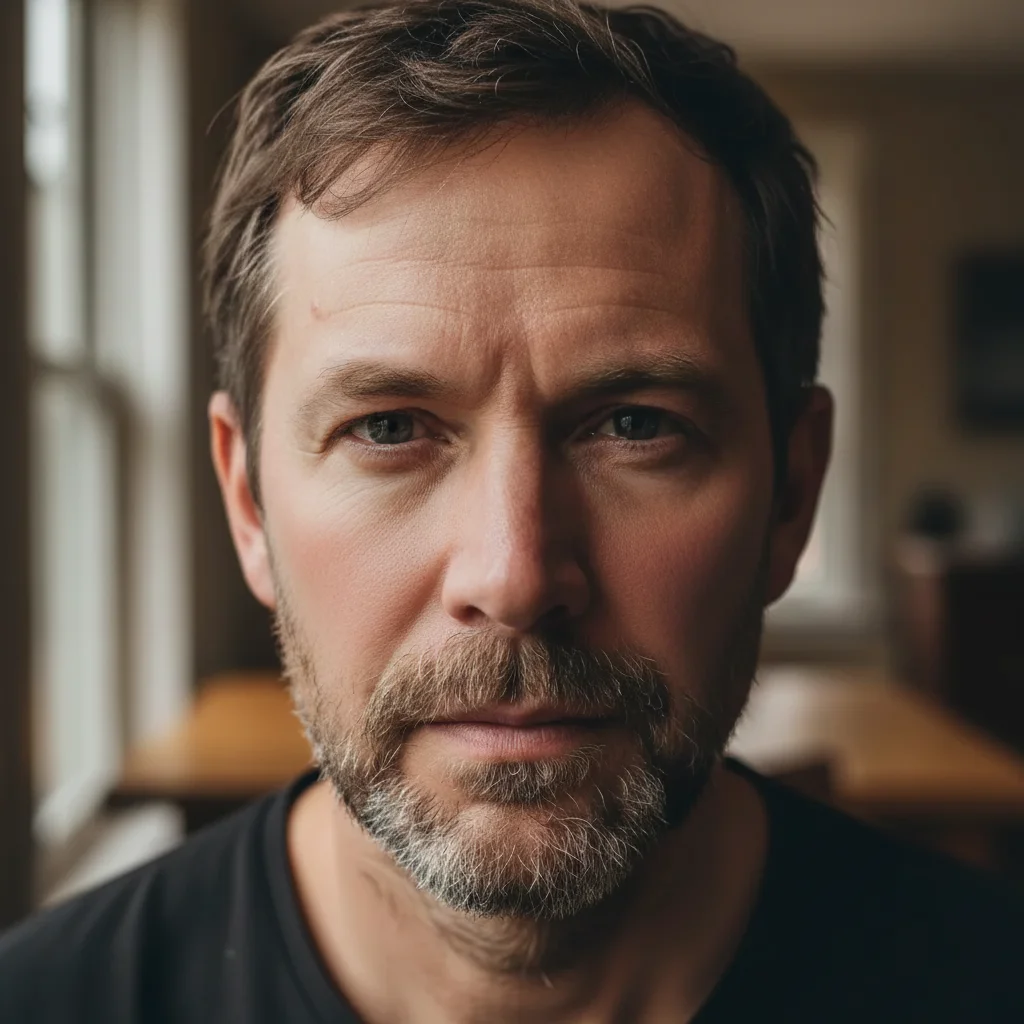
Portrait with skin redness and uneven texture
Before
->
Portrait with natural skin retouching applied
After

Natural skin retouching

Skin texture needs softening but the result must look natural. Over-retouched portraits look artificial — this prompt keeps results realistic.

Prompt: smooth the skin on the face and reduce the redness, keep the natural skin texture and avoid a plastic look

Quick answers

Do I need to mark or select areas before describing what to fix?

No — just describe the fix. 'Remove the object in the background on the right', 'smooth the skin naturally', 'remove the shadow on the left side of the face'. The AI understands spatial descriptions.

Is this meant to replace professional retouching software?

No. EditThisPic handles specific targeted fixes quickly: removing distractions, quick skin work, background cleanup. For detailed skin retouching, colour grading, or large-scale processing across a session, you'll still use your main workflow. This complements it for one-off fixes.

Is there a free AI tool for portrait photo editing with no login?

EditThisPic is free to try with no account required. You get 1 free edit per week. Credit packs start at $4.99 for 10 edits — useful for fixing the handful of problem shots from a portrait session.

Can it fix harsh shadows from outdoor shooting?

Yes — describe the shadow and where it is. 'Soften the harsh shadow across the left side of the face' works well for strong directional light. The AI adjusts the shadow while preserving the subject's natural look.

How much does EditThisPic cost?

You get 1 free edit per week — no account needed. After that, one-time credit packs start at $4.99 for 10 edits, valid 12 months, no subscription. Power users who edit daily can pick Studio Membership, a monthly workspace at $49.99/mo for 300 edits. Purchased downloads are clean with no watermark.

Fix Portrait Shots That Need a Quick Edit

Remove distractions, retouch naturally. Free to try, no signup.

1 free edit included·Credit packs from $4.99