Free • No signup Fix White balance interior · Free

AI White Balance Fix for Interior Photos

Upload an interior photo and describe the color problem. AI neutralizes color casts and corrects white balance in seconds.
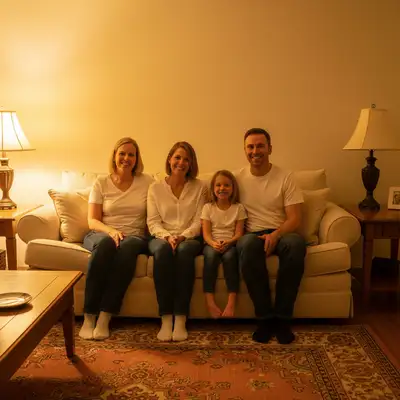
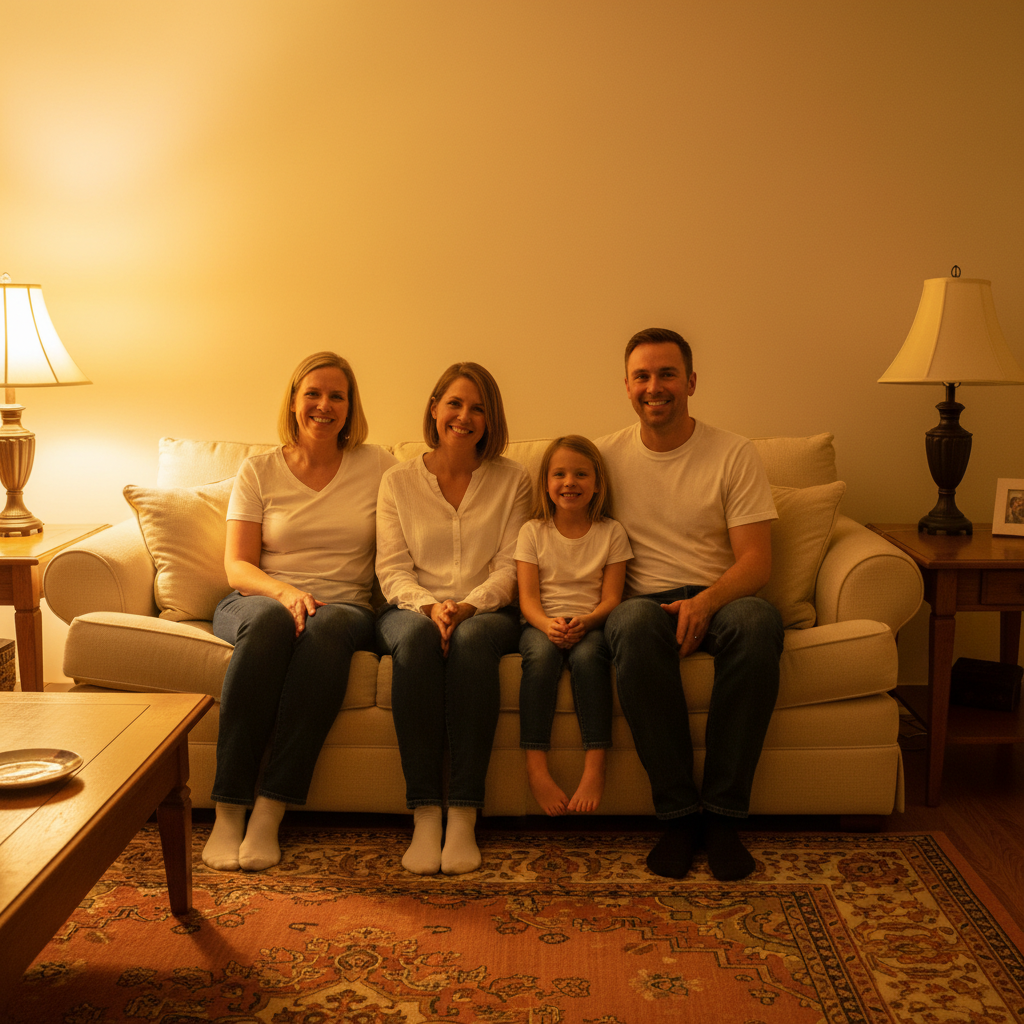
Living room photo with heavy yellow-orange color cast from incandescent lighting
Before
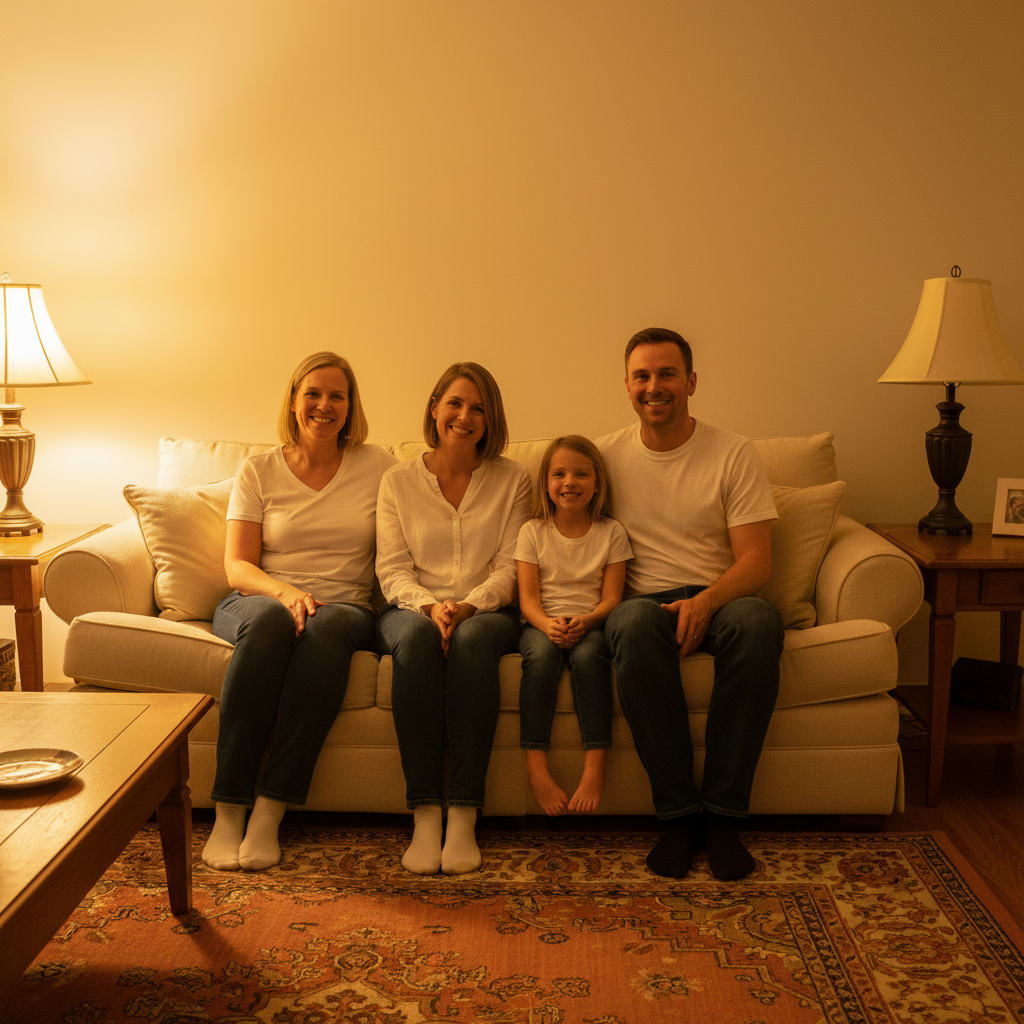
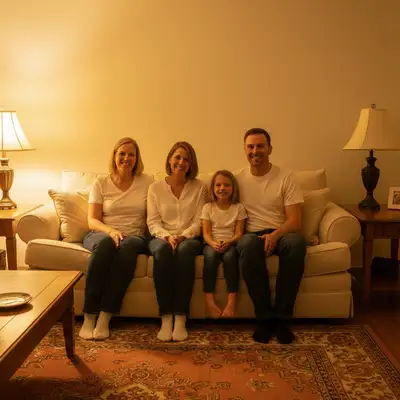
Same living room with corrected white balance showing neutral white walls and natural colors
After

AI White Balance Fix for Interior Photos

Drop your photo here

or click to browse

Release to upload

Free • No signup

Popular use cases:
  • interior photo white balance correction
  • real estate photo color correction
  • remove yellow cast from room photo
  • color correct interior listing photos
  • fix mixed lighting interior photo
  • room photo color temperature fix
  • MLS photo white balance tool
  • interior photo color cast remover

Cost
Free No signup required
Time
Instant results in 15-30 seconds
Works on
Any device - browser, phone, tablet, desktop
Powered by
AI-powered photo editing
Scenario Prompt Time
Yellow incandescent cast fix yellow-orange cast from incandescent bulbs, make white walls look neutral white 15s
Mixed daylight + lamps balance blue daylight from windows with warm lamp light to consistent neutral balance 25s
Cool LED bathroom remove blue-cool LED cast, make white tiles look naturally bright white 20s

How it works

  1. Upload your interior photo

    Drop the photo with the color cast problem into EditThisPic. Works with any interior: living rooms, bedrooms, kitchens, bathrooms. JPG, PNG, WebP up to 7MB.

    Expect: Simple color cast fix: 15-20 seconds. Mixed lighting with multiple color sources (window daylight plus lamps): 20-30 seconds, may need one refinement.
  2. Describe the color problem and target result

    Type what's wrong and what you want: 'fix the strong yellow-orange color cast from the incandescent bulbs and make the white walls look white' or 'remove the blue cool color cast and warm this interior to natural daylight balance.' Name the cast color, its source, and your target. No marking needed — white balance is a global correction the AI applies to the whole image.

    Tip: Describing both the problem color AND the target helps the AI calibrate correctly: 'remove the yellow cast' alone is less accurate than 'remove the yellow cast so the white walls look neutral white.'

    Copy one of these to get started:

    Yellow incandescent cast (most common) fix the warm yellow-orange color cast from incandescent bulbs and make the white walls and ceiling look neutral white while keeping the room feeling warm and inviting
    Mixed daylight and lamp lighting correct the mixed lighting color cast in this room — the window side is blue-cool and the lamp side is yellow-warm — balance both zones to a consistent neutral daylight white balance
    Bathroom with cool blue cast remove the blue-cool color cast from the overhead LED lights in this bathroom and warm the photo to a natural, flattering white balance that makes the white tiles look bright white
    Kitchen photo color correction fix the white balance in this kitchen photo — remove the yellow-green cast from the fluorescent under-cabinet lights and correct to a clean, bright neutral white balance suitable for MLS listing
    3 more prompts
    Night interior with multiple light sources color correct this interior photo taken at night with mixed light sources — neutralize all color casts and adjust to a natural, consistent warm-neutral white balance throughout the room
    Bedroom with green cast remove the green color cast in this bedroom photo from the fluorescent overhead light and correct to a natural warm-white balance matching what the room looks like to the human eye
    Real estate HDR color inconsistency fix the inconsistent color temperature across this HDR interior photo — some exposures look warm, others cool — blend to a consistent neutral daylight white balance throughout
  3. Review the corrected photo

    Check that white surfaces look neutral (not tinted), shadows are natural, and skin tones in any visible decor look right. Use the before/after slider to compare the original cast with the correction.

  4. Refine specific areas with markers if needed

    If one zone (like a lamp-lit corner) still has a lingering cast while the rest of the room is corrected, tap a marker on that area and add 'also fix the remaining warm cast in the marked corner.' Markers are optional for whole-room corrections.

    Tip: Mixed-lighting rooms (daylight windows plus tungsten lamps) may need a second pass targeting each zone separately with markers.
Try it free

AI White Balance Fix for Interior Photos

Drop your photo here

or click to browse

Release to upload

Free • No signup

"Shot a kitchen at dusk with all the lights on — the whole photo was orange. Fixed in one prompt. Client didn't even notice it wasn't perfect out of camera." @RealEstateShooter_ATL

See it in action

Living room photo with heavy yellow-orange color cast from incandescent lighting
Before
->
Same living room with corrected white balance showing neutral white walls and natural colors
After

Living room yellow cast corrected for listing

A twilight real estate photo with heavy incandescent yellow-orange cast corrected to neutral for MLS.

Prompt: fix the strong yellow-orange color cast from the incandescent lamps and make the white ceiling and walls look neutral white while preserving the warm ambiance of the room
Kitchen with mixed lighting showing blue window light on left and yellow lamp light on right
Before
->
Same kitchen with corrected consistent white balance and neutral-looking white cabinets throughout
After

Kitchen with mixed lighting corrected

A kitchen photo with blue daylight from windows and yellow lamp light corrected to consistent neutral balance.

Prompt: correct the mixed lighting in this kitchen — balance the blue daylight from the window with the warm yellow from the pendant lights to a consistent neutral white balance throughout
Bathroom with blue-cool color cast making white tiles look tinted
Before
->
Same bathroom with corrected white balance showing clean bright white tiles and natural colors
After

Bathroom cool LED cast fixed

A bathroom with harsh blue-cool LED overhead lighting corrected to a flattering, bright white balance.

Prompt: remove the harsh blue-cool color cast from the LED overhead lights in this bathroom — correct to a natural, bright white balance that makes the white tiles and fixtures look clean and accurate

Detailed Guides by Scenario

📷

Real Estate Listing Photos

Fix color casts in listing photos that make interiors look uninviting — yellow rooms, orange kitchens, blue bathrooms.

Common Scenarios

  • Correcting yellow-orange incandescent casts in twilight interior shots
  • Fixing mixed lighting in open-plan spaces with both windows and lamps
  • Neutralizing cool LED bathroom casts before uploading to MLS

Best Practices

  • Describe the cast color AND the target (what neutral looks like) for the most accurate correction
  • Add 'inviting' or 'slightly warm' to prevent the AI from overcorrecting to a cold look
  • Always disclose AI editing per local MLS guidelines
📷

Interior Photography Post-Processing

Quickly correct white balance on JPEG files without Lightroom or RAW access — batch-fix multiple rooms in minutes.

Common Scenarios

  • Correcting white balance on client-delivered JPEG interior photos
  • Fixing color casts introduced during HDR blending or exposure merging
  • Batch-correcting a set of interior photos from a single shoot with mixed conditions

Best Practices

  • Use specific light source names — 'tungsten,' 'fluorescent,' 'LED' — for more targeted corrections
  • Include room type context: 'kitchen' vs 'bedroom' helps the AI calibrate expected neutral surfaces
  • For HDR images, describe that brackets had different color temperatures to prompt the right correction
📷

Home-Selling DIY Photo Prep

Fix color casts in your own phone or camera photos before listing your home — no professional editor needed.

Common Scenarios

  • Correcting yellow cast from your home's incandescent lights in your own listing photos
  • Fixing the orange bathroom photo you took with your phone under overhead lighting
  • Correcting the bedroom photos that came out blue from the LED strip lights

Best Practices

  • The best phone photos for correction are shot in well-lit conditions with one dominant light source
  • Describe the room color you see versus what it should look like: 'the walls are white in person but appear yellow here'
  • Compare your corrected photo against how the room looks to your eye in person before publishing

If something looks off

Correction went too far — room now looks cold and sterile

Why: The AI overcorrected the warm cast and pushed the temperature too cool.

Try: fix the white balance in this interior photo but keep it slightly warm and inviting — correct the yellow cast without making the room feel cold or clinical

Tip: Adding 'slightly warm' or 'inviting' to your prompt prevents overcorrection toward a cold, clinical look that harms listing photos.

Only part of the room was corrected — the rest still has a cast

Why: In mixed-lighting rooms, the AI corrected the dominant light source but left secondary zones uncorrected.

Try: Tap a marker on the area still showing a color cast, then add 'also fix the remaining cast in the marked area to match the rest of the room'

Tip: Use markers to target specific problem zones in rooms with multiple light sources.

AI changed the wrong area or something I didn't want changed

Why: The AI interpreted your correction broadly and altered tones or colors beyond the cast fix.

Try: Tap a marker on the affected area, then regenerate with 'only fix the white balance color cast in the marked area without changing anything else'

Tip: Markers with a narrow scope instruction prevent the AI from adjusting beyond the targeted correction.

Wood floors or warm furnishings look wrong after correction

Why: Removing the color cast also desaturated warm tones in wood and fabric that should remain warm.

Try: fix the color cast in this interior photo — correct the white walls and ceiling to neutral white but preserve the natural warmth in the wood floors and furniture

Tip: Instructing the AI to preserve specific warm elements prevents it from treating all warm tones as cast artifacts.

Before/after looks similar — correction didn't register

Why: The AI may have interpreted the cast as intentional warm ambiance rather than a problem to fix.

Try: this photo has incorrect white balance — the walls that should be white appear yellow-orange. fix this so the white surfaces look white while keeping the room well-lit and natural

Tip: Explicitly stating that white surfaces 'should be white' anchors the AI to the correction target rather than treating the cast as intentional.

Quick answers

Do I need to select or mark areas before fixing white balance?

No. White balance is a global correction — just describe the color cast and target balance in your prompt: 'fix the yellow color cast and make the white walls look white.' The AI corrects the whole room from description. Only use markers if one specific zone has a different cast than the rest.

Can this fix photos with mixed lighting — daylight plus lamps?

Yes, and it handles it better when you describe both zones: 'balance the blue daylight from the windows with the warm lamp light on the other side.' The AI finds a consistent middle rather than overcorrecting one zone at the expense of the other.

Is there a free white balance tool for interior real estate photos?

Yes. EditThisPic is free to try with no account required. Upload your interior photo, describe the color cast, and get corrected results in under 30 seconds. One free edit per week; credit packs from $1.99 for batch corrections.

Will this work on photos taken at night with only indoor lighting?

Yes. Night interiors with no daylight reference are the hardest case, but describing the target helps: 'correct to a natural warm-neutral white balance that looks like the room does to the human eye.' The AI uses your description to calibrate the correction target.

How is this different from just adjusting exposure or brightness?

White balance fixes color temperature — the yellow, orange, or blue tint caused by light sources. Exposure adjusts overall brightness. They're separate corrections. A properly exposed photo can still have a bad color cast, and fixing white balance won't affect exposure.

Ready to fix that color cast?

Free to try. No signup required.

Try it free