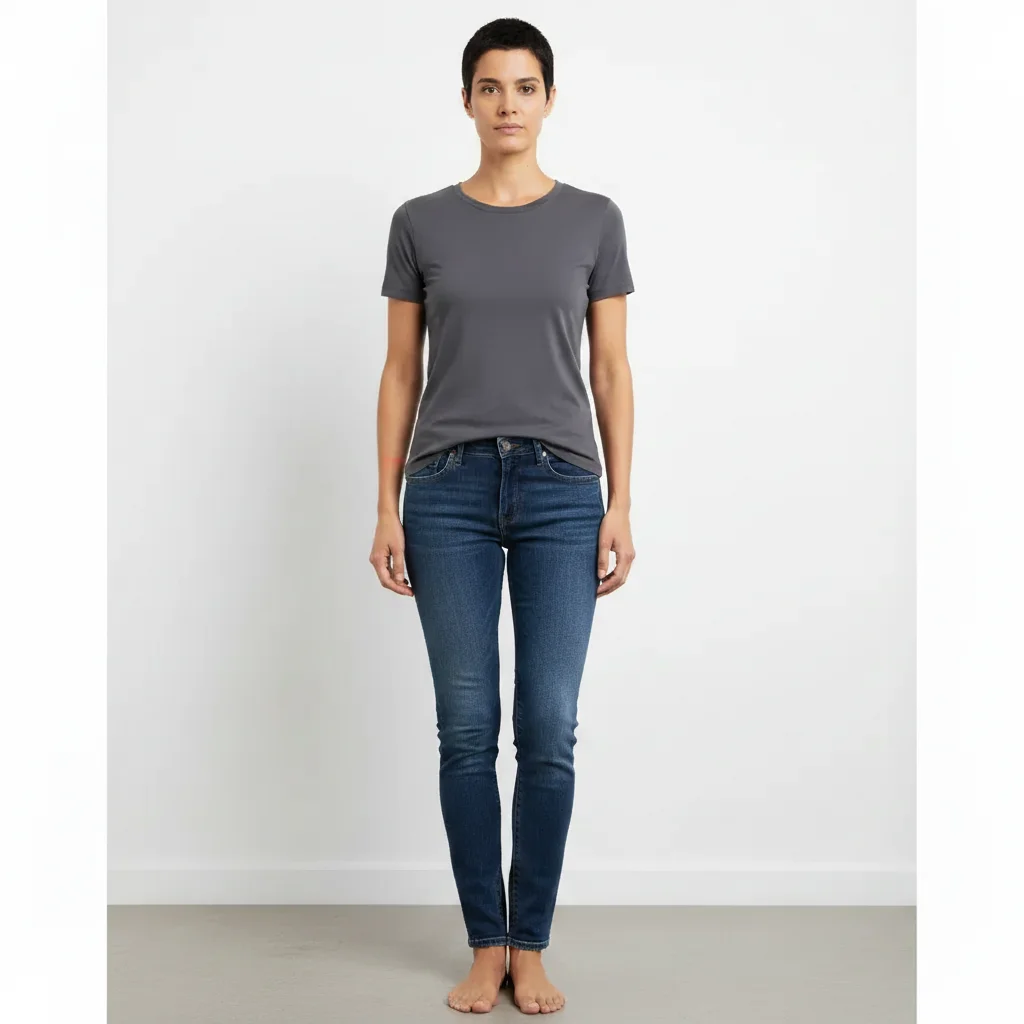
Free • No signup Enlarge Eyes · Free

Enlarge Eyes in Photo

Describe the adjustment you want for natural-looking results.
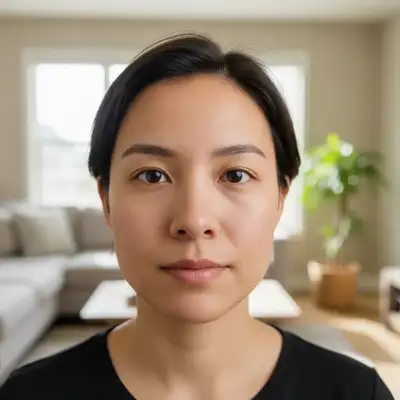
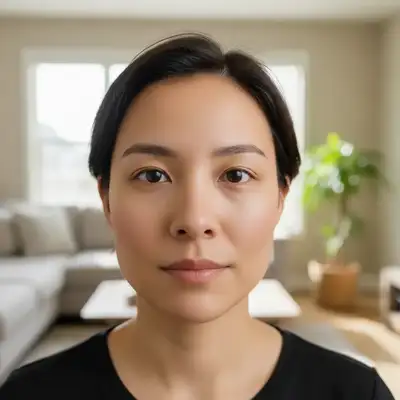
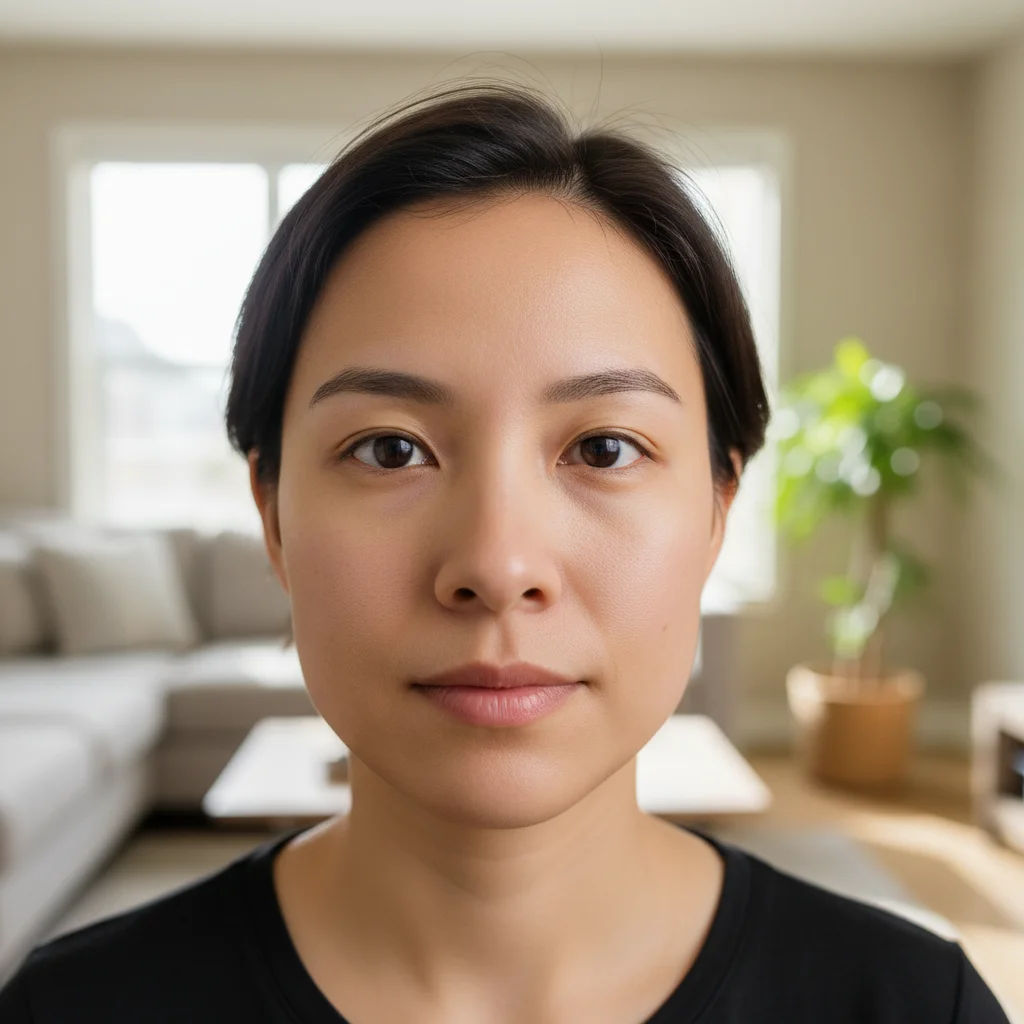
Portrait with natural eyes
Before
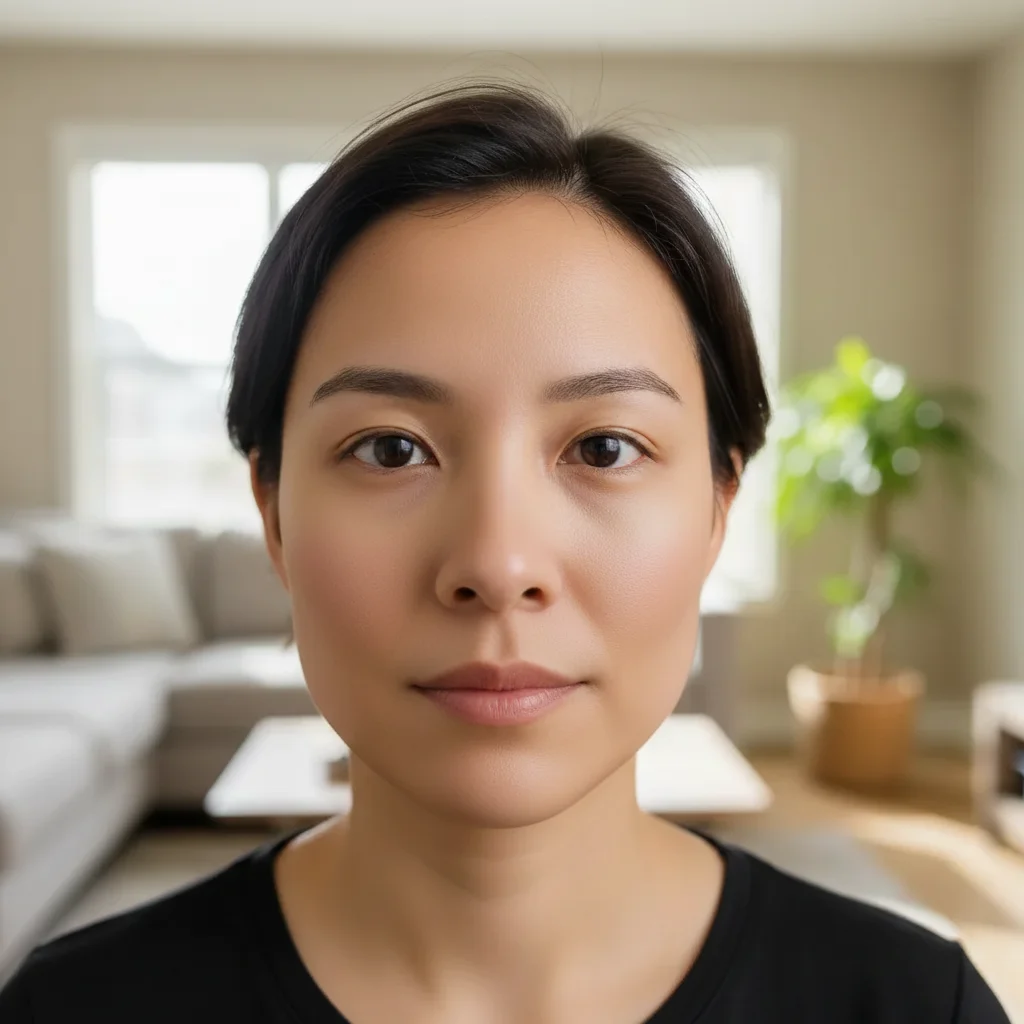
Portrait with enhanced eyes
After

Enlarge Eyes in Photo Online

Drop your photo here

or click to browse

Release to upload

Free • No signup

Popular use cases:
  • enlarge eyes
  • AI eyes editor
  • photo eyes tool
  • free eyes editing

Cost
Free No signup required
Time
Instant results in 15-30 seconds
Works on
Any device - browser, phone, tablet, desktop
Powered by
AI-powered photo editing

How it works

  1. Upload your photo

    Upload a clear, front-facing portrait. Good lighting on the face and visible facial features give the AI the best foundation for eyes editing. JPG, PNG, WebP up to 7MB.

    Expect: Most edits complete in 20-45 seconds. Complex changes may need 1-2 refinements.
  2. Describe your edit

    Type what you want: 'Subtly enlarge the eyes for a more expressive look, keep it natural and proportional.' Be specific about details for best results. The AI understands natural language — no technical skills needed.

    Tip: Ask for subtle changes — 'slightly slim' works better than extreme adjustments.

    Copy one of these to get started:

    Subtle Enlarge Subtly enlarge the eyes for a slightly more open, expressive look
    Brighten Eyes Make the eyes look brighter and more alert with subtle enhancement
    Tired Fix Make the eyes look more awake and refreshed, reduce the tired appearance
    Portrait Enhancement Enhance the eyes to be the focal point of this portrait while keeping natural proportions
    4 more prompts
    Squinting Fix Open the eyes slightly to fix squinting from bright sun
    Professional quality result enlarge eyes with professional quality, clean composition, and balanced lighting
    Quick edit for immediate sharing enlarge eyes — keep it looking natural and realistic. I want to share this on social media right away
    Eye-catching creative version enlarge eyes with vibrant colors and striking visual impact for social media
  3. Review the result

    Zoom in on facial details — check that skin tones look natural, edges blend seamlessly, and no artifacts appear around the hairline, jawline, or eyes. Use the before/after slider to compare.

  4. Refine if needed

    If specific facial features need adjustment — asymmetric eyes, unnatural skin smoothing, or hairline artifacts — tap markers on those spots and describe the fix. Fine-tune until the result looks like a natural photo.

    Tip: Markers are optional. Try without them first — the AI usually gets it right.
Try it free

Enlarge Eyes in Photo Online

Drop your photo here

or click to browse

Release to upload

Free • No signup

"My eyes look so much brighter and more awake. Nobody can tell it was edited!" @BrightEyes

See it in action

Portrait with natural eyes
Before
->
Portrait with enhanced eyes
After

Subtle Eye Enhancement

Eyes subtly enlarged for a more expressive portrait.

Prompt: Subtly enlarge eyes for more expressive look
Portrait with tired eyes
Before
->
Portrait with bright, alert eyes
After

Tired to Alert

Tired-looking eyes brightened for a refreshed appearance.

Prompt: Make eyes look brighter and more alert

Detailed Guides by Scenario

📷

Professional Use

Apply 'Enlarge Eyes in Photo' to images for professional projects — websites, marketing materials, client deliverables, and presentations.

Common Scenarios

  • Using 'Enlarge Eyes in Photo' for client work or commercial photography
  • Applying 'Enlarge Eyes in Photo' to product or marketing images for a business
  • Batch-processing multiple images with 'Enlarge Eyes in Photo' for a project deadline

Best Practices

  • Use the highest resolution source image available for professional-quality results
  • Be specific in your prompt about the exact 'Enlarge Eyes in Photo' effect you need
  • For consistency across multiple images, reuse the same prompt template
📷

Creative & Social Media

Use 'Enlarge Eyes in Photo' creatively for social media content, personal projects, and artistic expression.

Common Scenarios

  • Applying 'Enlarge Eyes in Photo' to a photo for a unique social media post
  • Using 'Enlarge Eyes in Photo' to create artistic variations of a favorite image
  • Experimenting with 'Enlarge Eyes in Photo' for a creative project or portfolio piece

Best Practices

  • Experiment freely — AI editing lets you try bold ideas with no risk to the original
  • For social content, pair the visual effect with a caption that references the transformation
  • Try the effect on different types of photos to find what looks most striking
📷

Personal Photos & Memories

Apply 'Enlarge Eyes in Photo' to personal photos to fix issues, enhance quality, or create something special from everyday images.

Common Scenarios

  • Using 'Enlarge Eyes in Photo' on family photos to improve or personalize them
  • Applying 'Enlarge Eyes in Photo' to vacation or event photos before printing or sharing
  • Trying 'Enlarge Eyes in Photo' on a selfie or portrait for profile or personal use

Best Practices

  • Always work on a copy — keep the original safe in case you want to try a different approach
  • Natural-looking results are almost always better than dramatic over-processing
  • If it doesn't look right the first time, rephrase your prompt with more specific details

If something looks off

AI changed the wrong area

Why: The AI couldn't determine exactly which area you meant from the description alone.

Try: Tap a marker on the specific area you want to edit, then regenerate with the same prompt

Tip: Markers tell the AI exactly where to focus. Use them when description alone is ambiguous.

Result looks unnatural or blurry

Why: The AI may need more specific guidance about the look you want.

Try: Subtly enlarge the eyes for a more expressive look, keep it natural and proportional, ensure natural lighting and sharp details that match the rest of the photo

Tip: Adding 'natural' and 'realistic' to your prompt helps the AI prioritize believability.

Edit looks too extreme or unnatural

Why: The AI applied the adjustment too aggressively, creating an obviously altered look.

Try: Regenerate with 'very subtle, natural-looking adjustment — barely noticeable change'

Tip: Ask for subtle changes — 'slightly slim' works better than extreme adjustments.

Asymmetry introduced in other features

Why: Modifying one feature shifted adjacent areas, creating an unbalanced appearance.

Try: Add 'maintain symmetry and natural proportions across all facial/body features'

Tip: Focus on one feature at a time. Trying to change multiple things at once can cause distortion.

Skin texture lost in edited area

Why: The edit smoothed out natural skin texture while making the adjustment.

Try: Regenerate with 'preserve natural skin texture, pores, and detail in the edited area'

Tip: Always include 'keep natural skin texture' in body editing prompts to avoid the airbrushed look.

Quick answers

Will it look unnatural?

No. The AI makes proportional adjustments. Subtle changes of 5-10% look completely natural.

Is it free?

Yes. Free eye enhancement with no signup.

Can I just brighten without enlarging?

Yes. Ask for "brighter eyes" without mentioning size for brightness-only enhancement.

Will it change my eye color?

No. Only the size and brightness change. Eye color, shape, and other features stay the same.

Does it work on both eyes equally?

Yes. The AI adjusts both eyes symmetrically for a balanced result.

Good for fixing tired-looking photos?

Yes. Eye brightening is one of the best ways to make someone look more awake and refreshed.

Can I enlarge eyes on my phone?

Yes. EditThisPic works in any mobile browser -- iPhone, Android, tablet. No app download needed.

What photo formats does the enlarge eyes in photo tool support?

JPG, PNG, WebP, and HEIC. Upload any common photo format and EditThisPic handles the rest.

Ready to enhance your look?

Free to try. No signup required.

Try it free