Pricing Fix Low quality · Free

Fix Low Quality Photo

← Browse all fix & repair tools

Last updated

Upload a photo from an old phone, a compressed upload, or a low-light shot and describe what makes it look bad — grain, blur, flat colors, or muddy shadows. The AI targets the specific quality problems you name and improves them without touching the parts that are fine. Free, no account needed.
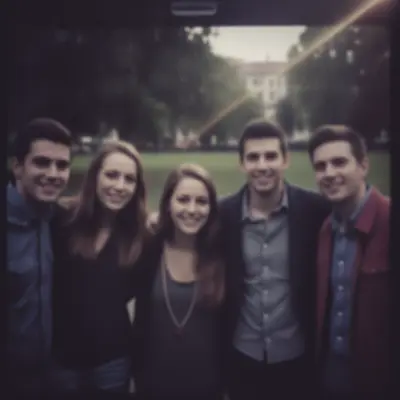
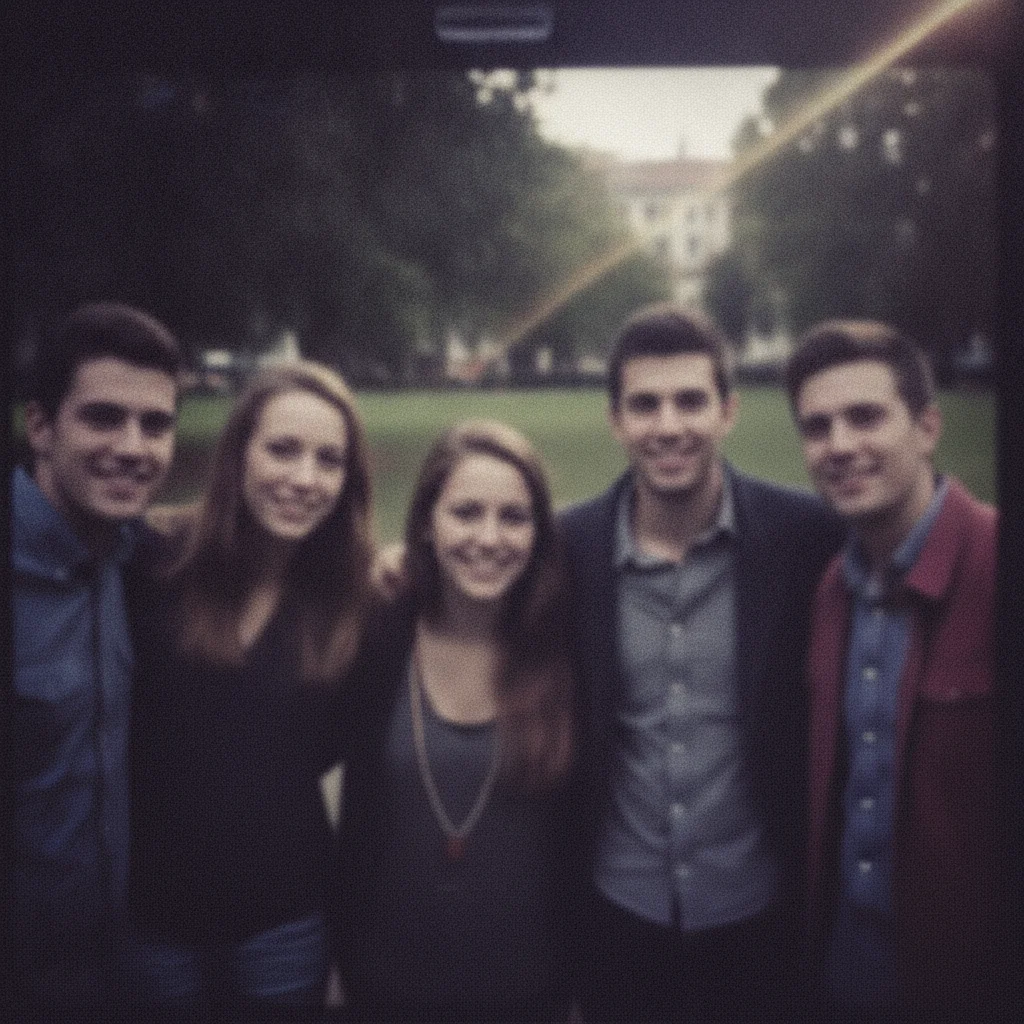
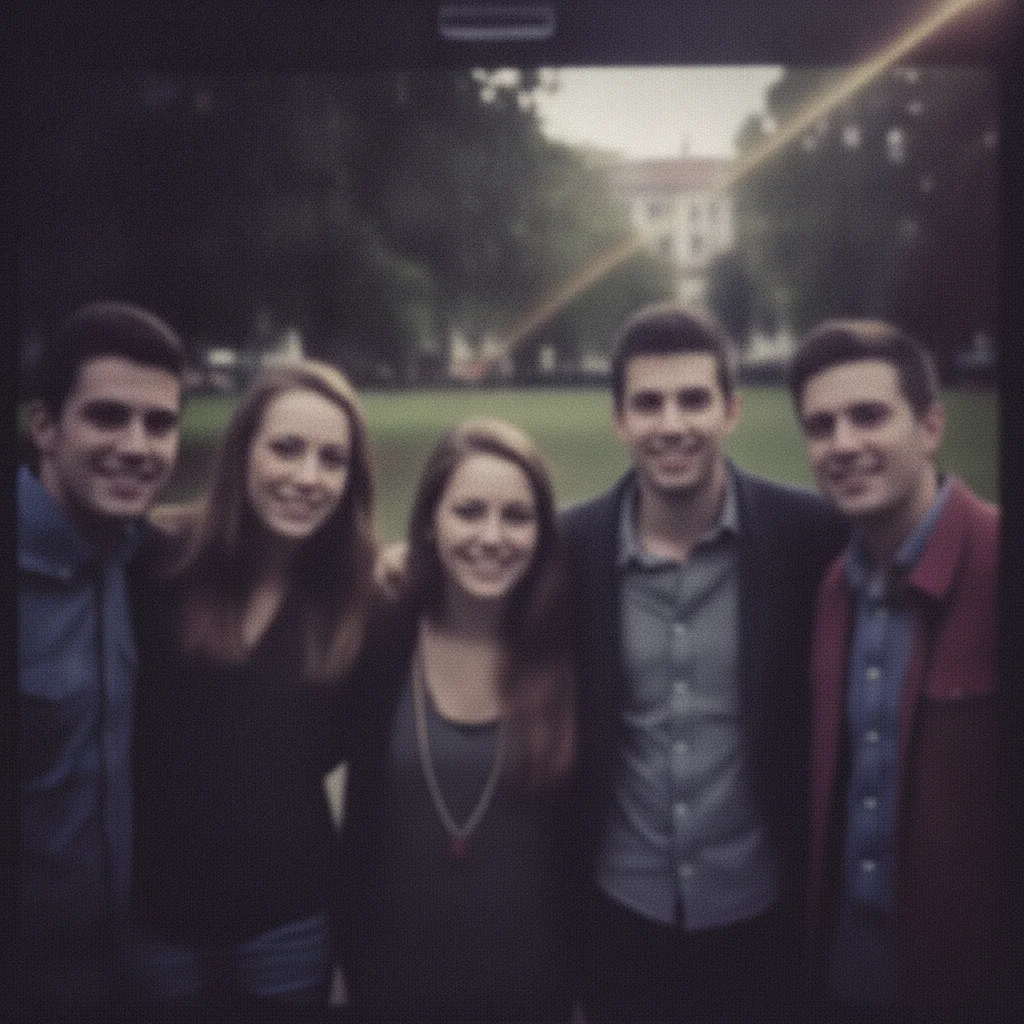
Group photo from old Android phone with heavy grain, dull colors, and soft faces Same group photo with grain removed, colors improved, and faces sharpened

Upload photo to fix low quality

"Restore the image quality — it was compressed when uploaded and lost sharpness and detail, remove the compression artifacts and improve the definition"

Free to try · no sign-up · photos are never shared

Release to upload

<30stypical edit
1 freeedit weekly
Photo on your phone? Scan to open this editor there — free edit works on your phone too.

1 free edit every week·packs from $4.99

How it works

  1. Upload your low-quality photo

    Upload the photo that needs improving. JPG, PNG, and WebP up to 7MB are accepted. Even heavily degraded small photos can be significantly improved — upload what you have.

    Expect: Straightforward grain and sharpness fixes: 25-35 seconds. Photos with multiple problems (grain, blur, poor color, low light) together: 45-60 seconds.
  2. Describe what makes it look bad

    Tell the AI the specific quality issues: 'it is grainy and blurry, from an old phone camera' or 'the image is muddy — colors are dull, shadows are too heavy, and the detail is soft.' You do not need to mark anything — describing the problems is all the AI needs.

    Tip: Mentioning the source — 'old Android', 'budget camera', 'sent over WhatsApp' — helps the AI recognize the type of degradation and apply the right kind of correction.

    Copy one of these to get started:

    Old phone camera — grainy and soft Fix the grain and sharpen the detail — this photo was taken on an old phone camera with a low-quality sensor
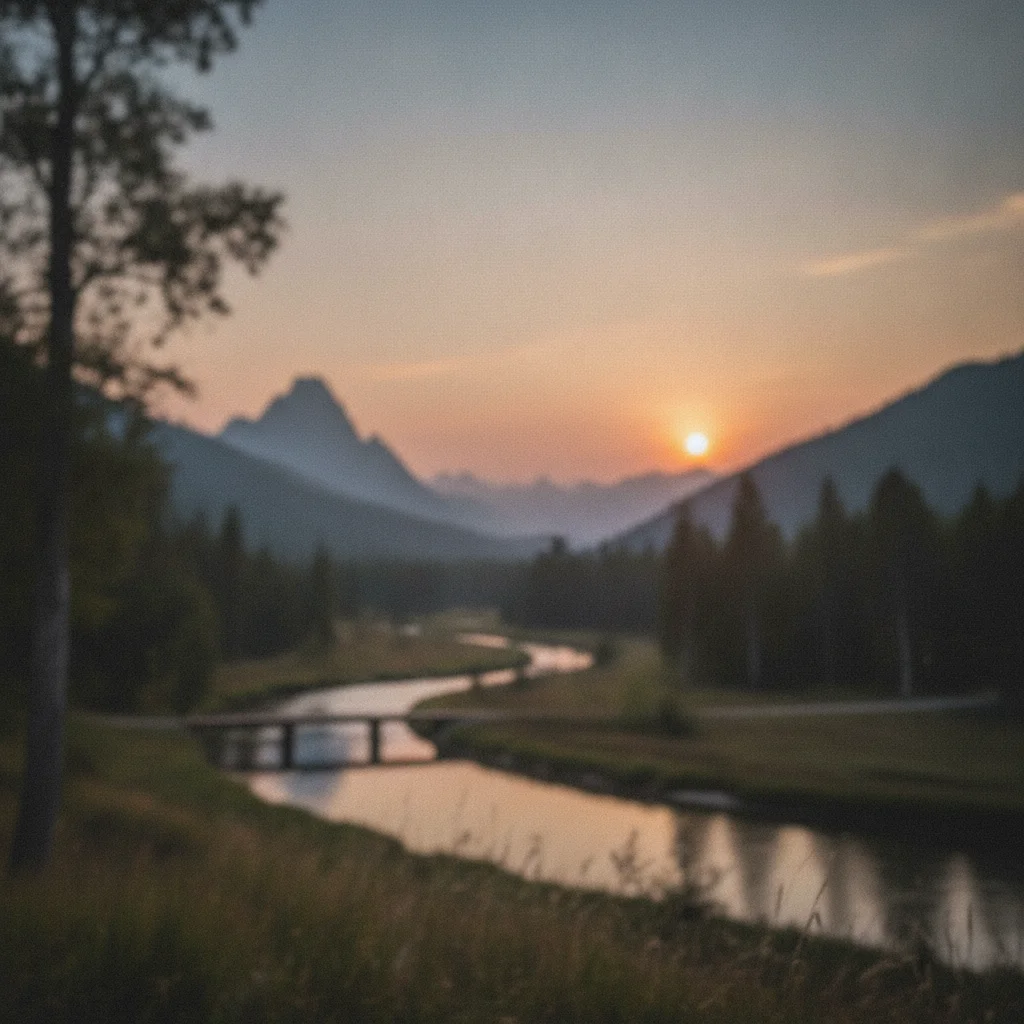
    Compressed upload — detail loss and artifacts Restore the image quality — it was compressed when uploaded and lost sharpness and detail, remove the compression artifacts and improve the definition
    Dull muddy colors from low-end camera Improve the colors — they look washed out and muddy from a cheap camera sensor. Add some vibrancy without going oversaturated
    Poorly lit indoor phone photo Fix this indoor phone photo — it is underexposed, grainy, and the shadows are too heavy. Brighten the image and reduce the grain while preserving the natural lighting feel
    3 more prompts
    Small image with soft detail This image is low resolution and all the fine details look soft and smeared — sharpen the edges and reconstruct as much detail as possible
    Family or group photo that looks bad Improve the overall quality of this group photo — fix the grain, brighten the faces, and make the colors look more natural without changing anyone's appearance
    General quality improvement for printing Improve this photo for printing — it looks low quality on screen. Sharpen the details, fix the exposure, and make the colors more accurate
  3. Check detail and color

    Review the result focusing on faces, fine details, and the color accuracy. These are the areas most affected by low-quality capture. Use the before/after slider to compare sharpness and tone.

  4. Run a follow-up if needed

    If grain is gone but detail is still soft, or colors improved but are still slightly off, describe what remains in a follow-up. Markers are optional — useful only if you need to protect a specific area from the AI's improvements.

    Tip: For portrait photos: after improving the grain and exposure, a follow-up 'sharpen the eyes and hair detail while keeping skin smooth' often gives the most natural final look.

See it in action

Group photo from old Android phone with heavy grain, dull colors, and soft faces
Before
->
Same group photo with grain removed, colors improved, and faces sharpened
After

Old Android phone photo improved

A group photo from an early Android smartphone with heavy grain, poor color, and a muddy look. Quality improved significantly with a single correction.

Prompt: Fix the grain and sharpen the detail — this photo was taken on an old phone camera with a low-quality sensor
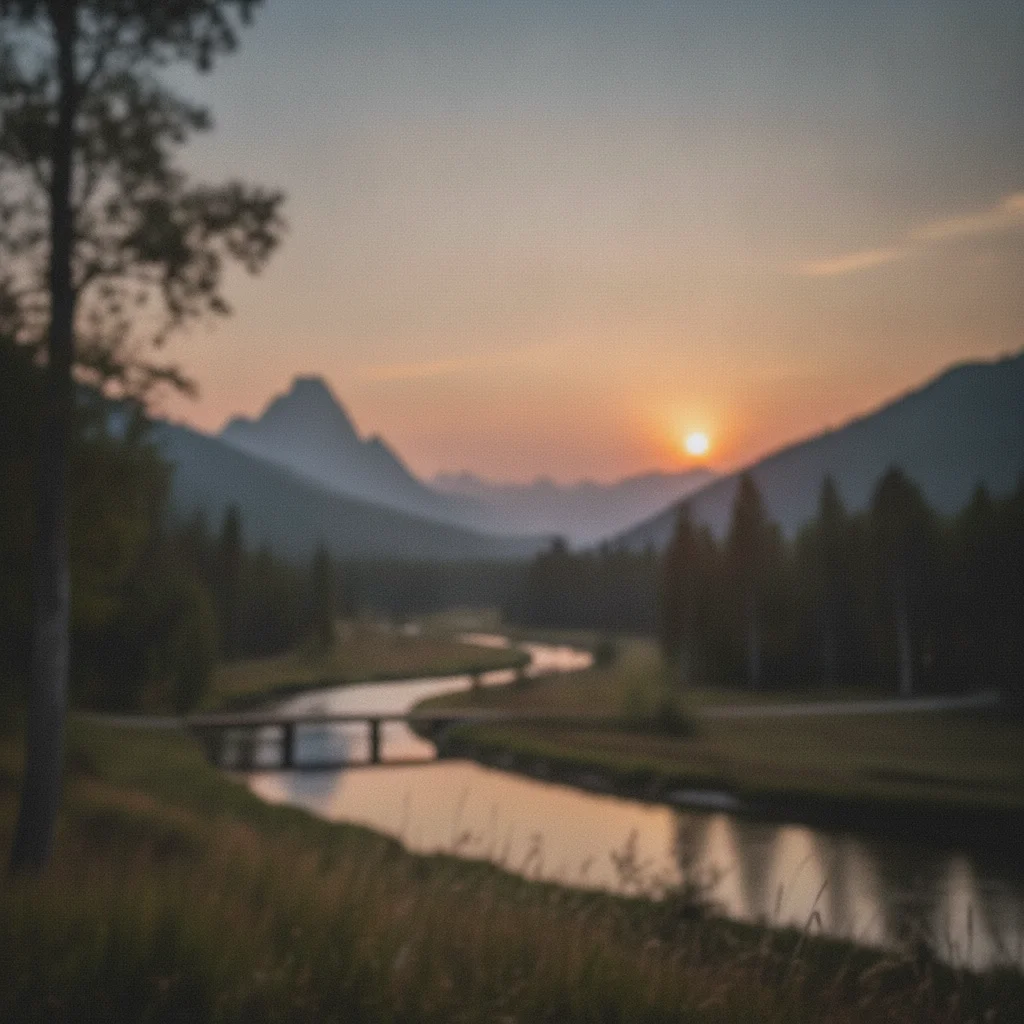
Compressed upload with soft edges, color banding, and flat muddy appearance
Before
->
Same photo with sharpness restored, color depth recovered, and compression artifacts removed
After

Compressed upload with lost sharpness

A photo uploaded to a website that stripped quality — muddy, with soft edges and color banding. Sharpness and color depth restored.

Prompt: Restore the image quality — it was compressed when uploaded and lost sharpness and detail, remove the compression artifacts and improve the definition
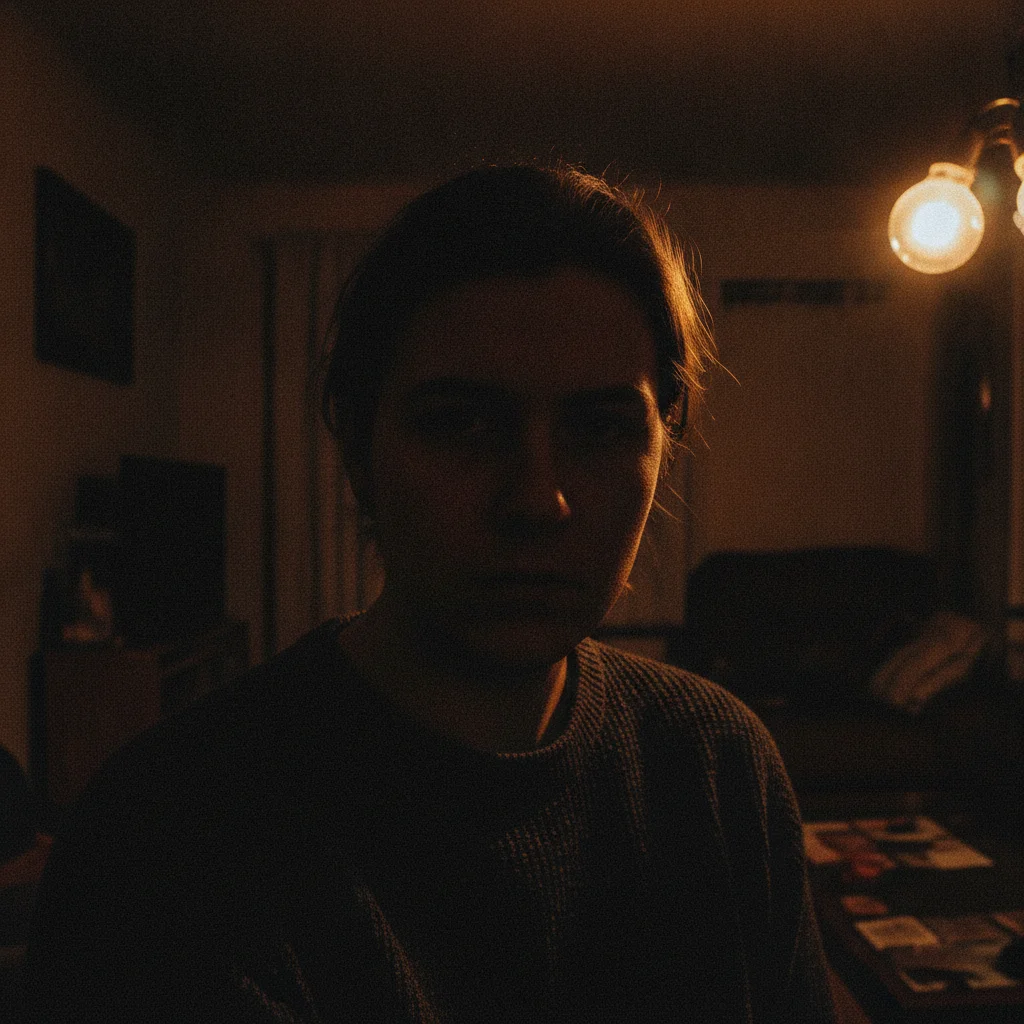
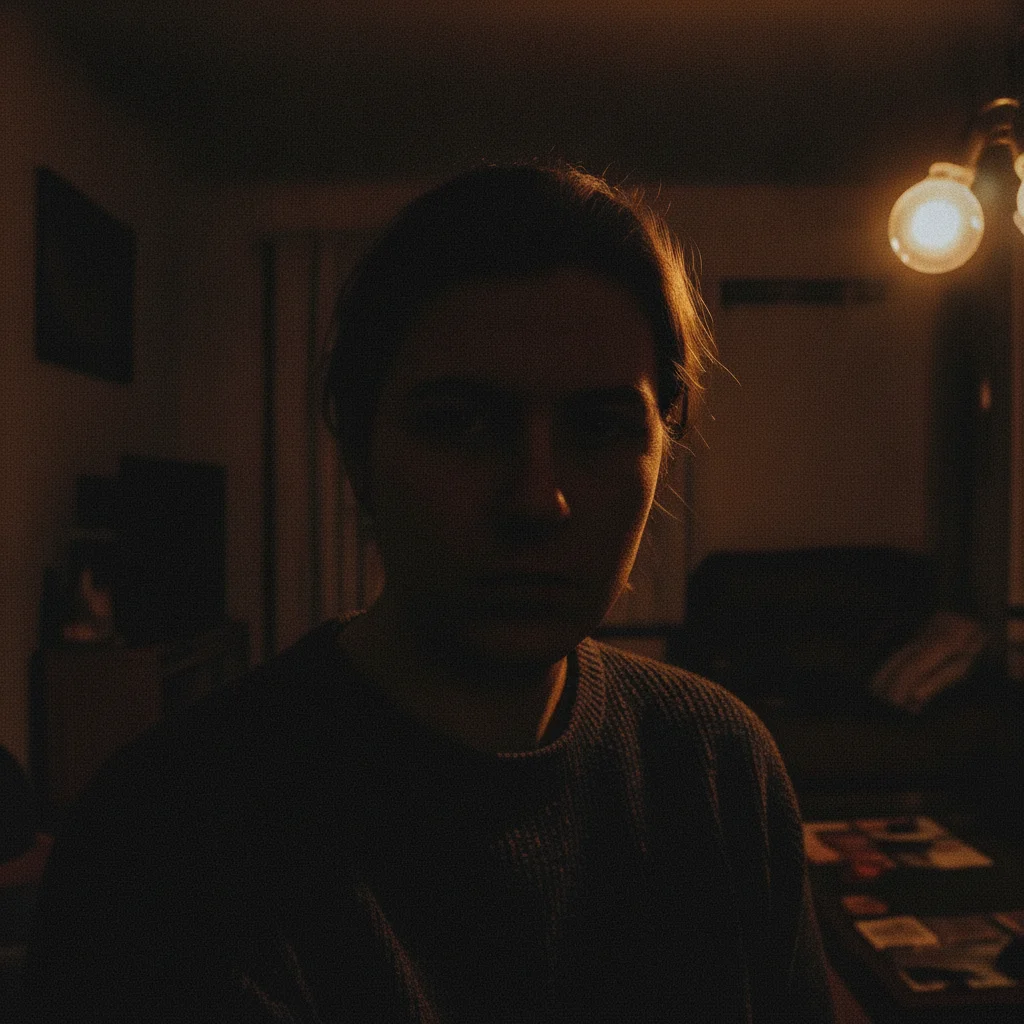
Dark indoor phone portrait with underexposure and heavy grain in shadows
Before
->
Same portrait brightened with grain reduced and face detail recovered
After

Dark indoor phone photo brightened

A portrait taken indoors with a phone in poor light — dark, grainy, with heavy shadows on the face. Exposure and grain both corrected.

Prompt: Fix this indoor phone photo — it is underexposed, grainy, and the shadows are too heavy. Brighten and reduce the grain while preserving the warm lighting feel

Quick answers

Do I need to mark anything before the AI improves my photo?

No. Describe what makes the photo look bad — grain, blur, muddy colors, underexposure, or flat detail. EditThisPic's AI reads the description and targets those problems without any marking. Markers are optional and only needed if you want to protect a specific region from the improvement.

What makes a phone photo look low quality?

Low-quality phone photos typically suffer from: high digital noise from small sensors in poor light, motion blur from slow shutter speeds, soft focus from basic autofocus systems, dull or inaccurate colors from limited color processing, and additional quality loss from messaging apps or websites that recompress the image when sending or uploading.

Is fixing low-quality photos free?

Yes. One free preview fix per week with no account required, and the purchased download is clean. One-time credit packs from $4.99 give you more fixes without a subscription.

Can AI actually make a bad photo look good?

AI can significantly improve common quality problems — grain, blur, poor exposure, and flat color. It cannot manufacture detail that was never captured (a 0.3 megapixel photo cannot become a sharp 12-megapixel print). The best results come from photos that have one or two clear problems rather than fundamentally insufficient resolution.

How do I fix a photo that is blurry AND grainy?

Describe both problems in a single prompt: 'fix the blur and reduce the grain — taken on an old phone in poor light.' The AI will address both in one pass. If the result is still not sharp enough, follow up with 'sharpen the detail further — the grain is better but the image is still soft.'

How much does EditThisPic cost?

You get 1 free edit per week — no account needed. After that, one-time credit packs start at $4.99 for 10 edits, valid 12 months, no subscription. Power users who edit daily can pick Studio Membership, a monthly workspace at $49.99/mo for 300 edits. Purchased downloads are clean with no watermark.

Ready to fix your low-quality photo?

Free to try. No signup required.

1 free edit included·Credit packs from $4.99