AI Photo Editor for Twitch Banners and Panels
Last updated
Stand out on Twitch without learning Photoshop or hiring a designer.
Drop your photo here
"replace background with dark cyberpunk gaming room, neon purple and cyan RGB lighting, futuristic monitors and tech, moody atmosphere"
Release to upload
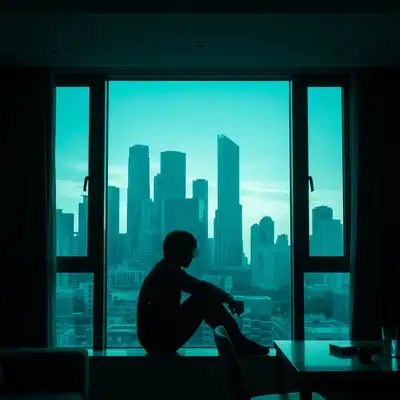
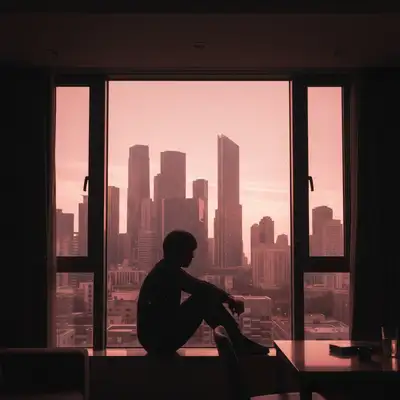
Built for Streamers and Content Creators
Your Twitch channel art is the first thing potential followers see. Professional banners signal you're serious about streaming. EditThisPic lets you turn any photo into custom channel graphics that match your brand vibe in seconds. Look like a partnered streamer without the partnership budget.
Tools for Twitch Graphics
Replace Background
Swap your room for a gaming setup or themed environment
Extend Image
Expand photos to fit Twitch banner dimensions (1200x480)
Enhance Colors
Add vibrant gaming aesthetics and color grading
Blur Background
Create depth and focus attention on you for panels
Remove Background
Create transparent cutouts for overlays and composites
How to AI Photo Editor for Twitch Banners and Panels
-
Gather your source photo
Use a clear photo of yourself, your gaming setup, or any image you want to transform into Twitch graphics. Webcam screenshots work fine. Higher resolution gives better results, but even phone selfies work well.
Background replacement: 25-30 seconds. Image extension: 30-40 seconds. May need 1-2 refinements for complex effects.Photos with clear separation between you and the background work best for replacements. Even lighting helps too. -
Describe your stream aesthetic
Type what you want: 'replace background with neon gaming room with RGB lighting' or 'extend this to banner dimensions with matching cyberpunk style.' Be specific about colors, mood, and aesthetic. No marking needed for backgrounds.
Include your brand colors: 'purple and cyan neon aesthetic' or 'dark red and black gothic vibe' for consistent branding. -
Review for stream quality
Check that edges around hair and clothing blend naturally with the new background. Verify the vibe matches your channel brand. Make sure it looks good at small sizes too since viewers see thumbnails first.
-
Refine and download
If edges need cleanup or you want to adjust the aesthetic, regenerate with more specific prompts. Download in the size you need. Consider creating matching panels, offline screens, and schedule graphics.
Create a cohesive brand by using the same color palette and aesthetic across all your channel graphics.
Copy-Paste Prompts for Twitch Graphics
replace background with dark cyberpunk gaming room, neon purple and cyan RGB lighting, futuristic monitors and tech, moody atmosphere
Cyberpunk aesthetics are popular on Twitch and hide webcam quality issues in the dark tones
replace background with modern minimal gaming setup, clean desk with single monitor, soft ambient lighting, professional and uncluttered
Minimal backgrounds work well if you stream professional content like coding or music
extend image to wide panoramic format matching the existing style, seamless continuation of background and lighting
Image extension is perfect for turning square photos into Twitch's 1200x480 banner format
replace background with cozy gaming room, warm fairy lights, plants, comfortable setup, soft golden hour lighting, hygge vibes
Cozy aesthetics work great for variety streamers, Just Chatting, and creative content
Show 4 more prompts
replace background with professional esports arena setup, team jersey colors, dramatic lighting, competitive gaming atmosphere
Use your team colors in the prompt for consistent branding
replace background with retro arcade room, vintage arcade cabinets, neon signage, 80s synthwave color palette, VHS scan lines effect
Retro aesthetics pair well with variety streaming and retro game content
replace background with dark gothic gaming room, deep reds and blacks, candles, mysterious atmosphere, dramatic shadows
Gothic themes work for horror streamers, metal music, and dark game content
remove background completely, clean edges around hair and clothing, transparent background for overlay use
Use the transparent cutout in OBS as a starting soon screen or overlay element
| Edit Type | Prompt | Time | |
|---|---|---|---|
| Cyberpunk banner | replace background with neon cyberpunk gaming room |
25s | Try This → |
| Extend to banner | extend to wide panoramic format, match style |
35s | Try This → |
| Clean panel | replace background with clean gradient, enhance lighting |
20s | Try This → |
| Transparent cutout | remove background for overlay use |
20s | Try This → |
Real Examples
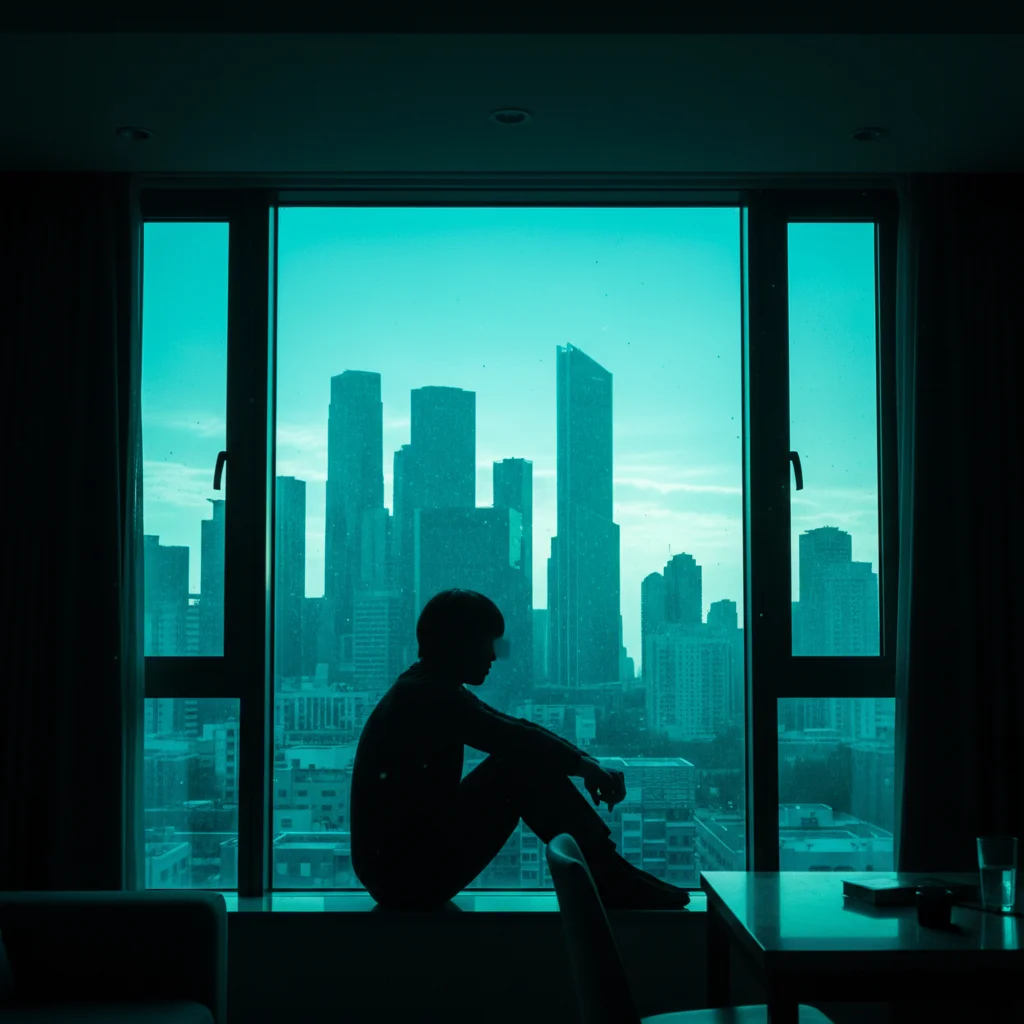
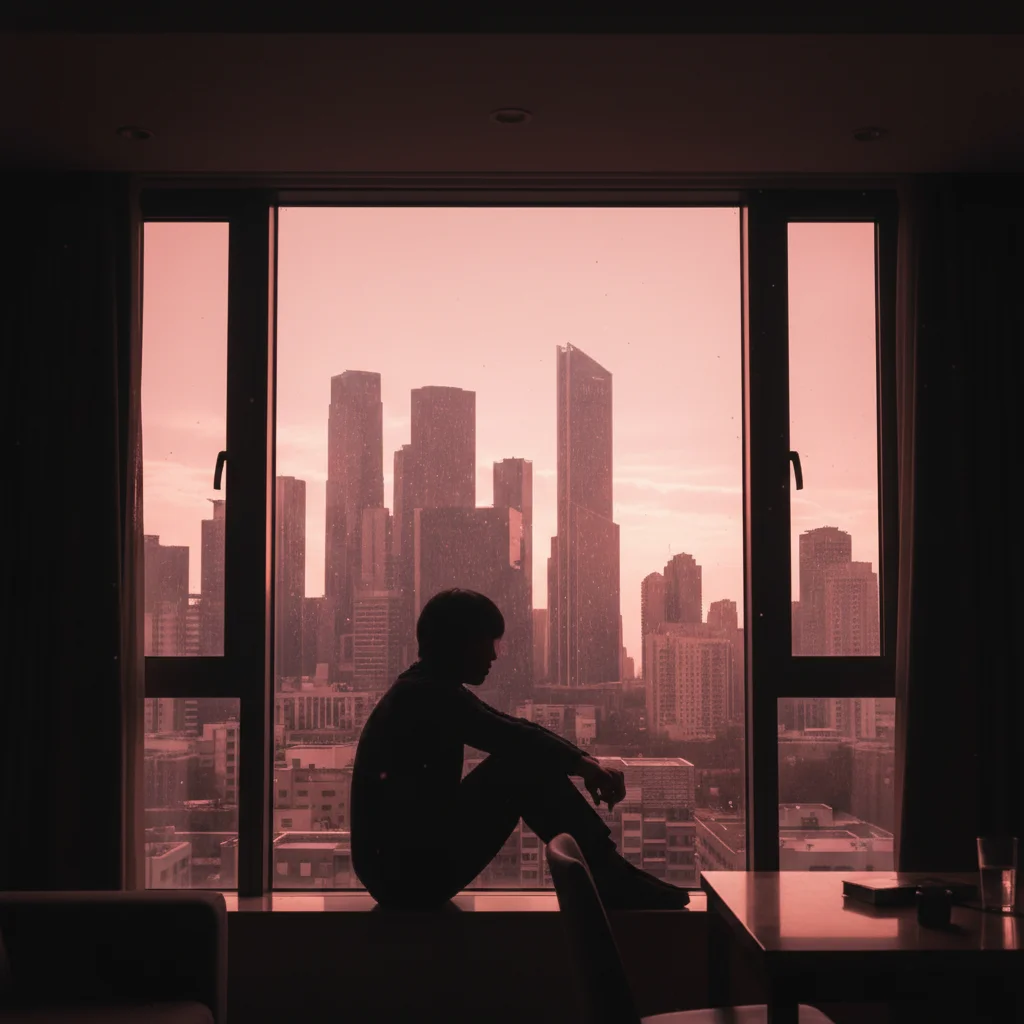
Bedroom to cyberpunk gaming room
Basic bedroom selfie transformed into a professional-looking streamer banner with neon gaming aesthetic.
replace background with dark cyberpunk gaming room, neon purple and cyan RGB lighting, multiple monitors, futuristic tech atmosphere
Square photo to banner dimensions
Instagram-style square photo extended to fit Twitch's wide banner format while maintaining consistent style.
extend image to wide panoramic banner format, continue the neon gaming aesthetic seamlessly on both sides
When Things Go Wrong
Hair edges look choppy or have halos
Why: Fine hair strands are challenging for AI to separate from backgrounds, especially with similar colors.
Tap markers on hair edges, then: blend hair edges naturally with new background, smooth transition
Photos where your hair contrasts with the original background work best. Dark hair on light backgrounds is easier.
New background doesn't match my lighting
Why: The AI generated a background with different lighting direction than your original photo.
replace background with [same aesthetic] but with lighting from the left side to match my face lighting
Mention your lighting direction in the prompt: 'with lighting from upper left' or 'with soft front lighting'
Extended image has visible seams
Why: The AI had trouble continuing the pattern or style seamlessly at the extension boundary.
Tap markers on the seam area, then: blend this area seamlessly, match lighting and texture from both sides
Extensions work best with simpler backgrounds. Busy patterns are harder to continue convincingly.
AI changed the wrong area or something I didn't want changed
Why: The AI couldn't determine exactly which area you meant from description alone. This happens with ambiguous requests.
Tap a marker on the specific area you want to change, then regenerate with the same prompt
Markers tell the AI 'I mean THIS one specifically.' Use them when description alone is ambiguous.
Result looks too artificial or 'AI generated'
Why: Strong effects can push the result into uncanny territory, especially with faces.
replace background with [aesthetic] but keep realistic lighting, avoid over-processing, natural look
Adding 'photorealistic' or 'natural looking' to prompts helps keep results grounded.
Frequently Asked Questions
Do I need to mark myself before replacing the background?
No! Just describe what you want: 'replace background with neon gaming room' and the AI knows what 'background' means. Only use markers if you need to refine specific edges after your first attempt or if the AI changed something you wanted to keep.
What size should my Twitch banner be?
Twitch profile banners are 1200x480 pixels. If your photo is square or portrait, use the 'extend image to wide panoramic format' prompt to expand it. For panels, 320x160 works well. EditThisPic can help you create graphics at any size.
Can I use webcam screenshots as source images?
Yes! Webcam screenshots work fine, especially if you're replacing the background anyway. Higher resolution is better, but even standard webcam quality produces usable results. You can also ask to 'enhance lighting' or 'improve quality' in your prompt.
How do I maintain consistent branding across all my graphics?
Use the same color palette in all your prompts. If your brand colors are purple and cyan, always include 'purple and cyan color scheme' in your prompts. Create your banner, panels, and offline screen in one session to keep the vibe consistent.
Can I add my channel name to the banner?
AI text generation can be inconsistent, so for channel names and text, we recommend using EditThisPic for the background and imagery, then adding text in a simple tool like Canva or even your streaming software. This gives you more control over font and placement.
Will my banner look generic like everyone else's?
No - because you're describing YOUR aesthetic in your own words, not choosing from templates. Combine elements that match your personality: 'cozy room with plants and warm lighting' or 'dark gothic with candles' creates something unique to you.
Is EditThisPic's AI photo editor for twitch banners and panels really free?
Yes — you get 1 free edit per week, no account needed. Plans start at $4.99/month for 15 edits.
Can I twitch banner on my phone?
Yes. EditThisPic works in any mobile browser — iPhone, Android, tablet. No app download needed.
Popular use cases
Ready to level up your Twitch branding?
Free to try. No signup required. No watermarks.
Create Your BannerTrusted by 15,000+ users