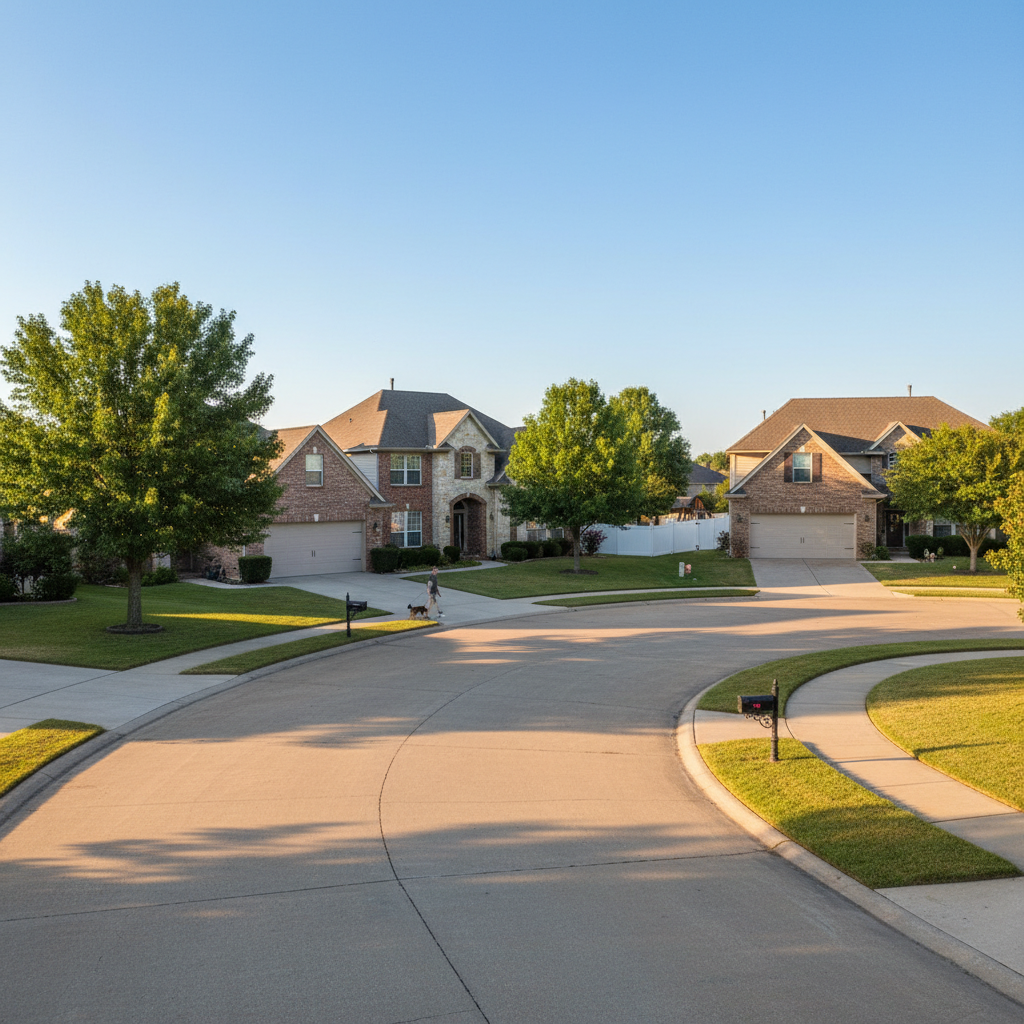
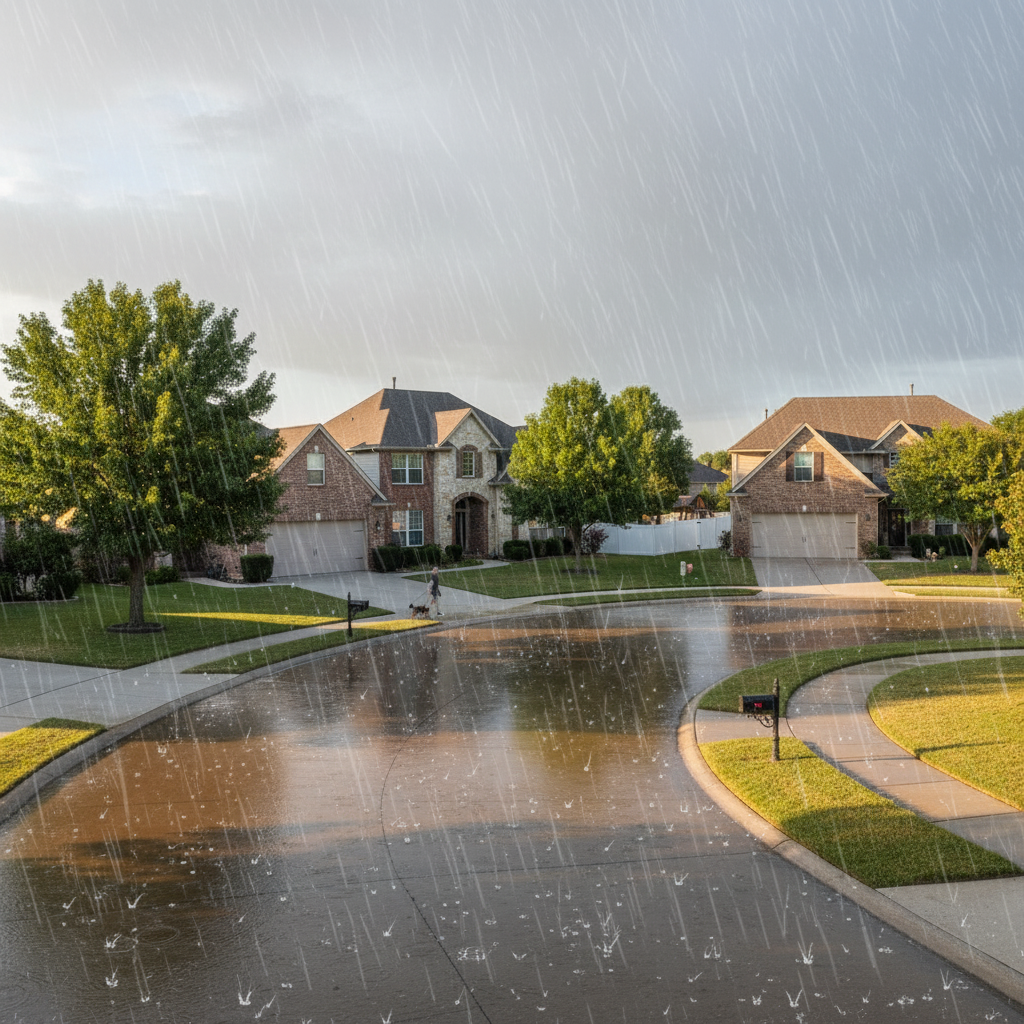
Pricing Add Rain · Free

Add Rain to Photo — AI Weather Effects, Free

← Browse all add & replace tools

Last updated

Turn any photo into a rain scene in 15 seconds — light drizzle, heavy downpour, storm atmosphere, or night rain with wet-pavement reflections. Describe what you want and the AI handles the rest. Free, no account.

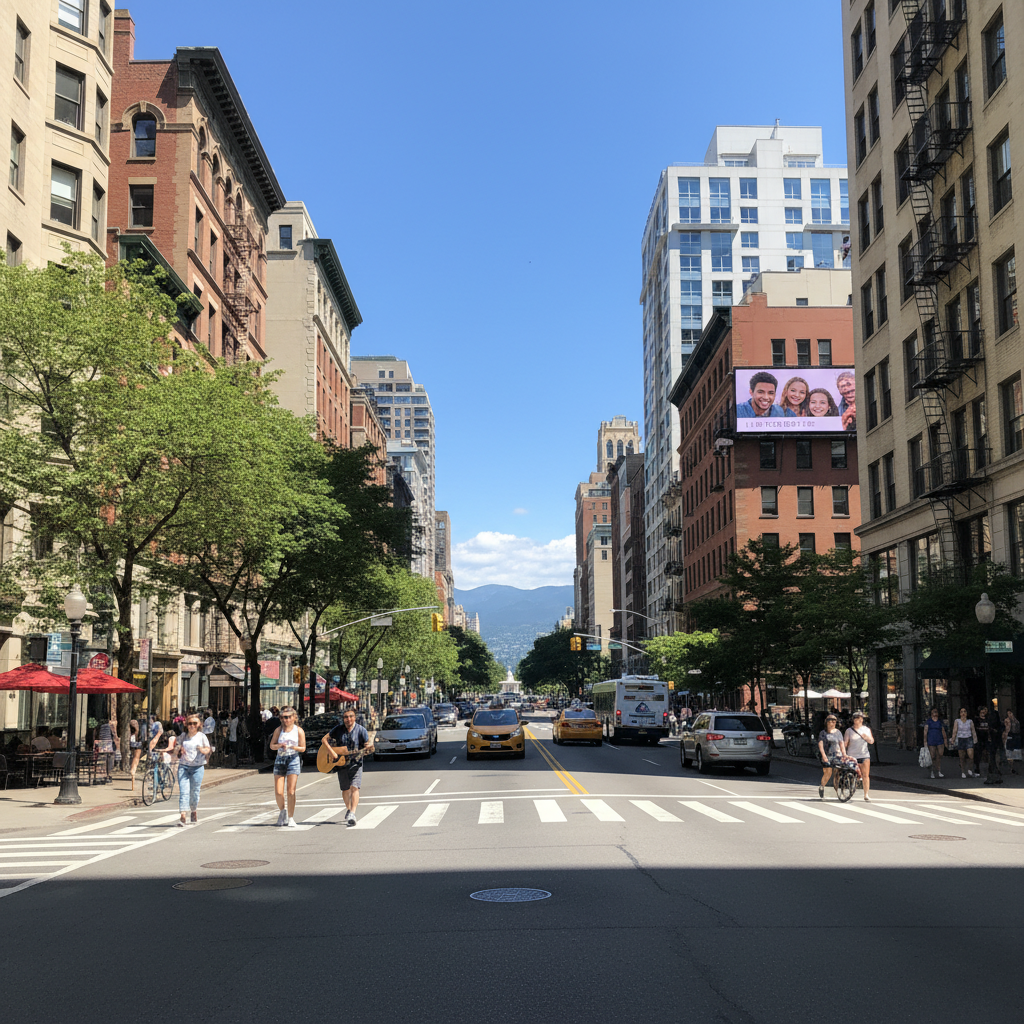
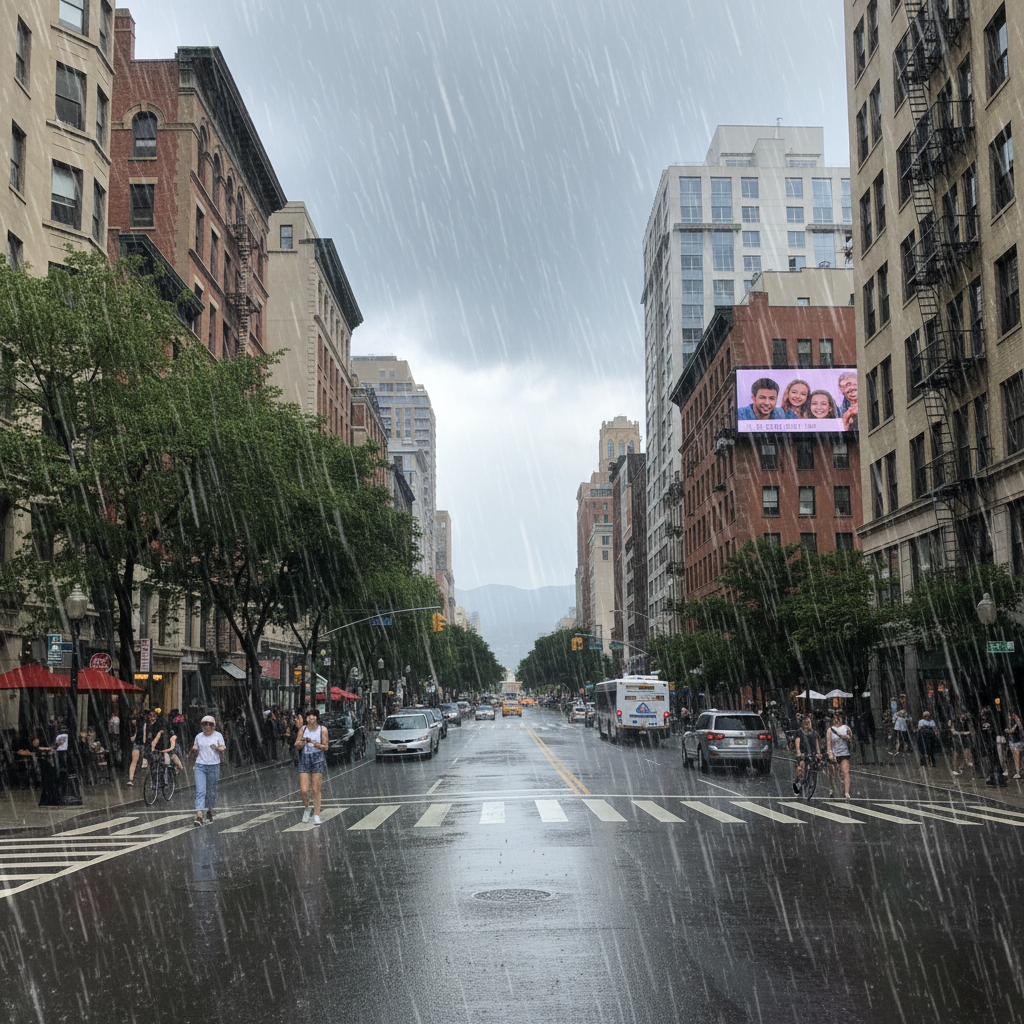
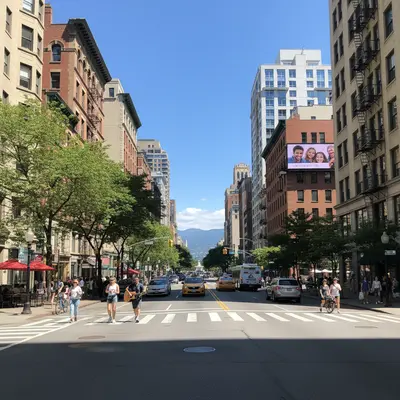
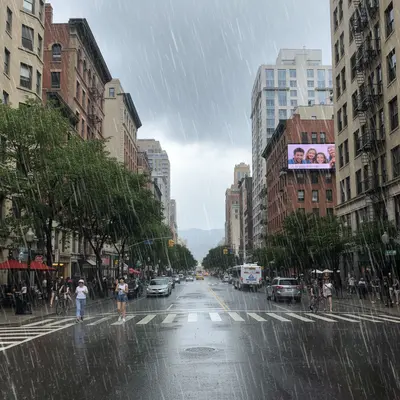
Busy city street on a sunny midday with dry pavement and pedestrians in summer clothing Same street transformed with heavy rain, diagonal streaks, blue-gray color cast, and wet pavement reflecting storefront lights

Upload photo to add rain

"add heavy rain with large diagonal streaks, wet pavement reflections, and a blue-gray color cast"

Free to try · no sign-up · photos are never shared

Release to upload

<30stypical edit
1 freeedit weekly
Photo on your phone? Scan to open this editor there — free edit works on your phone too.

1 free edit every week·packs from $4.99

How it works

  1. Upload your photo

    Upload a JPG, PNG, or WebP up to 7MB. Photos with a defined light source — a street lamp, window light, or open sky — give the AI a reference point for where rain would catch the light, making the result look more natural.

    Expect: Any outdoor or indoor photo works. Photos with a clear foreground and background allow the AI to layer rain depth: dense in the midground, finer in the distance.
  2. Describe the rain you want

    Type what kind of rain and what it should do to the scene. 'Light drizzle on a foggy morning' gives a very different result from 'heavy downpour with street flooding.' Mention reflections, atmosphere, and time of day if they matter to you.

    Tip: Include wet-ground reflections in your prompt if there's pavement, tile, or any hard surface — it's the single detail that makes rain feel real rather than pasted on.

    Copy one of these to get started:

    Light drizzle — moody, soft add a light drizzle to this photo with a soft gray overcast sky and glistening surfaces
    Heavy downpour with wet-ground reflections add heavy rain with large diagonal streaks, wet pavement reflections, and a blue-gray color cast
    Night rain — street lamps and puddles add nighttime rain with glowing street lamp halos, puddle reflections of the lights, and rain streaks visible in the lamp glow
    Storm with dark atmosphere add a storm atmosphere with heavy rain, dark dramaticly lit clouds, and the ground soaked and flooded
    6 more prompts
    Rain through a window — interior view add rain on the window glass with rivulets running down and the outside scene blurred through the wet pane
    Drizzle on portrait — keep face clear add light rain to this portrait with wet hair and skin, but keep the face clearly visible through the rain
    Foggy rain — low visibility, ethereal add a foggy rain effect with reduced visibility, mist rising from the ground, and muted desaturated colors
    Backlit rain — rain visible against dark background add backlit rain where rain streaks are visible and luminous against a dark or shadowed background
    Tropical downpour — warm rain add a tropical downpour with thick sheets of warm rain, steaming pavement, and green vegetation dripping with water
    Cinematic rain — album cover or film still quality add cinematic rain with sharp diagonal streaks, a blue-teal color grade, and deep shadows — like a film noir still
  3. Review rain intensity and atmosphere

    Check the result at full zoom. Verify rain streak direction looks physically plausible (rain falls at an angle in wind), that color cast has shifted toward blue-gray, and that reflective surfaces show the scene. If something's off, refine the prompt.

  4. Refine if needed

    If the rain is too heavy or too light, say exactly that: 'make the rain lighter, more of a drizzle' or 'intensify the rain to a full downpour.' The AI can also add missing elements: 'add wet pavement shine' or 'add rain halos around the street lights.'

    Tip: Rain over faces obscures expressions. If people are in the frame, use 'keep faces visible through the rain' to preserve subject clarity.
  5. Download your rainy photo

    Download as PNG. The output preserves full resolution. You can also continue editing — add fog, adjust the overall color temperature, or darken the sky — all in additional prompts.

See it in action

Busy city street on a sunny midday with dry pavement and pedestrians in summer clothing
Before
->
Same street transformed with heavy rain, diagonal streaks, blue-gray color cast, and wet pavement reflecting storefront lights
After

City street at midday → rainy evening

A sharp midday street photo — dry pavement, high contrast, neutral color — transformed into a blue-gray evening with rain-streaked air and mirror-like wet pavement reflecting shopfront signs.

Prompt: add heavy rain with wet pavement reflections, diagonal streaks, and a blue-gray color cast
Outdoor portrait on an overcast day, subject in dark jacket with dry hair
Before
->
Same portrait with rain added — wet hair, rain drops on face and jacket, face remains clearly visible, background shows rain haze
After

Portrait outdoors → rain-soaked and dramatic

An outdoor portrait with flat, even light. After: rain on skin and hair, eyes still clear, the background softened by depth-of-field rain haze — cinematic without losing the subject's face.

Prompt: add rain to this portrait with wet hair, rain drops on skin, keep the face clearly visible through the rain
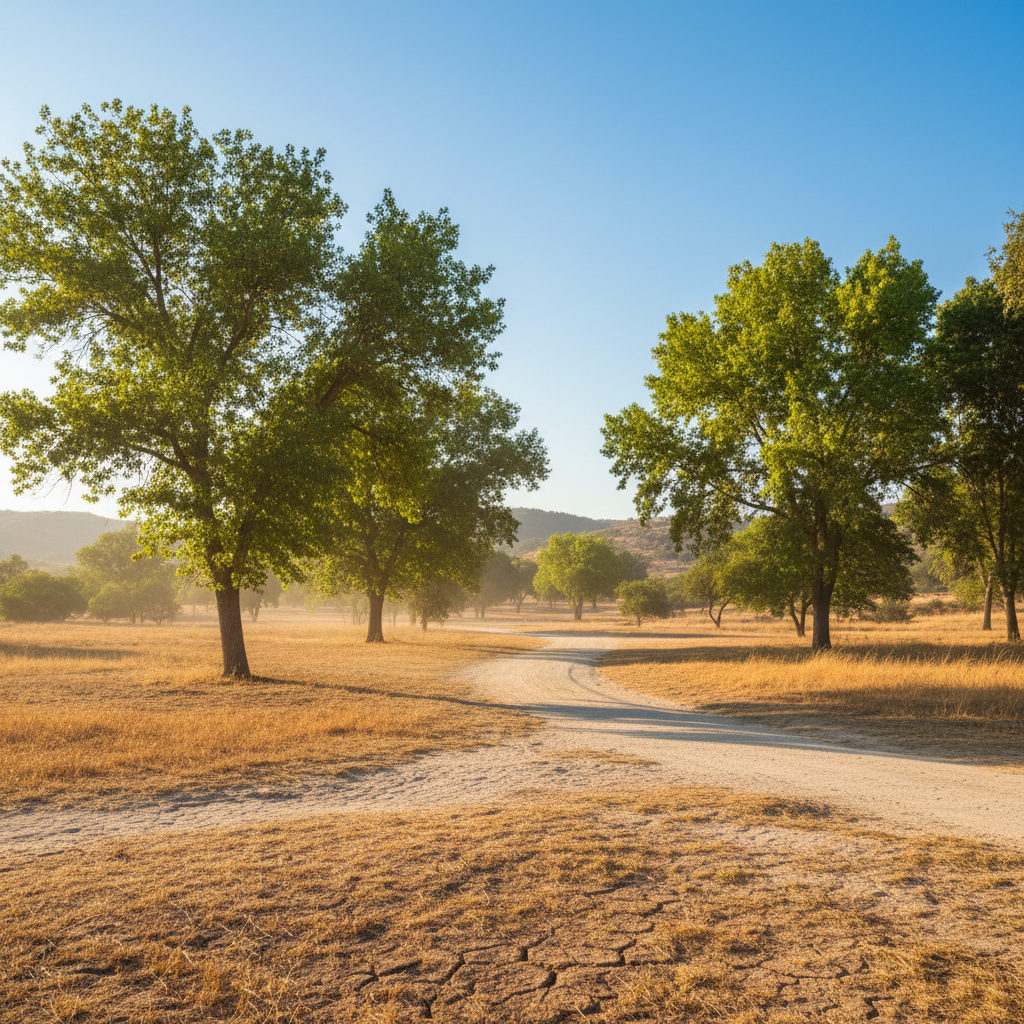
Dry forest path with green deciduous trees, dappled sunlight and clear visibility
Before
->
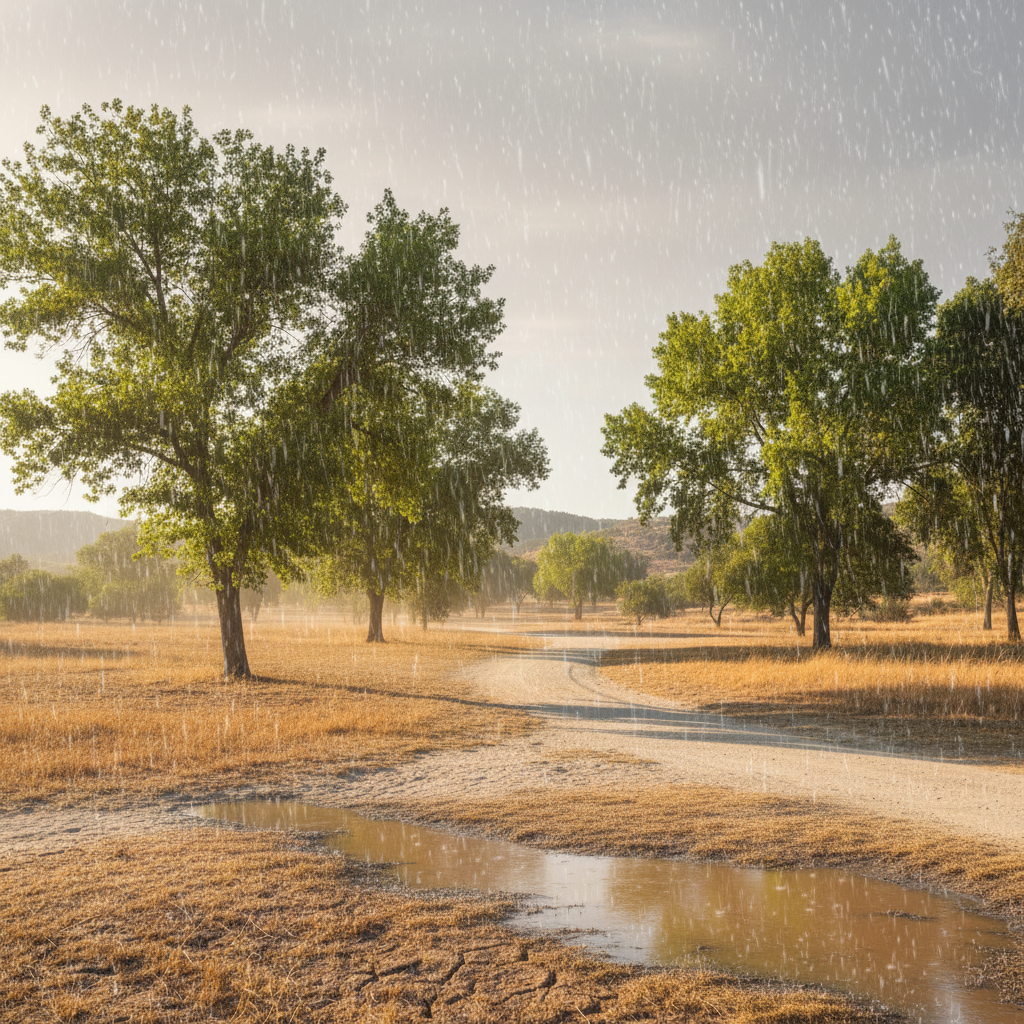
Same forest path in heavy rain with glistening leaves, dark wet ground, mist filling the distance and reduced visibility
After

Forest path → moody misty downpour

A green forest path in dry weather. After: sheets of rain reduce visibility to 15 meters, ground becomes dark with pooling water, leaves glisten, a blue-green mist fills the midground distance.

Prompt: add a heavy forest downpour with mist rising from the ground, glistening leaves, and reduced visibility in the distance

Quick answers

How do I add rain to a photo for free?

Upload your photo to EditThisPic, type a description like 'add heavy rain with wet pavement reflections,' and click Generate. The AI produces a rain-transformed version in 15–30 seconds. One free preview edit per week with no account required — no signup. Purchased downloads are clean, full quality.

What's the difference between AI rain and a rain overlay?

A rain overlay is a semi-transparent texture layer placed on top of a photo. It adds streaks but nothing else — the pavement stays dry, the color stays warm, the scene looks unchanged underneath. AI-generated rain modifies the whole scene: wet surfaces reflect the environment, color shifts toward blue-gray, atmospheric haze appears at depth, and rain interacts with light sources. The result looks like it was shot in the rain, not filtered.

How do I make rain look realistic — not fake?

Four factors make rain look real: rain streak angle (should match wind direction), wet-ground reflections (essential — dry pavement under rain reads as fake immediately), color desaturation (rain scenes shift 10–20% toward blue-gray), and atmospheric haze in the distance. Mentioning all four in your prompt — 'diagonal rain, wet reflective pavement, blue-gray cast, haze in the background' — produces the most integrated result. The single most impactful addition is almost always the wet-ground reflection.

Can I add rain to a portrait without covering the face?

Yes. Add 'keep the face clearly visible through the rain' or 'concentrate rain in the background, not on the subject's face.' The AI adjusts rain density across the frame in response to these instructions. For portraits, rain looks most cinematic on hair, shoulders, and the background — not as a curtain across the subject's eyes.

What rain intensities can the AI create?

The full spectrum: light drizzle (fine mist, minimal streaks, soft glistening surfaces), medium rain (distinct streaks, wet pavement, overcast sky), heavy downpour (dense diagonal sheets, flooded surfaces, reduced visibility), and storm atmosphere (dark clouds, driving rain, dramatic contrast). Each has different visual characteristics — specify which you want and include adjectives about density, visibility, and ground conditions for precise results.

How do I add night rain with street reflections?

Use a prompt like: 'add nighttime rain with street lamp halos, puddle reflections of the lights, and rain streaks visible in the glow.' Night rain has distinct physics — light sources bloom in wet conditions and reflect in puddles. Naming the specific light interactions (halos, puddle reflections, wet pavement glow) in the prompt produces a more accurate result than simply saying 'add rain at night.'

Can I add rain through a window to an interior photo?

Yes. For interior shots with a window, use 'add rain on the window glass with rivulets running down and the outside scene blurred through the wet pane.' This creates a rainy-day-inside-looking-out effect — water tracks on the glass, a blurred exterior through the wet surface, warm and dry interior in contrast.

What photo types work best for adding rain?

Outdoor scenes with defined surfaces work best — streets, paths, plazas, any photo with pavement or ground that can show wet reflections. Portraits in outdoor settings respond well to rain. Indoor-exterior shots (window views, covered terraces) work for rain-on-glass effects. Pure indoor photos with no window are harder — there's no outdoor context for rain to inhabit. JPG, PNG, and WebP up to 7MB, any resolution.

Is rain editing better for some photography styles than others?

Rain works particularly well on urban street photography (reflections on pavement amplify the geometry), environmental portraits (rain adds narrative without a complex backdrop), and landscape photography (fog-rain combination creates depth layers). It works less reliably on studio portraits against a plain backdrop — there's no environmental context for rain to integrate with. Concert and event photos tend to be too dark and busy for rain to read clearly.

How does EditThisPic compare to Photoshop for adding rain?

Photoshop rain is a multi-step manual process: Motion Blur on a noise layer, then Overlay blend mode, then separate wet-ground and color grading adjustments. An experienced Photoshop user takes 20–40 minutes for a convincing result, and each component (streaks, reflections, color cast) requires separate decisions. EditThisPic generates the full integrated effect from a text prompt in 15–30 seconds. Photoshop wins if you need precise control over every parameter or are processing hundreds of images on a production pipeline. EditThisPic wins for one-off edits and for users who want a result, not a process.

Do I need an account to add rain to photos?

No. One free Fast edit per week with no account, no email, no credit card. Download the result. If you need more than one edit per week, you can buy a 10-edit pack for $4.99 with no subscription required. The free edit is a preview — purchased downloads are clean, full quality.

How much does EditThisPic cost?

You get 1 free edit per week — no account needed. After that, one-time credit packs start at $4.99 for 10 edits, valid 12 months, no subscription. Power users who edit daily can pick Studio Membership, a monthly workspace at $49.99/mo for 300 edits. Purchased downloads are clean with no watermark.
Ready to add rain to your photo?

Free to try. No signup required.

1 free edit included·Credit packs from $4.99