Pricing Remove Shadow on face · Free

Remove Shadow from Face

← Browse all remove tools

Last updated

Harsh hat shadows, window cross-shadows, one-sided dark patches on a face — describe what you want fixed and the AI re-lights the face to match. Works on headshots, portraits, and profile photos. Free, no account needed.
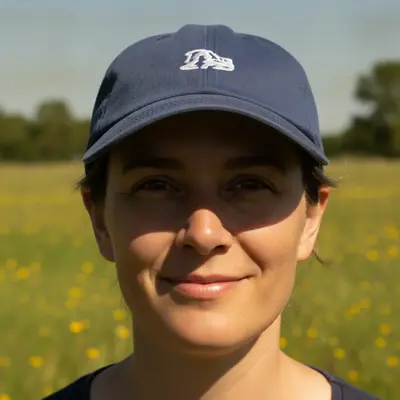
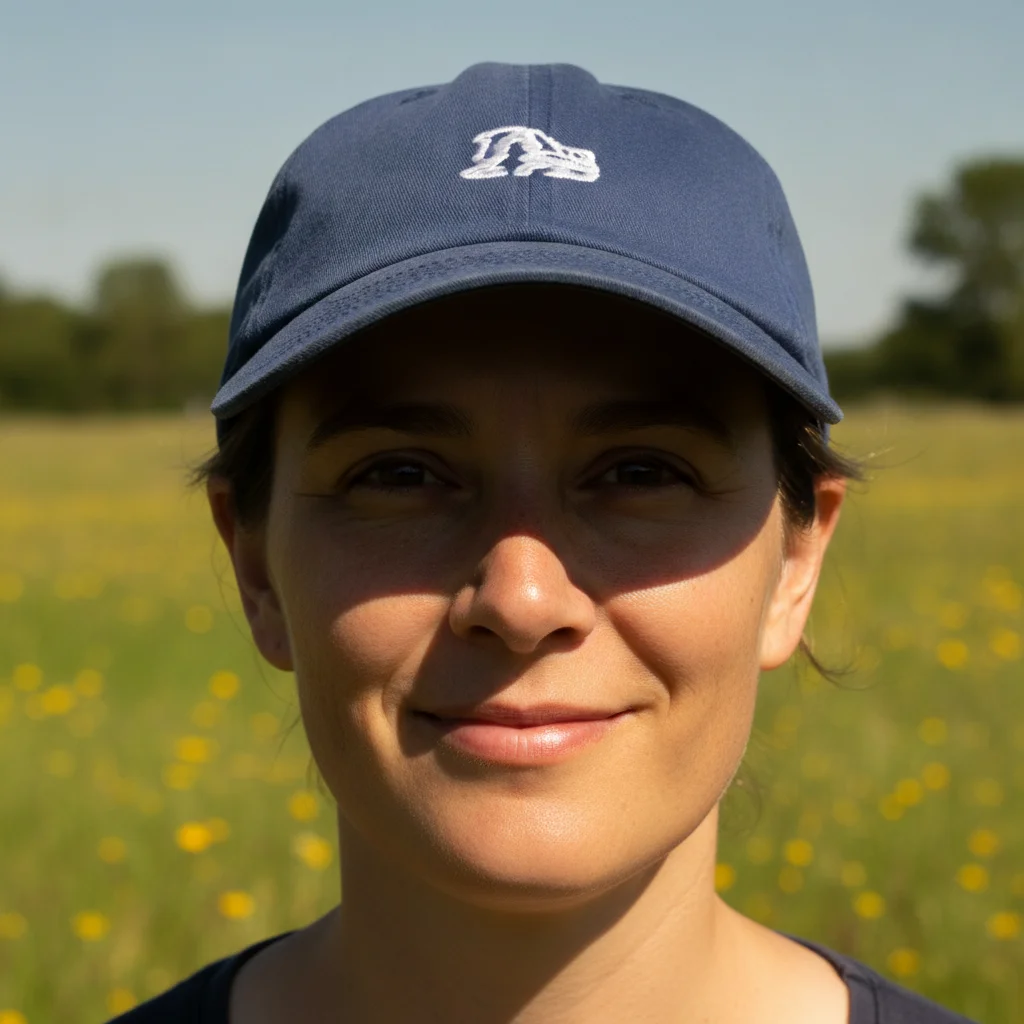
Outdoor portrait with baseball cap casting a shadow across the forehead and eyes Same portrait with the hat shadow removed and face evenly lit

Upload photo to remove shadow on face

"fix the harsh shadow on the left side of the face, balance the lighting so both sides of the face are evenly lit"

Free to try · no sign-up · photos are never shared

Release to upload

<30stypical edit
1 freeedit weekly
Photo on your phone? Scan to open this editor there — free edit works on your phone too.

1 free edit every week·packs from $4.99

How it works

  1. Upload your portrait or headshot

    Upload the photo with the shadow problem. Works best on portrait-oriented shots where the face is the main subject — headshots, profile photos, close-up portraits. JPG, PNG, or WebP up to 7MB.

    Expect: Soft or partial shadows on a well-lit face: 25-35 seconds, usually seamless. Severe shadows covering most of the face: 40-55 seconds; may need one refinement pass.
  2. Describe the shadow to remove

    Describe what the shadow looks like and where it is: 'remove the shadow from the hat falling across the forehead and left cheek,' 'fix the dark shadow on the right side of the face,' or 'remove the window light shadow crossing the nose.' No marking required.

    Tip: Say where the shadow came from if you know: 'shadow from the hat brim' or 'shadow from a window on the left' helps the AI understand the lighting context for a more natural re-light.

    Copy one of these to get started:

    Hat or cap casting a shadow on the face remove the shadow cast by the hat brim across the forehead and eyes, re-light the face evenly to match the rest of the photo
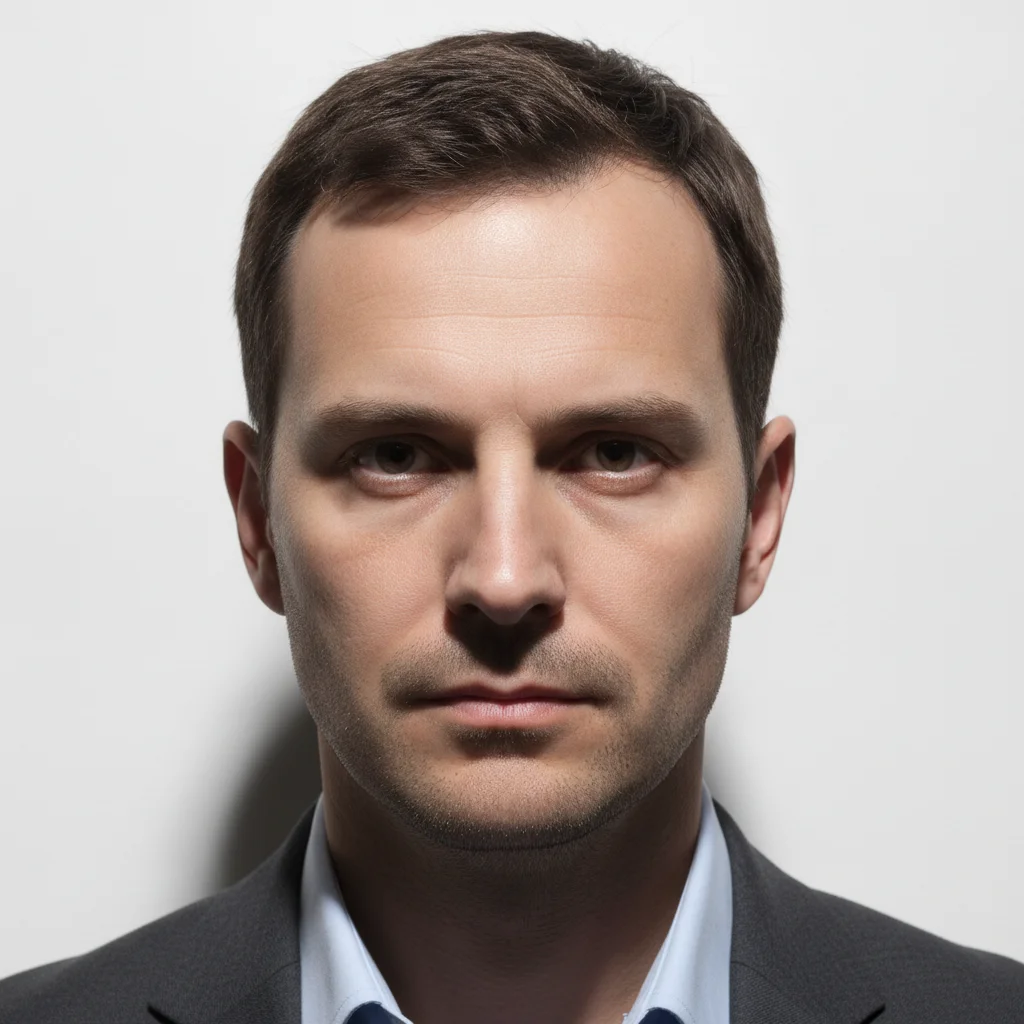
    Harsh one-sided shadow on face from sidelight fix the harsh shadow on the left side of the face, balance the lighting so both sides of the face are evenly lit
    Window shadow crossing the face remove the window light shadow crossing the nose and cheek, restore even skin tone across the entire face
    Overhead light causing shadows under eyes or nose lighten and remove the dark shadows under the eyes and below the nose caused by overhead lighting
    3 more prompts
    Deep shadow under chin and jaw remove the dark shadow under the chin and along the jawline, match the neck and jaw skin tone to the face
    Shadow on face from tree or object outdoors remove the dappled shadow on the face from the tree, restore an even skin tone across the face while keeping the outdoor background
    Dark circle or discoloration under one eye reduce and brighten the dark shadow under the right eye to match the skin tone of the rest of the face
  3. Check the skin tone consistency

    After the shadow is removed, verify that the formerly-shadowed area matches the skin tone of the rest of the face. Look for even lighting across both cheeks, the forehead, and the chin.

  4. Refine shadow edges if needed (optional)

    If a shadow edge or slight discoloration remains, describe it: 'clean up the remaining shadow edge on the left cheek, match the skin tone around it.' The brush tool lets you target exactly the remaining shadow area.

See it in action

Outdoor portrait with baseball cap casting a shadow across the forehead and eyes
Before
->
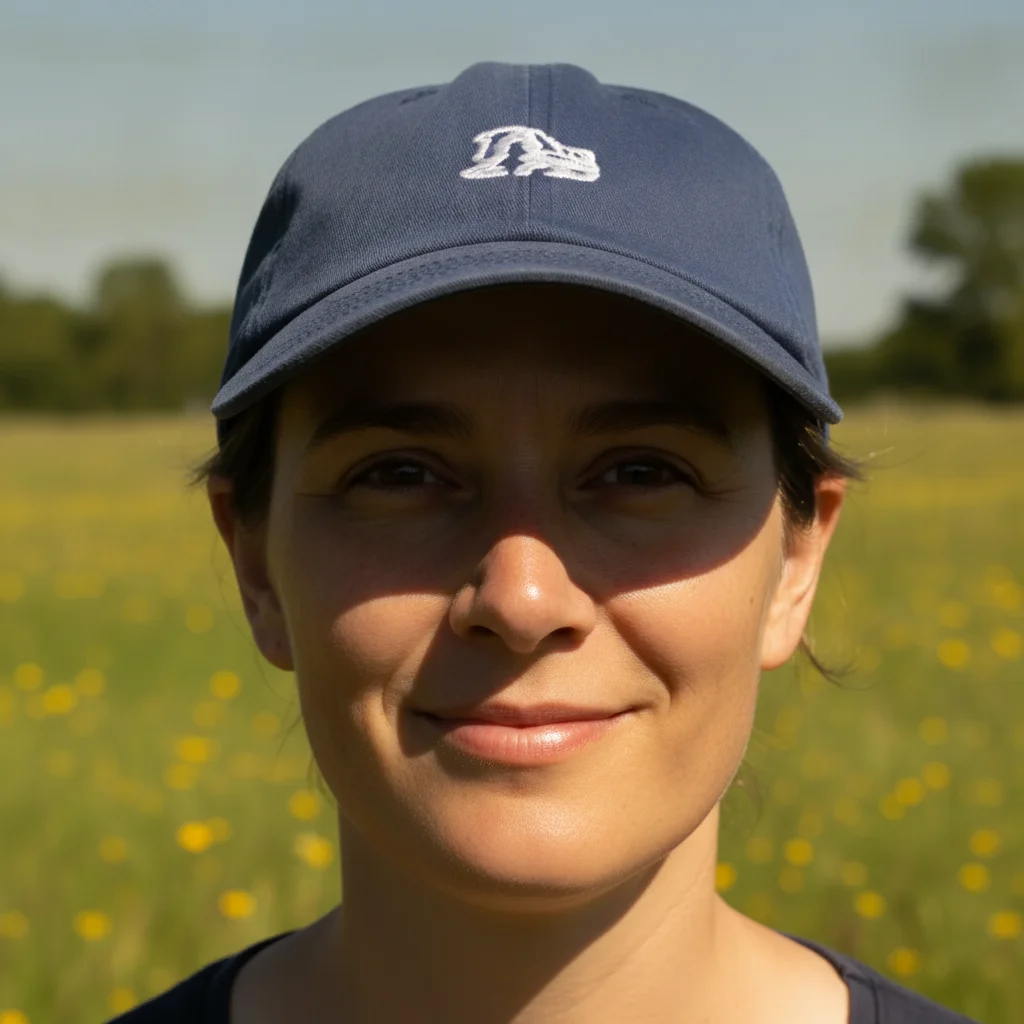
Same portrait with the hat shadow removed and face evenly lit
After

Hat shadow removed from face in outdoor portrait

An outdoor portrait had a baseball cap casting a harsh shadow across the subject's forehead and eyes. The AI re-lit the shadowed area to match the well-lit chin and cheeks.

Prompt: remove the shadow cast by the hat brim across the forehead and eyes, re-light the face evenly to match the rest of the photo
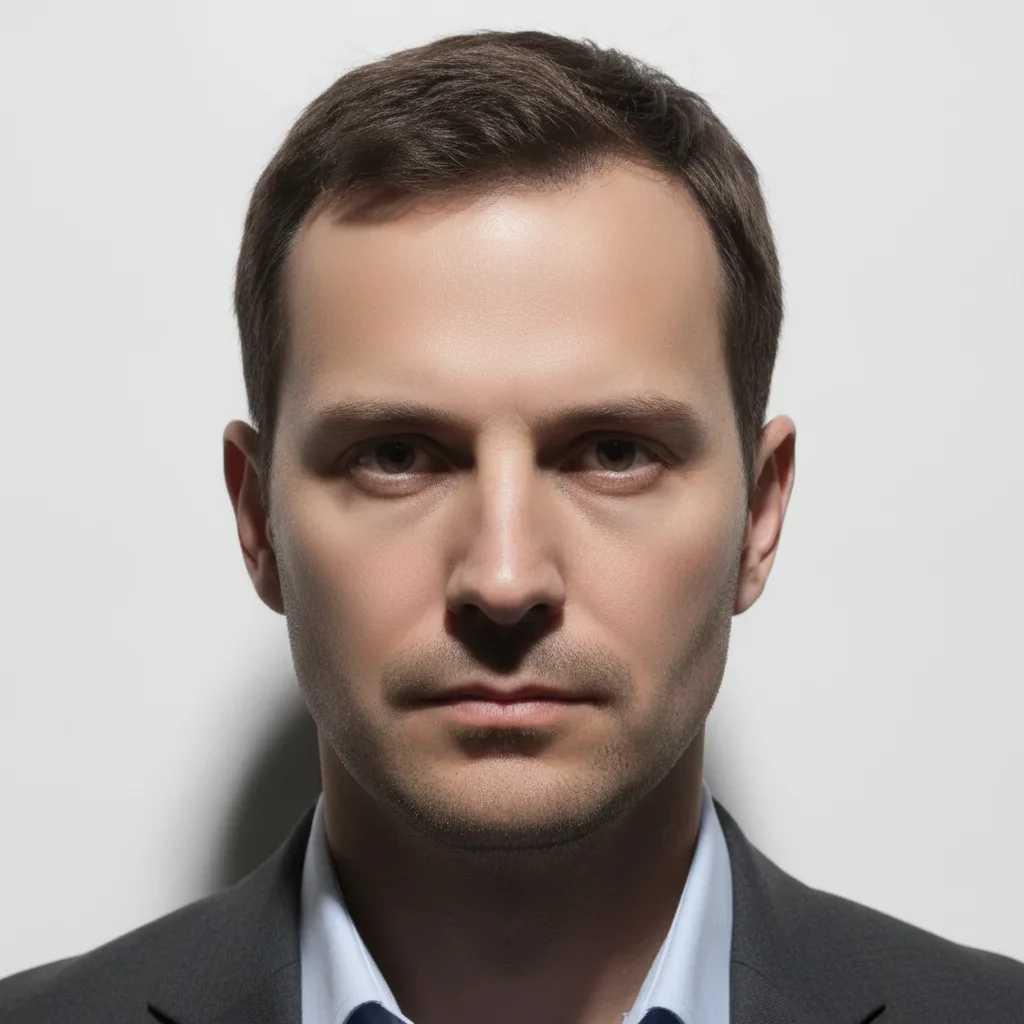
Headshot with harsh shadows under the eyes and nose from overhead lighting
Before
->
Same headshot with under-eye and under-nose shadows removed and skin tone balanced
After

Overhead light shadow fixed in indoor portrait

An indoor headshot had harsh shadows under the eyes and nose from overhead lighting. The AI brightened the shadow areas to match the overall skin tone.

Prompt: lighten and remove the dark shadows under the eyes and below the nose caused by the overhead light, match the overall face skin tone
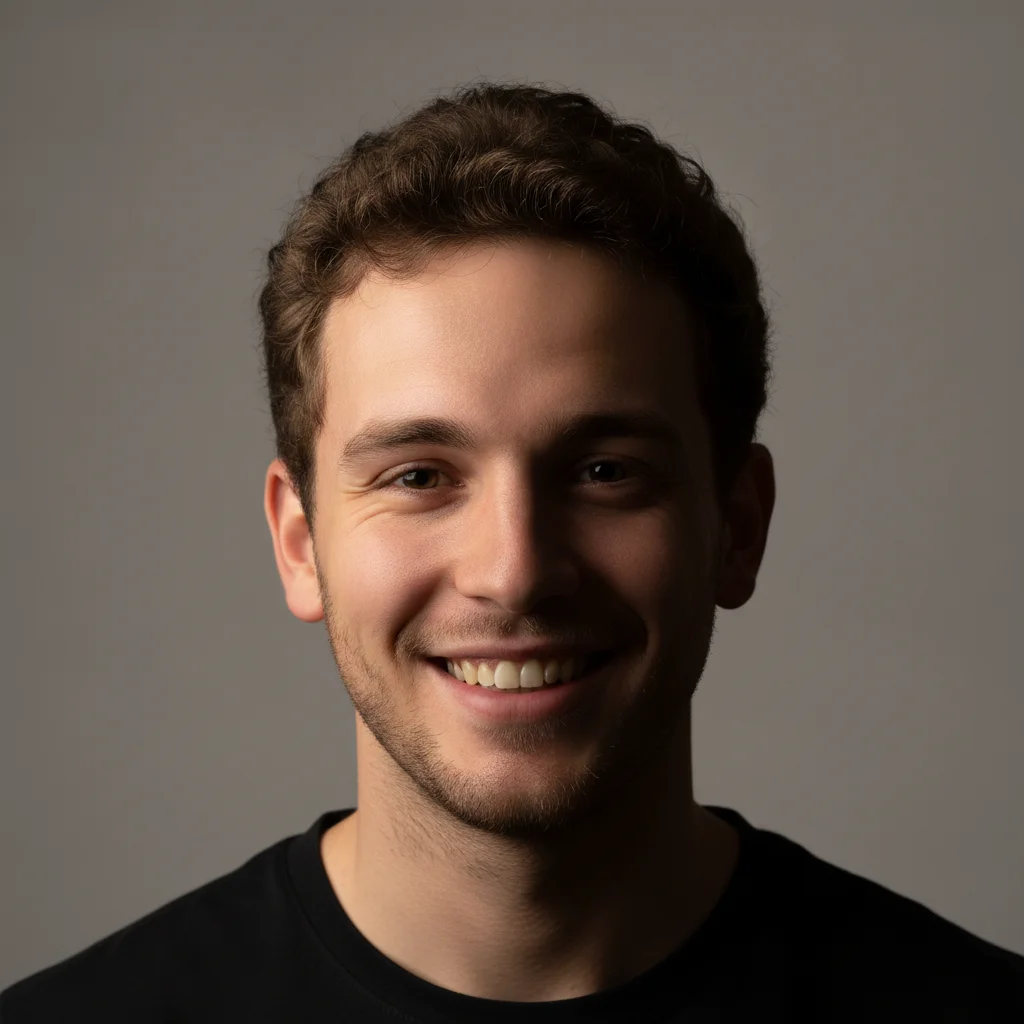
Portrait with harsh shadow on the right side of the face from one-sided lighting
Before
->
Same portrait with both sides of the face evenly lit and matching in tone
After

One-sided harsh shadow balanced on profile photo

A social media profile photo taken near a window had a deep shadow on the right side of the face. The AI balanced both sides to even out the lighting.

Prompt: fix the harsh shadow on the right side of the face, balance the lighting so both sides of the face are evenly lit and match in tone

Quick answers

Do I need to mark the shadow area on the face before removing it?

No. Describe where the shadow is and what caused it: 'remove the shadow from the hat brim across the forehead' or 'fix the harsh shadow on the left side of the face.' EditThisPic identifies the shadow area from your description. Marking with the brush is available if you want extra precision, but it's not required.

How do I remove a shadow from a face in a photo for free?

Upload your portrait to EditThisPic and describe the shadow: 'remove the shadow from the hat brim falling across the forehead and eyes' or 'fix the harsh shadow on the right side of the face.' The AI re-lights the shadowed area to match the rest of the face in about 30 seconds. Free, no account required, no watermark.

What types of face shadows can be removed?

Shadows from hat brims, overhead lighting (under eyes, under nose), side-lit portraits with one dark side, window cross-shadows, outdoor dappled light from trees, and shadows under the chin from high-angle lighting. Describe the shadow type and position in your prompt for best results.

Will the skin tone look natural after the shadow is removed?

Usually yes. The AI matches the cleared area to the surrounding skin tone. To guarantee the best result, add 'restore even skin tone across the face' to your prompt. If the tone still looks slightly off after the first pass, a refinement prompt like 'match the skin tone of the left cheek to the right cheek' fixes it.

Can I fix under-eye shadows in a photo?

Yes. Upload the portrait and use a softer instruction: 'reduce and brighten the dark shadows under both eyes to match the surrounding skin tone.' Using 'reduce and brighten' rather than 'remove' produces a more natural result — complete erasure of under-eye shadows can look unnatural. Free, no signup needed.

How much does EditThisPic cost?

You get 1 free edit per week — no account needed. After that, one-time credit packs start at $4.99 for 10 edits, valid 12 months, no subscription. Power users who edit daily can pick Studio Membership, a monthly workspace at $49.99/mo for 300 edits. Purchased downloads are clean with no watermark.

Ready to remove the shadow from your photo?

Free to try. No signup required.

1 free edit included·Credit packs from $4.99