Free • No signup Edit Product photos · Free

AI Ecommerce Photo Editor

← Browse all ecommerce tools

Last updated

Batch product photos for Shopify and Etsy listings in minutes — no studio, no Photoshop.

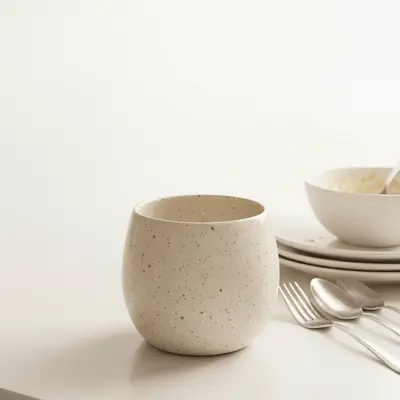
Speckled ceramic mug on cluttered kitchen counter with tiles visible behind it Same ceramic mug on clean pure white studio backdrop with soft natural drop shadow

Upload photo to edit product photos

"place the product in a bright minimalist kitchen scene with warm morning light from the left, white marble countertop, styled with fresh herbs, keep the product unchanged"

Release to upload

50,000+photos edited
<30stypical edit
1 freeedit weekly

1 free edit·then from $4.99

How it works

  1. Upload your product photo

    Drop your product image into EditThisPic — JPG, PNG, or WebP up to 7MB. Well-lit photos with clear product edges produce the best results. Flat lays, studio shots, and lifestyle photos all work. If your photo is low-resolution (below 800px), output quality will be reduced.

    Expect: Simple background swaps take 15-30 seconds. Complex edits like lifestyle scene generation or multi-element product placement take 30-45 seconds and may benefit from a second pass.
  2. Describe the edit you need

    Type your instruction directly — no marking required. For white backgrounds: 'replace background with pure white seamless studio backdrop, keep natural drop shadow.' For color variants: 'change product color to forest green, preserve all product details and textures.' For lifestyle scenes: 'place product in a cozy kitchen scene with warm morning light.' Be specific about colors, materials, and mood.

    Tip: For batch color variants, use the exact same prompt structure across all images — 'change product color to [color], preserve all details' — so all variants match in lighting and composition.

    Copy one of these to get started:

    White background for Amazon or Etsy hero image replace background with pure white seamless studio backdrop, preserve natural product drop shadow, no halo or fringing around product edges
    Lifestyle background for secondary listing images place the product in a bright minimalist kitchen scene with warm morning light from the left, white marble countertop, styled with fresh herbs, keep the product unchanged
    Product color variant for Shopify listing change the product color from beige to dusty sage green, preserve all product textures, stitching, labels, and details exactly — only the hue should change
    Product on model for clothing or accessory listings place this product on a female model in a plain white studio setting, the model wears neutral basics, natural studio lighting, full-body shot
    4 more prompts
    Shadow cleanup for flat-lay product shots remove the harsh camera shadow from the background, replace with a soft even diffused shadow directly beneath the product on a white surface
    Seasonal scene for promotional listing update place the product in a festive holiday flat-lay scene with pine branches, warm string lights, and dark walnut wood surface, keep the product itself unchanged
    Multiple color variants in batch — same composition change the product to terracotta orange, preserve all embossed details, hardware, and stitching exactly, match the lighting and shadow from the original
    Clean product from home photo for professional listing replace the cluttered home background with a clean light grey gradient studio backdrop, remove all reflections and distracting shadows, keep the product sharp
  3. Review at full zoom

    Zoom to 100% and check product edges, shadow consistency, and any text or labels on the product. For white backgrounds, verify there is no halo or fringing around product edges. For color variants, check that brand elements like logos or stitching details are preserved.

  4. Download and batch the next variant

    Download your result, then upload the next product or variant. For a full color lineup, repeat with the same base product photo and swap only the color term in your prompt. This produces a consistent set of listing images with matched lighting and composition.

  5. Use markers if placement needs precision

    If the AI edited the wrong part of a complex product — changed the packaging instead of the product, or placed a logo incorrectly — tap a marker on the exact area and regenerate. Markers are rarely needed for background swaps but useful for multi-element products.

    Tip: Markers are optional precision tools, not a required step. Background swaps and color changes almost always work without them.

See it in action

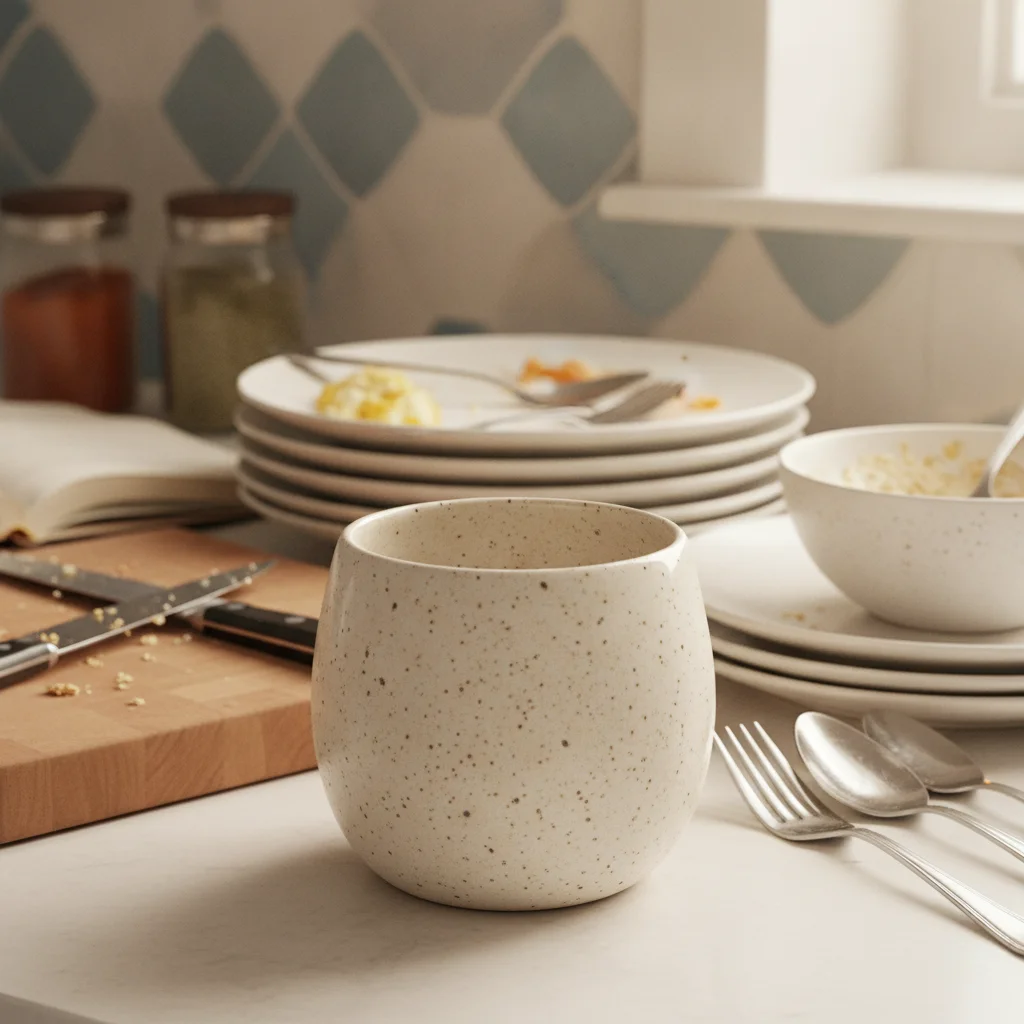
Speckled ceramic mug on cluttered kitchen counter with tiles visible behind it
Before
->
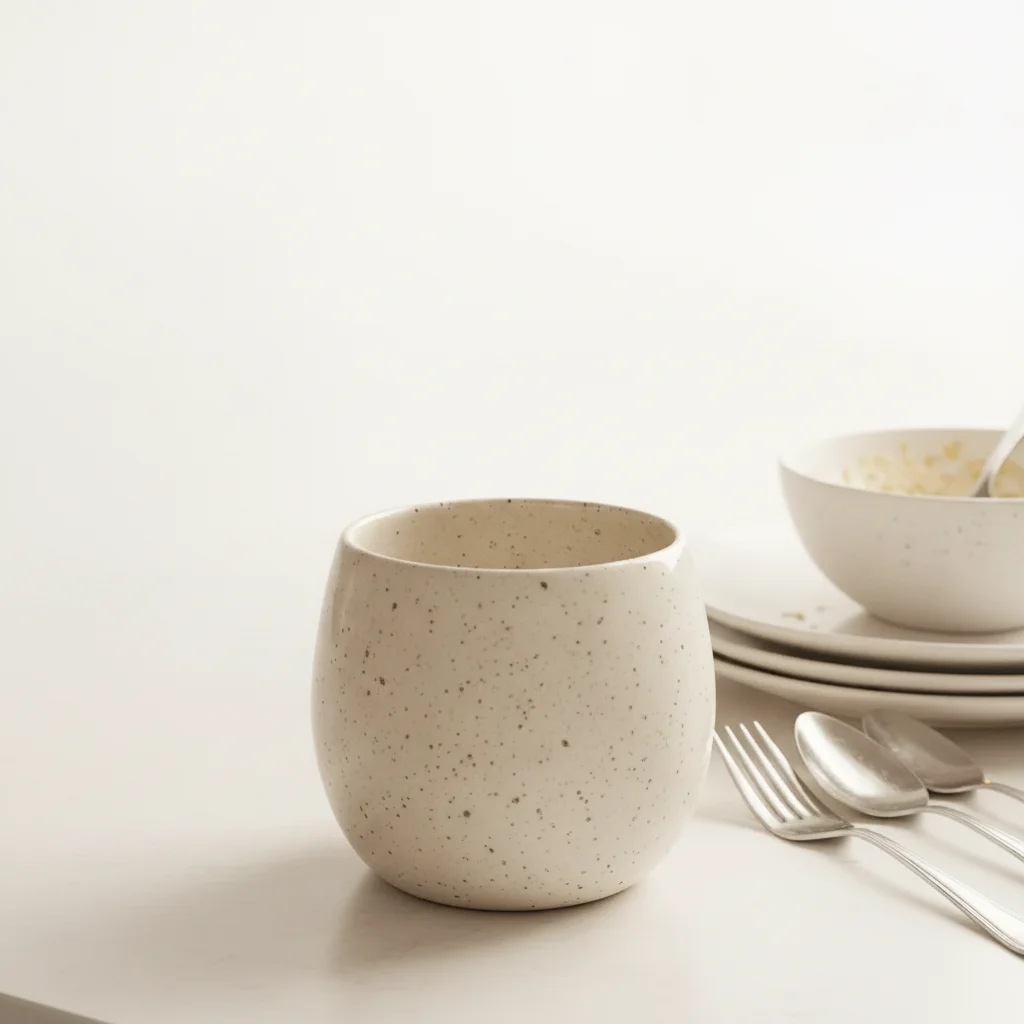
Same ceramic mug on clean pure white studio backdrop with soft natural drop shadow
After

Ceramic mug — cluttered home to clean white listing

A handmade ceramics seller photographed her mugs on a kitchen counter. One prompt replaced the cluttered background with a clean white studio backdrop — listing-ready in under a minute.

Prompt: replace background with pure white seamless studio backdrop, preserve natural product drop shadow, no halo or fringing around product edges
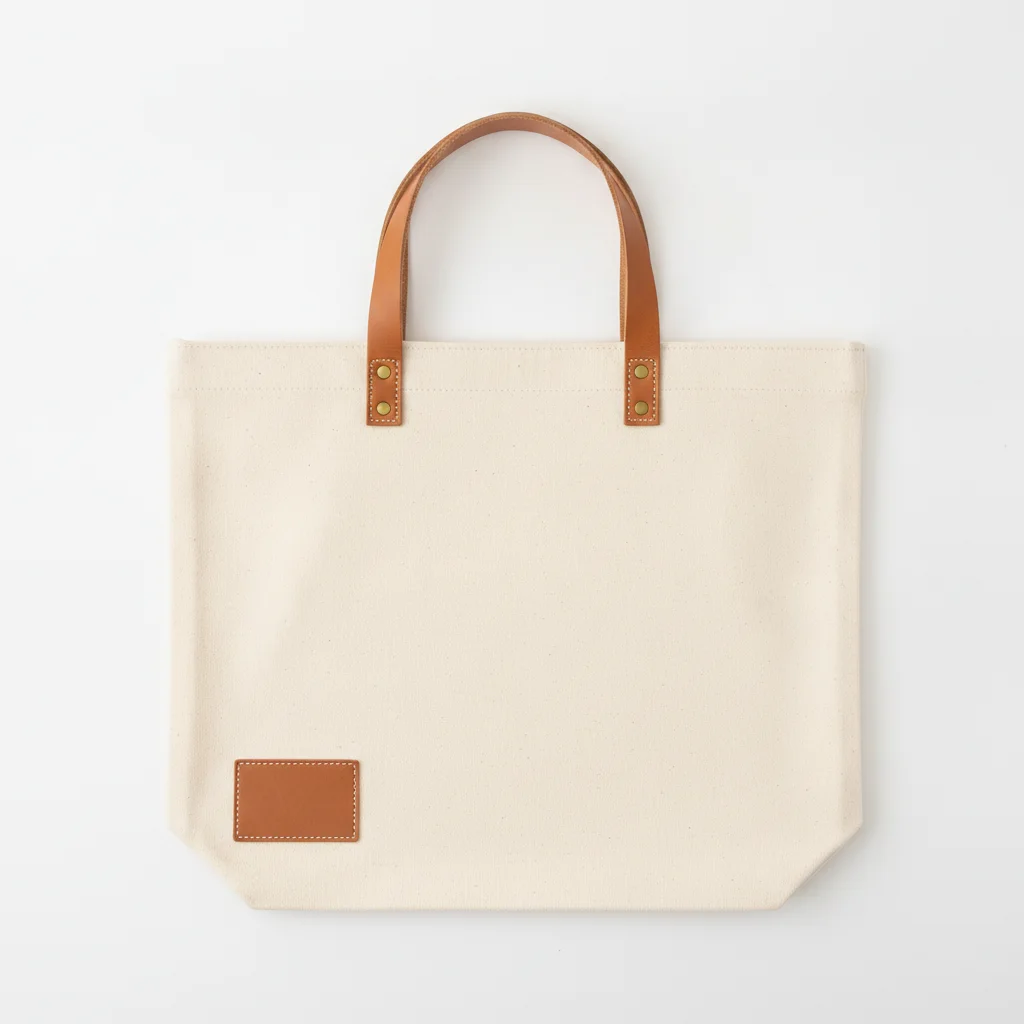
Natural canvas tote bag flat lay on white background with leather handles visible
Before
->
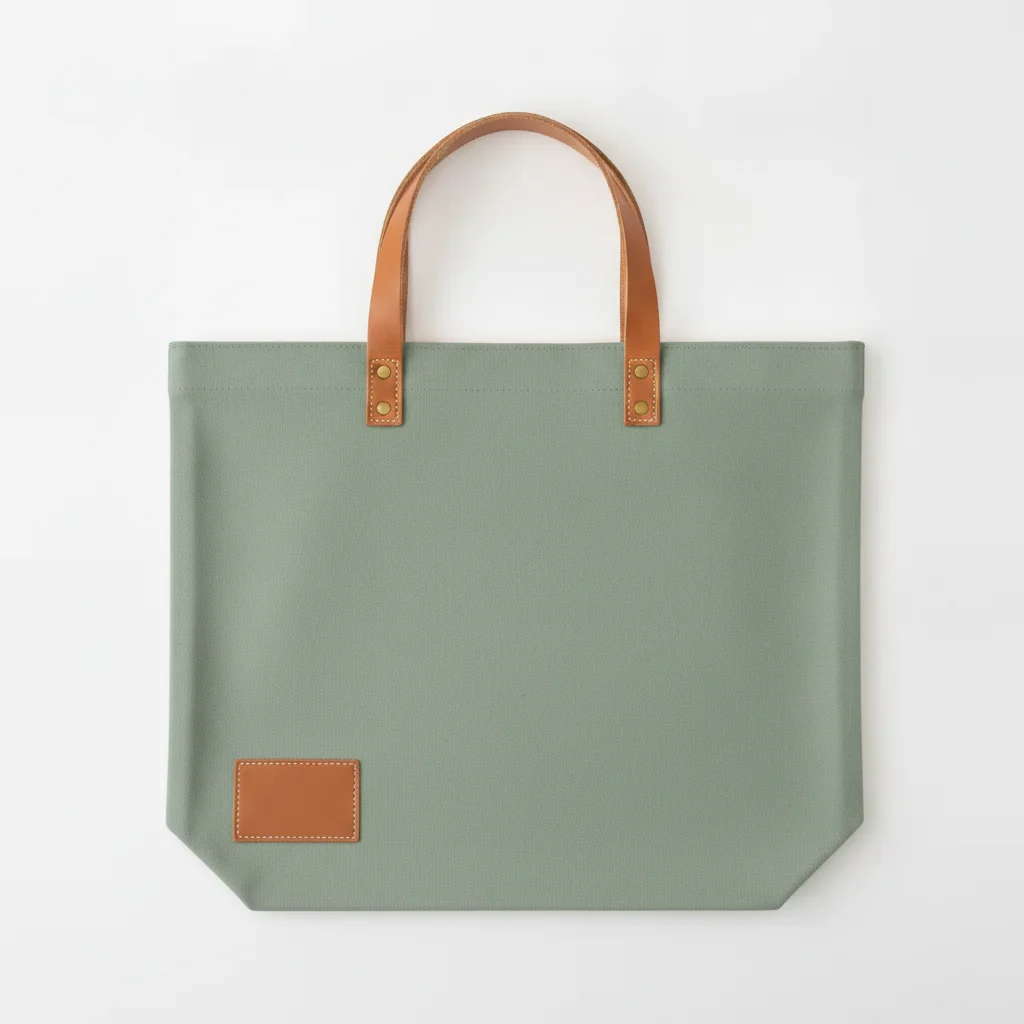
Same tote bag in dusty sage green with all hardware and stitching details preserved
After

Tote bag — color variant generation for Shopify listing

A Shopify bag seller needed her canvas tote in four colors without ordering more samples. She used the same base photo and swapped only the color term — four listing images in under five minutes.

Prompt: change the product color from natural canvas to dusty sage green, preserve all stitching, handle hardware, interior label, and texture exactly — only the hue should change
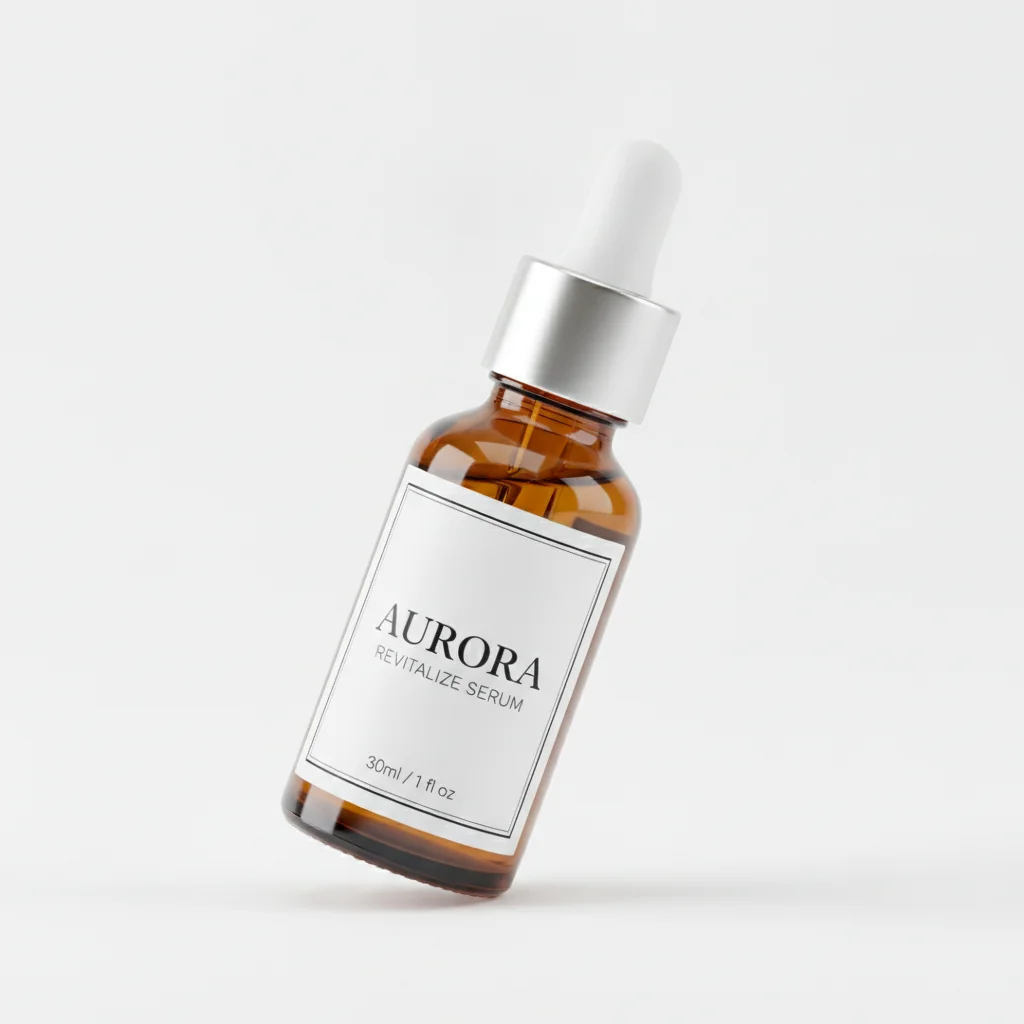
Amber glass serum bottle with dropper cap on pure white studio background
Before
->
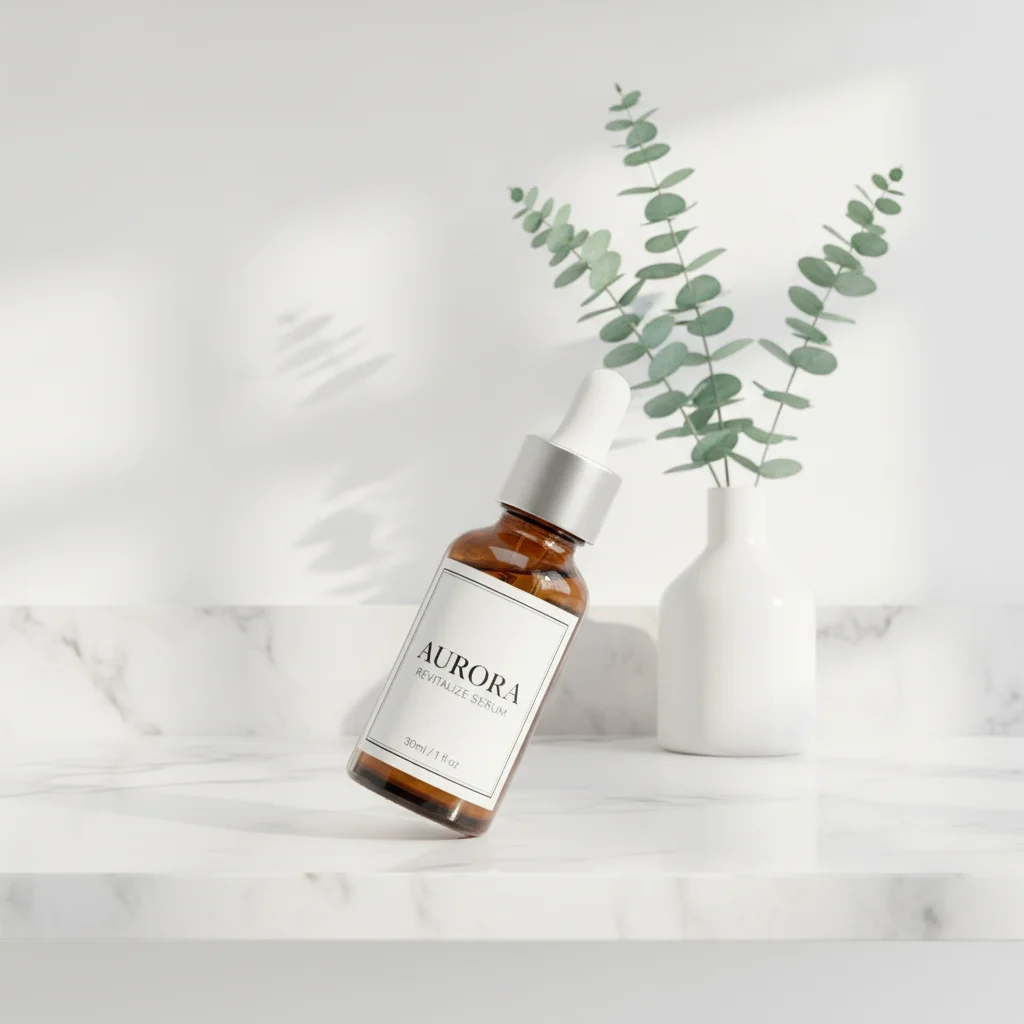
Same serum bottle styled in minimalist bathroom shelf scene with eucalyptus and marble
After

Skincare product — lifestyle scene for secondary listing image

A skincare brand needed lifestyle context for their secondary images while keeping a white background for the hero. One prompt placed the serum bottle in a clean bathroom shelfie scene.

Prompt: place the product in a minimalist white bathroom shelf scene with soft morning diffused light, eucalyptus stems in the background, polished marble surface, keep the product label and bottle unchanged

Quick answers

Do I need to mark the background before replacing it?

No. Just type 'replace background with pure white studio backdrop' and the AI understands what 'background' means. Markers are only useful for precision tasks — like specifying which of two similar-colored areas to edit, or refining a product edge after a first attempt. For standard background swaps, description alone works in one pass.

Is there a free product photo editor for Shopify and Etsy that doesn't require signup?

Yes. EditThisPic edits product photos for free with no account, no login, and no watermark. Upload your product image, describe the edit — white background, color variant, lifestyle scene — and download the result in 30 seconds. Works in any browser, no app download needed.

How do I batch-generate color variants for my Shopify product listing?

Upload your base product photo, then type 'change product color to [color], preserve all details exactly — only the hue should change.' Download that result, re-upload the same base image, and repeat with the next color. Using the same base photo and the same prompt structure produces a consistent set of listing images that look like a professional batch shoot.

What is the best free AI tool for ecommerce product photography?

EditThisPic handles the most common ecommerce photo tasks without a subscription: white background cleanup, color variant generation, lifestyle scene creation, and product-on-model placement. It's free, requires no signup, and produces download-ready results in 30 seconds. Unlike Photoshop or GIMP, there is no selection or masking step — you just describe what you want.

Can I place my product in a lifestyle scene without a photoshoot?

Yes. Upload your product photo and type the scene you need: 'place product in a minimalist kitchen with warm morning light and marble countertop.' The AI composites your product into a generated lifestyle scene with matched lighting. Works best when your product photo has a clean background to start — the AI extracts the product more cleanly.

How do I generate product-on-model images without hiring a model?

Upload a flat-lay or studio product photo and type: 'place this product on a female model in a plain white studio setting, natural studio lighting, close-up portrait framing.' The AI generates a model placement from the product image. For apparel, this works best with a clear full-product shot. For jewelry and accessories, a close-up is more reliable than a full-body shot.

How much does EditThisPic cost?

You get 1 free edit per week — no account needed. After that, credit packs start at $1.99 for 3 edits. Monthly plans start at $4.99/mo for 20 edits with unused credits rolling over. All edits are full resolution with no watermark.

Ready to edit your product photos?

Free to try. No signup required.

1 free edit included·Credit packs from $4.99