Free • No signup Fix Construction scaffolding equipment · Free

Beautiful location but construction visible?

Perfect location ruined by visible scaffolding, cones, or construction? AI removes it all.

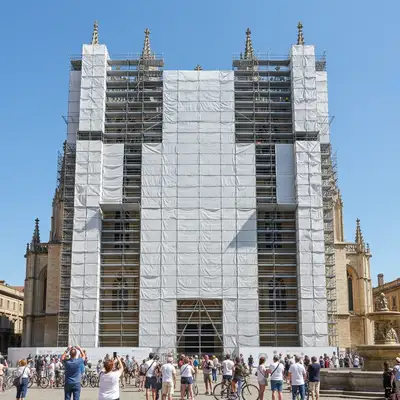
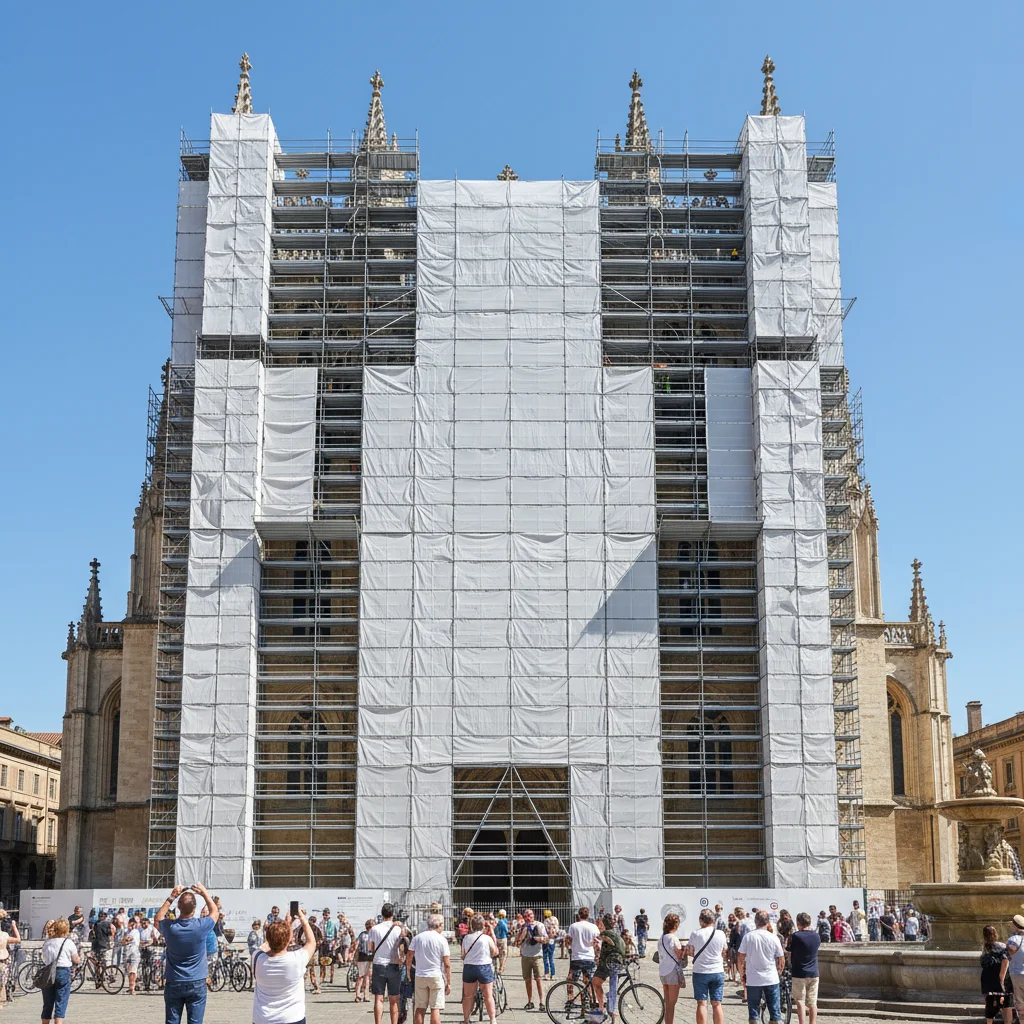
Landmark building completely covered in scaffolding
Before
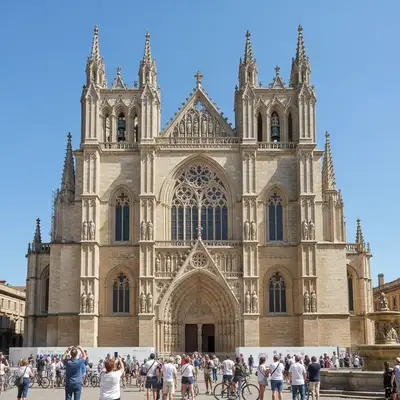
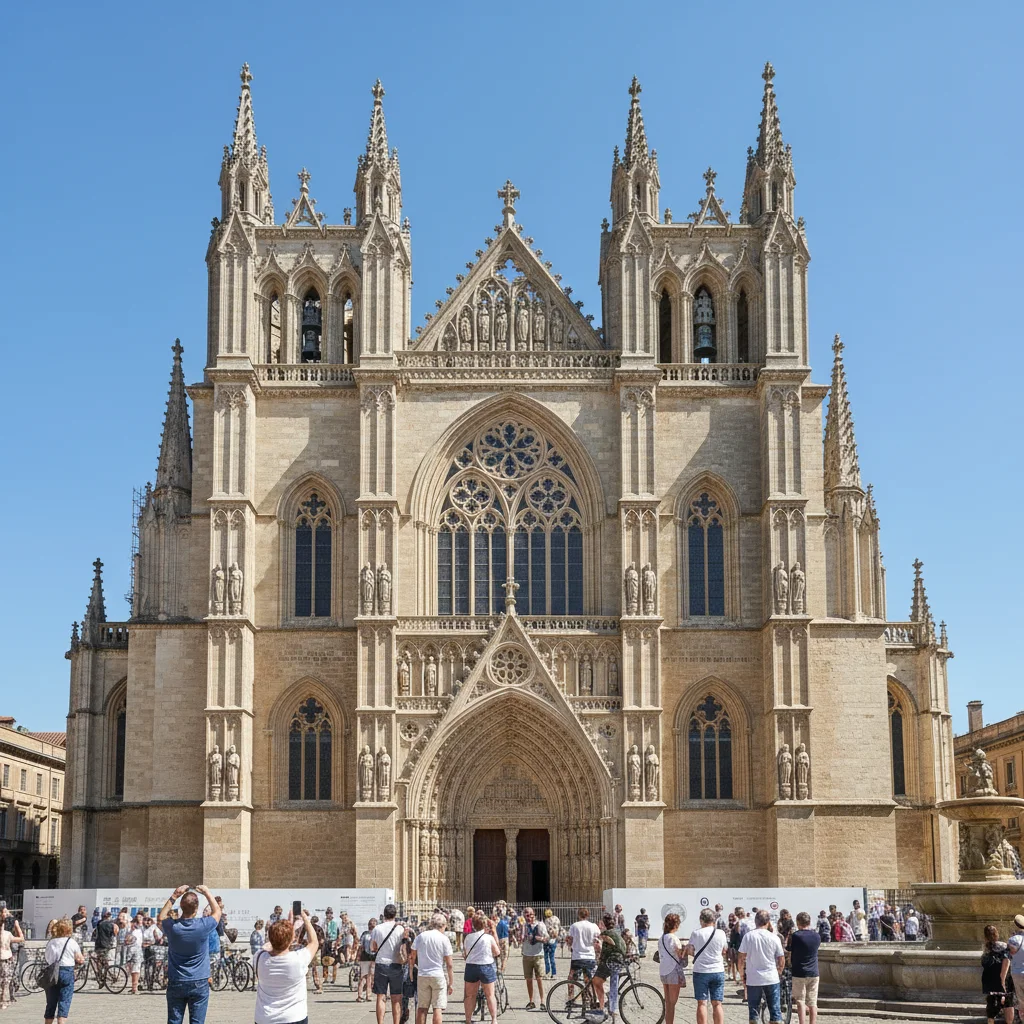
Same landmark with scaffolding removed, clean architecture visible
After

Beautiful Location But Construction Visible? Remove It

Upload photo to fix construction scaffolding equipment

Free • Results in 30 seconds • No signup

Release to upload

FreeNo signupNo watermark
Popular use cases:
  • Remove scaffolding from photo
  • Delete traffic cones
  • Remove construction equipment
  • Clean up real estate photos
  • Landmark photo cleanup
  • Remove construction barriers
  • Travel photo construction removal

Cost
Free No signup required
Time
Instant results in 15-30 seconds
Works on
Any device - browser, phone, tablet, desktop
Powered by
AI-powered photo editing
Scenario Prompt Time
Landmark with scaffolding remove scaffolding, show clean building underneath 30s
Traffic cones and barriers delete traffic cones and barriers, show clean street 25s
Real estate with construction remove all construction equipment, cones, tape 28s
Construction crane in skyline remove construction crane and equipment from skyline 35s

How it works

  1. Upload your photo

    Upload a clear photo of the animal. Sharp focus on the pet with good lighting produces the best construction scaffolding equipment results. JPG, PNG, WebP up to 7MB.

    Expect: Simple construction removal (cones, barriers): 25-30 seconds. Complex scaffolding or large structures: 45-60 seconds.
  2. Describe what you want

    Type 'remove the construction equipment and scaffolding' or 'delete the traffic cones and show the clean street.' The AI identifies construction elements, removes them, and reconstructs the building, street, or landscape behind. No marking needed—the AI understands 'construction,' 'scaffolding,' 'cones.'

    Tip: Be specific about what's behind: 'remove scaffolding and show the clean building facade' helps the AI know what to reconstruct.

    Copy one of these to get started:

    Landmark covered in scaffolding remove the scaffolding and show the clean building underneath
    Street photo with traffic cones and barriers delete the traffic cones and construction barriers, show the clean street
    Real estate photo with visible construction remove all construction equipment, cones, and caution tape from the scene
    Travel photo with renovation work visible remove the construction and renovation equipment, restore the natural view
    3 more prompts
    Urban photo with visible crane or machinery remove the construction crane and equipment from the skyline
    Building facade with safety netting remove the construction netting and scaffolding, show the clean facade
    Outdoor scene with orange construction fencing remove the orange construction fencing and barriers, open up the view
  3. Review the result

    Check that all construction elements are gone and the scene looks natural. Zoom in on architectural details or ground areas to verify the reconstruction looks realistic and matches the surrounding context.

  4. Refine if needed (optional)

    If some construction remains or the reconstruction looks off, try 'remove all remaining construction and fill naturally' or tap markers on stubborn elements and regenerate.

    Tip: For complex scaffolding covering large areas, Pro mode (4 credits) uses advanced reconstruction for more realistic results.
Try it free

Beautiful Location But Construction Visible? Remove It

Upload photo to fix construction scaffolding equipment

Free • Results in 30 seconds • No signup

Release to upload

Free • No signup

"Finally visited a famous landmark and it was covered in scaffolding for renovation. This removed it all and showed the building as it should look. Saved my once-in-a-lifetime photo." @WorldTraveler

See it in action

Landmark building completely covered in scaffolding
Before
->
Same landmark with scaffolding removed, clean architecture visible
After

Famous landmark with scaffolding during renovation

Once-in-a-lifetime travel photo at an iconic landmark, but the entire front was covered in scaffolding for renovation. AI removed it all and revealed the building's architecture.

Prompt: remove the scaffolding and show the clean building underneath
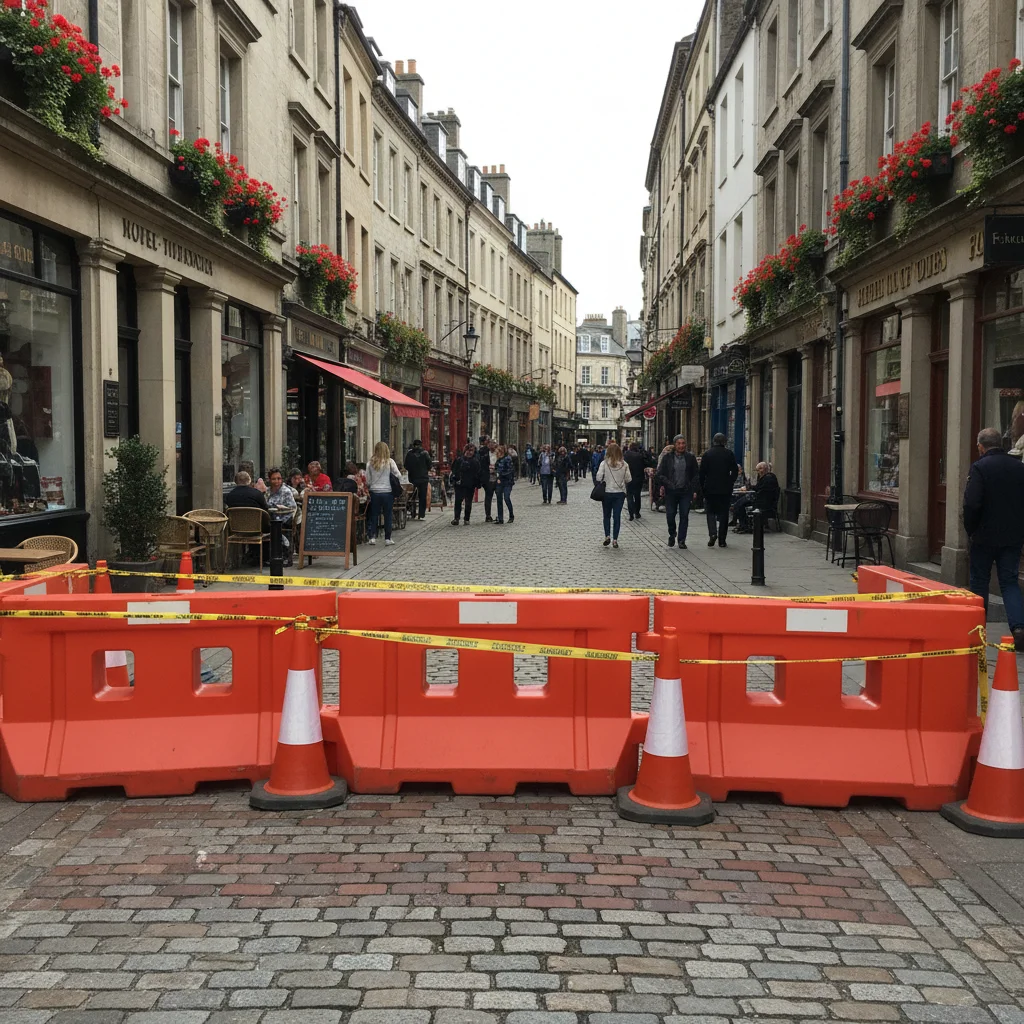
Street photo with orange traffic cones and barriers
Before
->
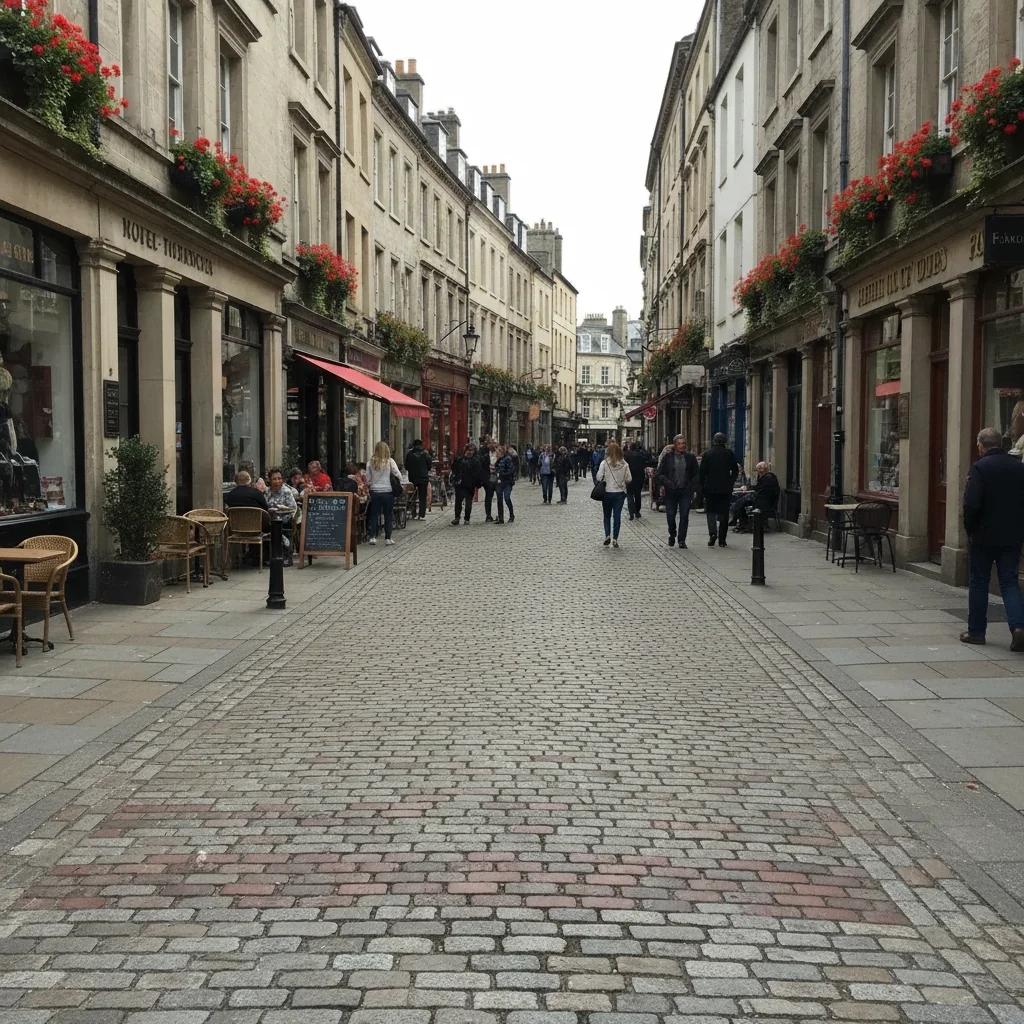
Same street with all construction elements removed, clean scene
After

Street photo with traffic cones and construction barriers

Beautiful urban street scene but orange traffic cones and plastic barriers were set up for roadwork. One prompt removed all construction elements and revealed the clean street.

Prompt: delete the traffic cones and construction barriers, show the clean street

Detailed Guides by Scenario

📷

Photo Rescue & Restoration

Revive old, damaged, or poorly-shot photos with AI construction scaffolding equipment — bring new life to images you thought were unsalvageable.

Common Scenarios

  • Applying construction scaffolding equipment to old family photos that have degraded over time
  • Fixing a once-in-a-lifetime shot (wedding, graduation) that suffers from poor quality
  • Using construction scaffolding equipment on scanned prints to get crisp digital versions

Best Practices

  • Scan old photos at the highest DPI your scanner supports before uploading for best results
  • Describe the specific issue — 'this photo is too dark and blurry' gives better construction scaffolding equipment than a generic prompt
  • For severely damaged photos, work in stages: fix the biggest issue first, then refine
📷

Professional & Business Use

Ensure photos for websites, presentations, and marketing meet professional standards with construction scaffolding equipment.

Common Scenarios

  • Using construction scaffolding equipment on employee photos for a company website that need to look polished
  • Applying construction scaffolding equipment to event photos before sharing in a client presentation
  • Improving product images with construction scaffolding equipment for an online store or catalog

Best Practices

  • Process all images in a batch with the same enhancement settings for visual consistency
  • For web use, balance enhancement quality with file size — overly large images slow page loads
  • Always compare before and after to make sure construction scaffolding equipment looks natural, not over-processed
📷

Social Media & Personal Sharing

Make your personal photos look their best before sharing with friends, family, or followers using construction scaffolding equipment.

Common Scenarios

  • Quickly applying construction scaffolding equipment to vacation photos before posting on social media
  • Using construction scaffolding equipment on a selfie that has great composition but poor lighting
  • Batch-fixing a phone gallery of photos with construction scaffolding equipment before creating an album to share

Best Practices

  • Start with the photo you'd most like to share — fix that one first and use the same approach on the rest
  • For selfies, subtle enhancement always beats heavy processing — keep it natural
  • If the photo was shot in low light, mention it in the prompt so the AI tailors construction scaffolding equipment accordingly

If something looks off

Building or structure looks fake or unrealistic where scaffolding was

Why: The AI struggled to accurately reconstruct complex architectural details hidden behind scaffolding, especially ornate or unique building features.

Try: remove scaffolding and reconstruct the building facade accurately, match surrounding architectural style

Tip: Try Pro mode (4 credits) for complex architecture. It uses better inference to reconstruct hidden details realistically.

Some construction elements still visible

Why: The AI missed small items like signs, individual cones, or parts of barriers that blend with the background.

Try: tap marker on each remaining construction item, then 'remove all of these construction elements'

Tip: Markers target stubborn small items the AI overlooked on the first pass.

Colors or textures don't match after removal

Why: The reconstructed area (wall, pavement, etc.) may have different color, weathering, or texture than the surrounding visible parts.

Try: remove construction but match the exact colors and textures of the surrounding building/street

Tip: 'Match exact colors' helps ensure consistent appearance across the reconstructed area.

AI removed permanent fixtures thinking they were construction

Why: The AI over-interpreted 'construction' and removed legitimate street furniture, signs, or architectural elements.

Try: remove only temporary construction equipment and barriers, keep permanent fixtures

Tip: 'Temporary construction' distinguishes from permanent street elements you want to keep.

Large scaffolding left obvious gaps or artifacts

Why: Extensive scaffolding covering large building areas creates complex reconstruction challenges, especially with limited visible context.

Try: remove scaffolding and reconstruct building facade naturally, infer architectural details from visible sections

Tip: When scaffolding covers most of a building, the AI infers from visible parts. Results vary based on how much is hidden.

Quick answers

Do I need to mark the construction elements before describing them?

No. Just type 'remove the construction equipment' or 'delete the scaffolding' and the AI identifies and removes them automatically. Markers are only needed for small or camouflaged items the AI misses, or when you want to be very specific about what to remove vs what to keep.

What types of construction can this remove?

Scaffolding, traffic cones, construction barriers, orange safety fencing, caution tape, cranes, construction equipment, machinery, portable signs, safety netting, and temporary structures. Basically any visible construction elements that are temporary additions to a scene.

Will the building or scene look realistic after scaffolding removal?

In most cases, yes. The AI reconstructs architecture based on visible surrounding context. Simple buildings work very well. Ornate or unique architecture may need Pro mode for better reconstruction. Results depend on how much of the structure is hidden behind scaffolding.

Can this work for real estate photos with construction nearby?

Absolutely. Use 'remove all construction equipment, cones, and barriers from the scene' to clean up property photos. This is perfect for real estate where nearby construction work makes properties look less appealing.

What if the entire landmark is covered in scaffolding?

The AI can still work, but results depend on visible context. If some of the building is visible, the AI infers the rest. For completely covered structures, try Pro mode which uses advanced reasoning to reconstruct. Results vary—the more hidden, the harder to reconstruct perfectly.

Is EditThisPic's AI construction scaffolding equipment fixer really free?

Yes — you get 1 free edit per week, no account needed. For unlimited edits, plans start at $3.99/month.

Can I fix construction scaffolding equipment on my phone?

Yes. EditThisPic works in any mobile browser — iPhone, Android, tablet. No app download needed.

What photo formats does the AI construction scaffolding equipment fixer support?

JPG, PNG, WebP, and HEIC. Upload any common photo format and EditThisPic handles the rest.

Ready to remove construction and see the clean scene?

Free to try. No signup required.