Pricing Fix Underexposed photo · Free

AI Underexposed Photo Fixer

← Browse all creative effects

Last updated

Describe what's too dark and EditThisPic brightens it — no sliders, no masking required.

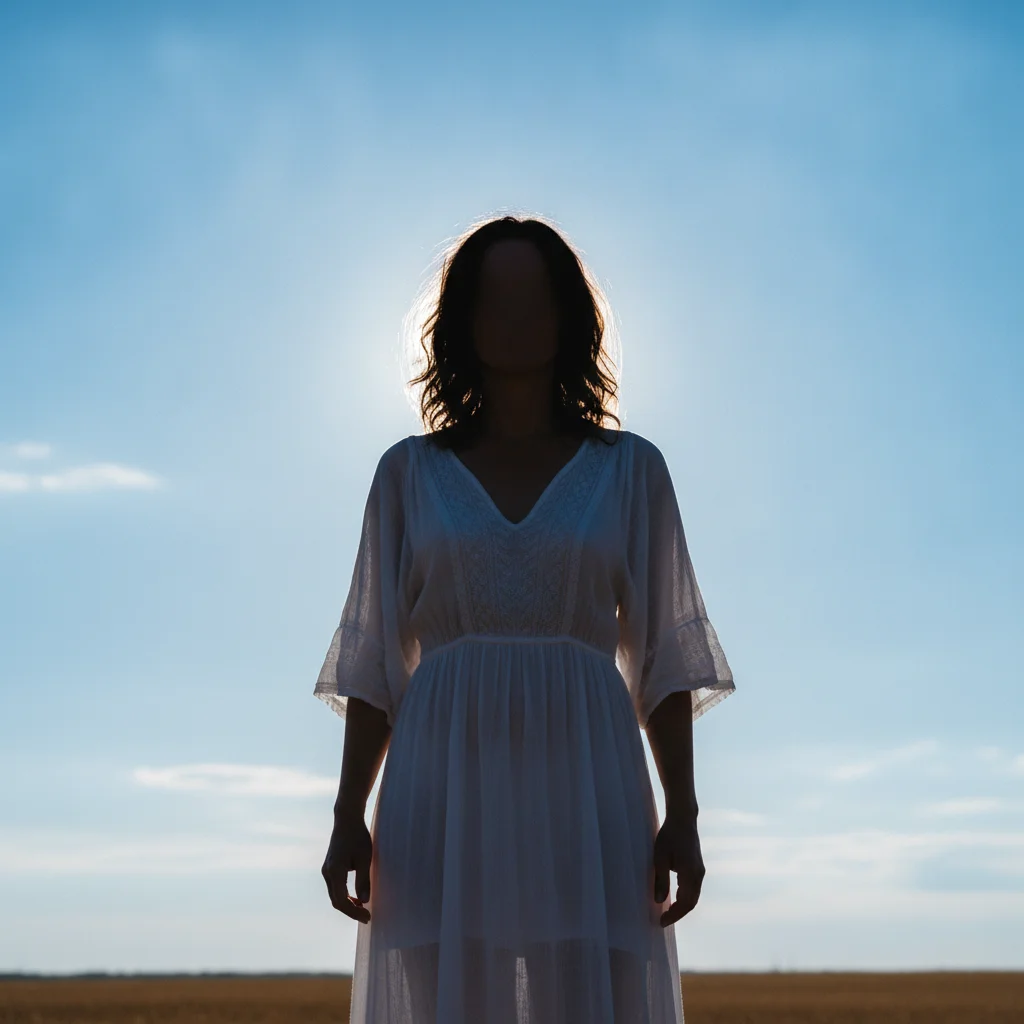
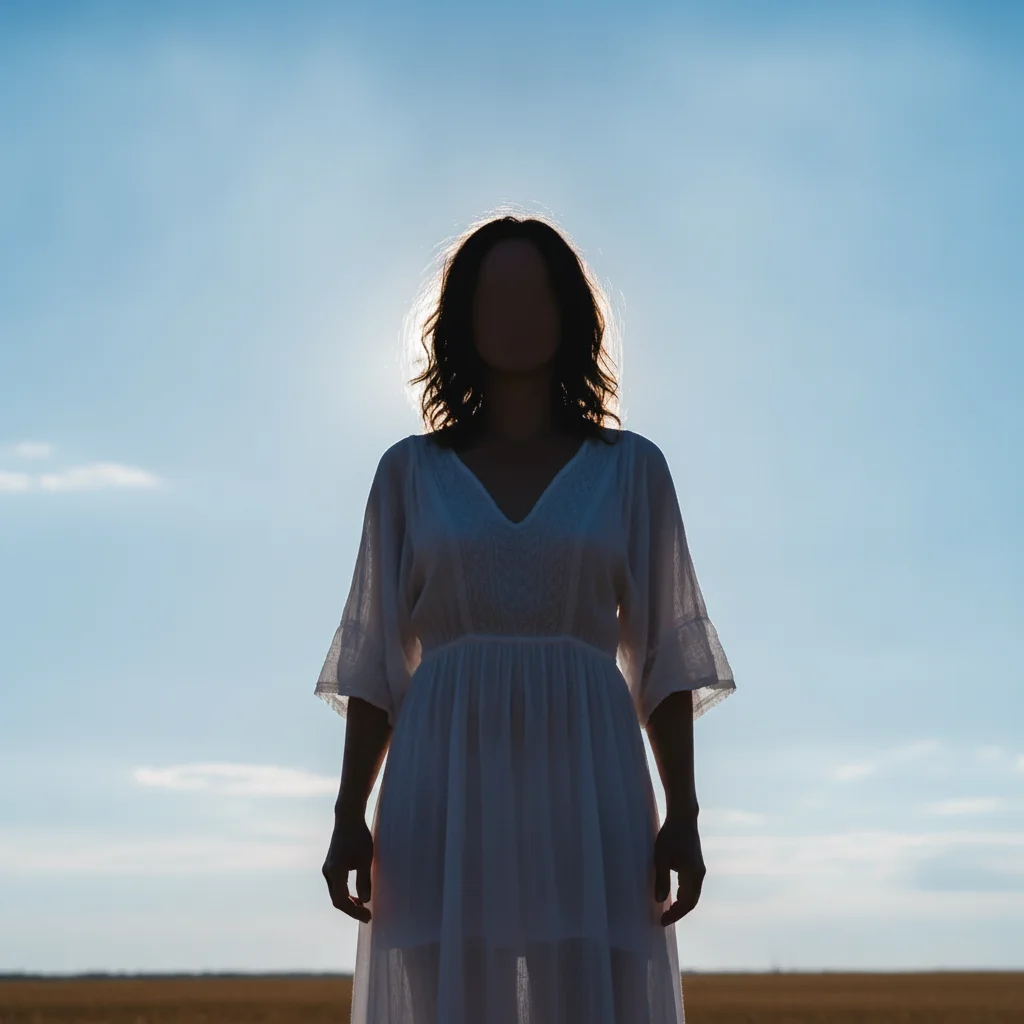
Backlit outdoor portrait with underexposed dark face against bright sky Same portrait with face brightened to natural tones, sky unchanged

Upload photo to fix underexposed photo

"the face is underexposed because of backlighting — brighten only the face and skin to natural tones, keep the bright background as it is"

Free to try · no sign-up · photos are never shared

Release to upload

<30stypical edit
1 freeedit weekly
Photo on your phone? Scan to open this editor there — free edit works on your phone too.

1 free edit every week·packs from $4.99

How it works

  1. Upload your dark or underexposed photo

    Drop your image into EditThisPic. JPG, PNG, or WebP up to 7MB. Works on dark indoor portraits, backlit subjects where the face is shadowed, nighttime shots taken on a phone, and old scanned photos that look dim. The AI reads the actual luminance values across the image — it doesn't just apply a blanket brightness boost.

    Expect: Mildly underexposed photos (faces visible but too dark) brighten cleanly in one pass in about 20 seconds. Severely underexposed photos where shadow areas are near-black may take a second pass or require a prompt focused on specific problem zones like 'faces' or 'shadow areas.'
  2. Describe what's too dark and how bright it should be

    Type the correction you want: 'fix the underexposure — brighten the faces so skin tones look natural, recover detail in the dark shadow areas on the left side' or 'lighten the overall image by about 2 stops, keep the sky from blowing out.' Name specific areas that need brightening and include any constraints (like 'don't blow out the window'). The more specific you are about zones and target brightness, the better the correction.

    Tip: If parts of the photo are correctly exposed and others are too dark, say so explicitly: 'the background is correctly exposed but the faces are too dark — only brighten the faces.' This prevents the AI from over-exposing already-correct areas.

    Copy one of these to get started:

    Dark indoor portrait — most common fix the underexposure — brighten the face and skin tones to look natural, recover detail in the dark shadow areas, don't blow out the background
    Backlit portrait — face in shadow the face is underexposed because of backlighting — brighten only the face and skin to natural tones, keep the bright background as it is
    Night photo too dark overall brighten this underexposed nighttime photo — recover detail in the shadow areas, keep the night sky dark and mood intact, reduce any noise that appears in lifted shadows
    Whole image slightly underexposed fix the underexposure — lift the overall brightness by about 1-2 stops, correct the shadows so detail is visible, keep highlights from blowing out
    3 more prompts
    Dark face in group photo brighten the faces in this group photo — the faces are underexposed and too dark, match the brightness to the rest of the image, keep the background unchanged
    Old dark scanned photo fix the underexposure in this old scanned photograph — brighten the whole image, recover detail in the dark shadow areas, restore natural skin tones and background detail
    Indoor event photo without flash brighten this dark indoor event photo — recover face detail for each person, lift the shadows so people are clearly visible, keep the venue lighting warm mood
  3. Check for noise, blocked shadows, and tonal balance

    Zoom to 100% and check three things: (1) noise in recovered shadow areas — heavily lifted shadows can reveal digital noise that was hidden in the dark, (2) blocked shadows — areas that are still too dark, (3) tonal balance — the relationship between the darkest and brightest parts of the image should feel natural, not flat.

  4. Refine specific zones with markers if needed

    If the overall exposure is correct but one face in a group is still too dark, tap a marker on that face and add: 'brighten this face to match the others, same skin tone warmth.' For noisy shadow areas, tap a marker and add: 'reduce noise in this shadow area while keeping the brightened exposure.'

    Tip: Markers work well for group photos where faces have uneven exposure. Target each underexposed face individually rather than trying to correct the whole image.

See it in action

Backlit outdoor portrait with underexposed dark face against bright sky
Before
->
Same portrait with face brightened to natural tones, sky unchanged
After

Backlit outdoor portrait — face in shadow corrected

Woman photographed with bright sky behind her. Camera exposed for the bright background, leaving her face too dark. Zone-specific correction brightened only the face without touching the sky.

Prompt: fix the backlit underexposure — brighten only the face and skin to natural tones, keep the bright sky background unchanged

Quick answers

Do I need to mark the dark areas before brightening them?

No. For most underexposed photos, just describe what's too dark: 'fix the underexposure — brighten the faces and recover shadow detail.' The AI identifies the underexposed areas and applies a calibrated correction. Only use markers if you need zone-specific brightening — for example, brightening only one backlit face in a group without touching the rest.

How do I fix an underexposed photo for free online?

Upload your photo to EditThisPic, describe what's too dark — for example 'fix the underexposure, brighten the faces to natural skin tones' — and click Generate. The AI corrects the exposure in about 30 seconds. Free preview, no account; purchased downloads are clean. Works on JPEGs and PNGs in any browser.

Can AI brighten a dark photo without adding noise?

For mildly underexposed photos, yes — the AI brightens without introducing visible noise. For severely underexposed photos (near-black shadows), lifting the shadows reveals digital sensor noise that was hidden in the dark. Add 'reduce noise in lifted shadows' to your prompt and the AI handles both correction and denoising in one pass.

Is there a free tool to fix underexposed photos without Lightroom?

Yes. EditThisPic fixes underexposed photos with a free preview edit, no account required, and purchased downloads are clean. Unlike Lightroom, you describe the problem in plain language instead of adjusting Exposure, Shadows, and Highlights sliders manually. Works on desktop and mobile browsers — no app to download.

How do I fix a backlit photo where the face is too dark?

Type: 'the face is underexposed because of backlighting — brighten only the face to natural skin tones, keep the bright background unchanged.' For backlit portraits, zone-specific correction works better than global brightening because the background is already correctly exposed.

Can I brighten an underexposed photo on my phone?

Yes. EditThisPic runs fully in Safari on iPhone and Chrome on Android with no app needed. Upload directly from your camera roll, type the correction prompt, and save the result. Works for both individual portrait corrections and group photo exposure fixes.

Why do photos look too dark when taken indoors or at night?

Indoor and night photos are underexposed when there isn't enough light for the camera's auto-exposure to work correctly. Phone cameras use a short shutter speed to prevent motion blur, which limits how much light reaches the sensor. The result is an image that's darker than the scene appeared to your eyes.

How much does EditThisPic cost?

You get 1 free edit per week — no account needed. After that, one-time credit packs start at $4.99 for 10 edits, valid 12 months, no subscription. Power users who edit daily can pick Studio Membership, a monthly workspace at $49.99/mo for 300 edits. Purchased downloads are clean with no watermark.
Ready to brighten your underexposed photo?

Free to try. No signup required.

1 free edit included·Credit packs from $4.99