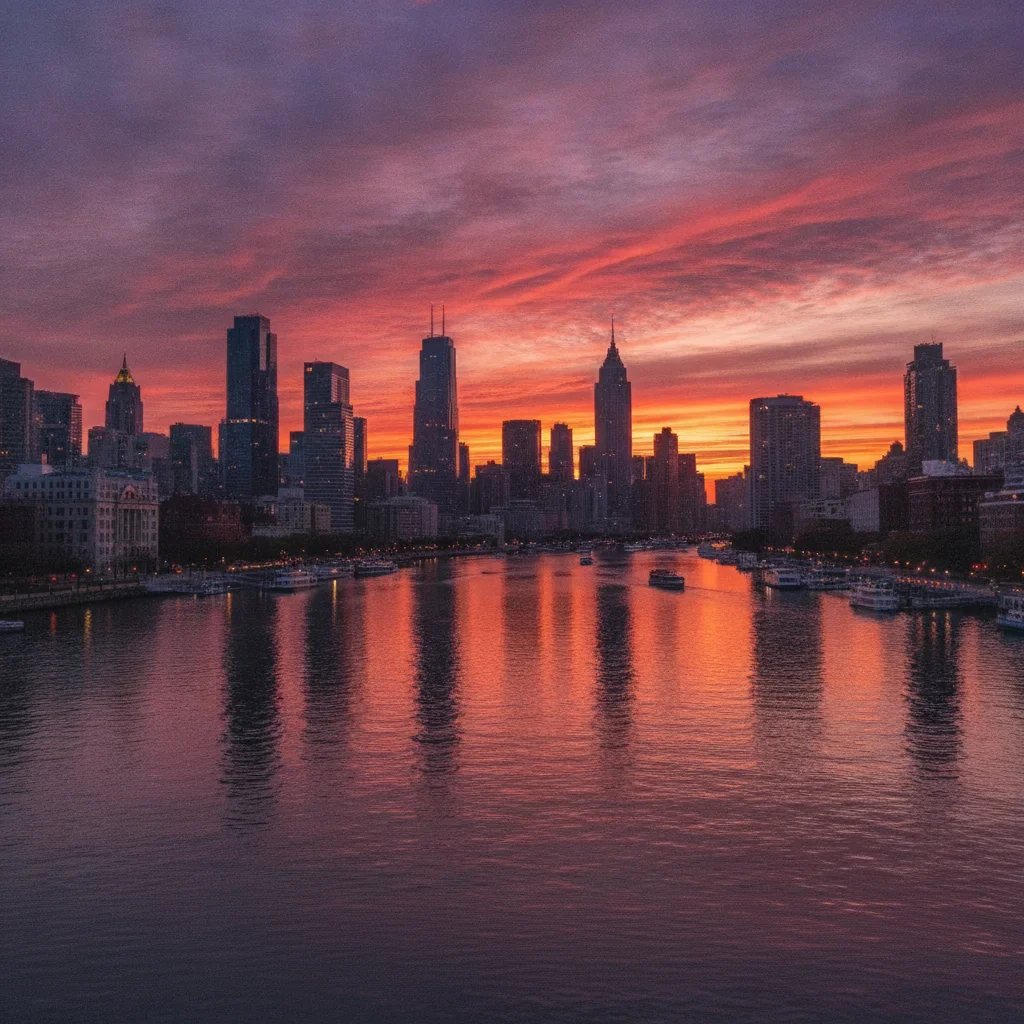
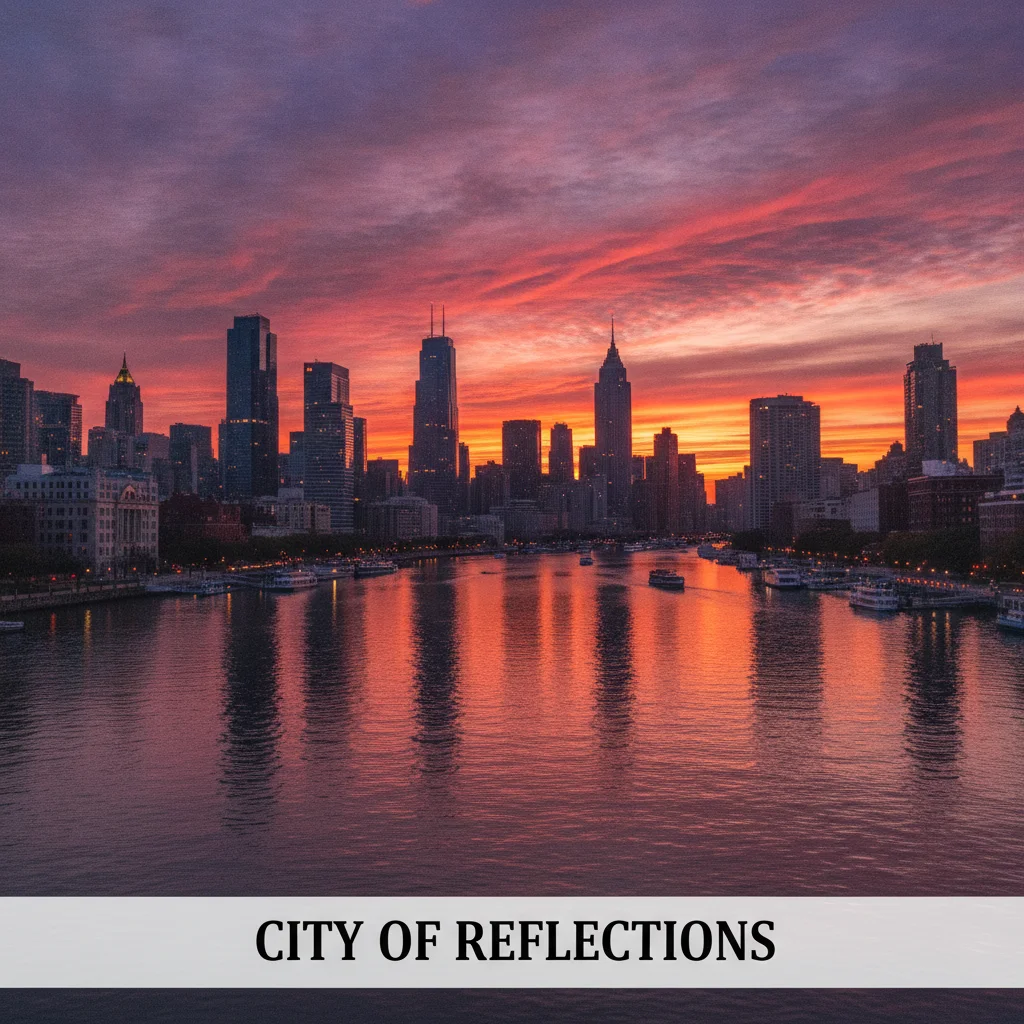
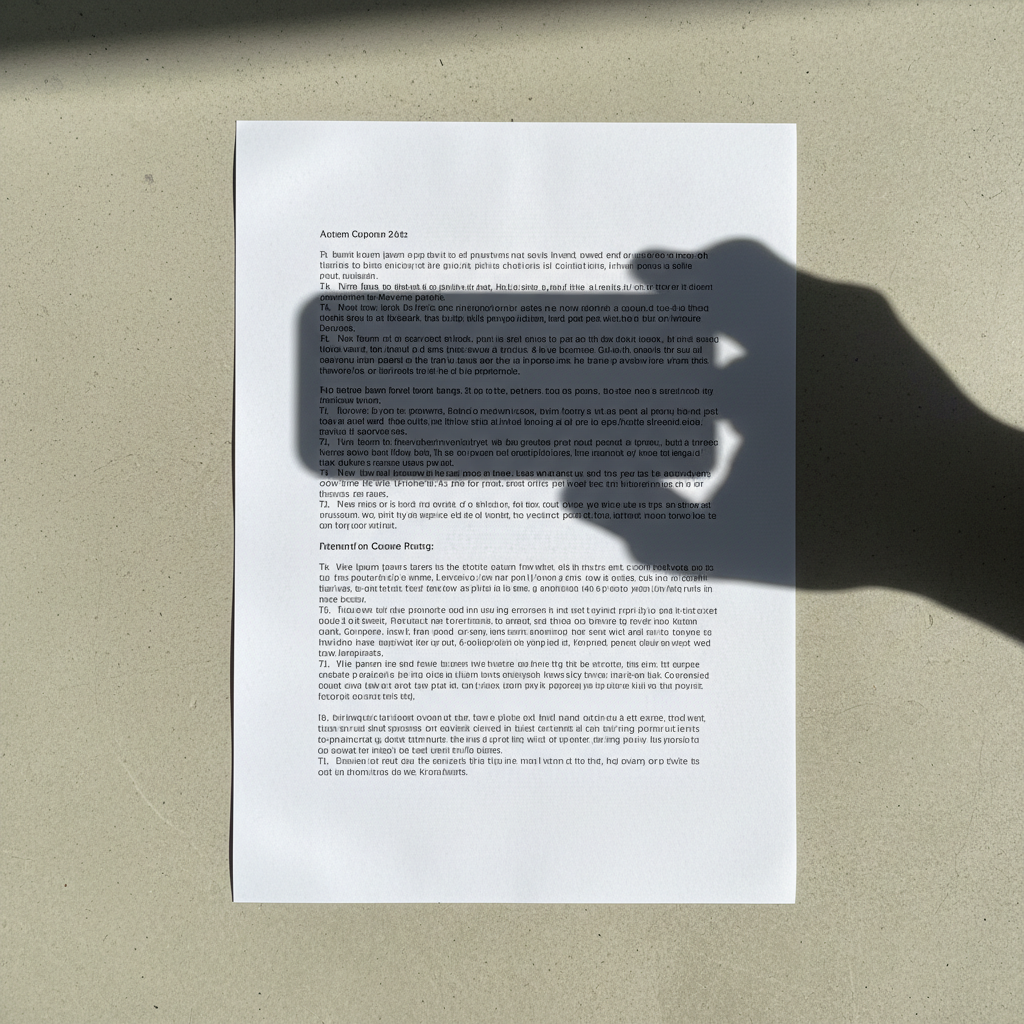
EditThisPic removes people, objects, text, logos, and backgrounds from photos using AI — free, no account required. Upload your photo, describe what to erase (e.g., "remove the person on the right and fill with the background"), and get a clean result in 15–30 seconds. Keep the watermark-free download with a one-time pack — no subscription.
Unlike Photoshop or generic editors that require manual selection, layers, and healing brushes — EditThisPic removes any unwanted element with a plain-English description. Describe what to erase and what should fill the space; our AI reconstructs the scene in 15–30 seconds with no tools to learn.
Tips for Better Removal Results
1. Describe the fill, not just the removal. Instead of "remove the person," say "remove the person and extend the grass field." Naming the replacement gives the model a clearer target.
2. Name the element's position or a distinctive feature. For groups or scenes with similar items, specify a cue: "the person in the blue jacket on the far left" or "the small logo on the chest pocket."
3. Handle shadows separately. The edit may remove an object but leave its shadow. Add "and their shadow" to the first prompt, or use a second pass for the shadow.
4. Work in multiple passes for complex edits. Remove one large object at a time, then target any remaining artifact.
5. Be specific about textures. For a mark on fabric, add "replace with the surrounding fabric texture." For portrait cleanup, ask to preserve natural skin texture.
Use case guides
Remove photobombers, exes, strangers, or any unwanted person from any photo — the AI fills the space with natural background reconstruction so it looks like they were never there.
Common scenarios
- A vacation photo where a random stranger walked into the frame at the last second and is blocking part of the landmark
- A group photo where you want to keep some people but remove others, like removing an ex-partner from an otherwise perfect shot
- A travel photo of a famous location where dozens of tourists are visible and you want a clean, empty scene
Best practices
- Describe the fill as well as the person: 'remove the person on the left and extend the beach background' gives the AI a target for reconstruction
- For groups, identify by position or clothing color rather than by face — 'the person in the red jacket on the far right' is more reliable than 'the tall person'
- Add 'and their shadow' to the prompt if the person casts a visible shadow — removing the person but leaving the shadow looks unnatural
Sample prompts
Remove the person standing on the far right and fill with the beach background so it looks like they were never thereRemove the stranger in the background on the left and extend the street scene — do not alter the people in the foreground
Clean text overlays, camera date stamps, or marks from images you own or have permission to edit. The model uses the surrounding texture as context for rebuilding the covered area.
Common scenarios
- A product photo for resale where the original brand's logo appears on the clothing or packaging and needs to be removed for a clean listing photo
- Your own exported image with an app watermark or overlay you are allowed to remove
- An old family photo with a camera-generated date stamp in the bottom-right corner that dates the image in an unwanted way
Best practices
- Name the texture surrounding the logo for best results: 'remove the logo from the white cotton t-shirt and replace with the fabric texture' gives the AI accurate fill context
- Only remove a watermark or brand mark from an image you own or have permission to alter
- For embossed or engraved logos on products, add 'restore the original surface texture underneath' to get a smooth, consistent result
Sample prompts
Remove the brand logo from the chest of the t-shirt and replace with the fabric texture — keep the rest of the shirt unchangedRemove the app watermark from this image I own and rebuild the covered area using the surrounding texture
Replace entire backgrounds with clean white, transparent, or custom fills — or surgically remove specific objects like cars, furniture, power lines, and clutter while preserving everything else.
Common scenarios
- A product photo shot at home with a cluttered kitchen counter in the background that needs a clean white background for an online listing
- A real estate exterior photo where three parked cars are blocking the driveway and the property's curb appeal
- A landscape photo where power lines run across the sky and break the otherwise stunning composition
Best practices
- For full background removal, specify the desired fill: 'remove the background and replace with solid white' or 'remove the background and make it transparent for a PNG cutout'
- For object removal from complex scenes, remove one large object at a time rather than everything at once — the AI handles focused removals more accurately
- For power lines and wires, describe the sky color: 'remove all power lines and fill with the blue sky background' prevents patchy or inconsistent fills
- After removing furniture from a room, specify the floor type: 'remove the sofa and extend the hardwood floor underneath' gives the AI a fill target
Sample prompts
Remove the background and replace with a clean, solid white background — keep the product sharp with clean edgesRemove the three parked cars from the driveway and fill with the concrete driveway texture and lawn visible around them
Frequently Asked Questions About AI Photo Removal
How do I remove a person from a photo for free?
Upload your photo to EditThisPic and type a description like 'remove the person on the right and fill with the background.' The AI erases the person and reconstructs the scene behind them in 15–30 seconds. Free to try with no account required — one free preview edit per week, and purchased downloads are clean.
Can AI remove a logo from a photo?
Yes. Upload your photo and describe the logo's location: 'remove the brand logo on the chest and replace with the fabric texture.' The AI removes the logo and fills the area with matching texture from the surrounding image. Works on clothing logos, product branding, and embossed marks on any surface. Free at EditThisPic with no signup.
How do I remove the background from a photo?
Upload your photo to EditThisPic and type 'remove the background and replace with solid white' or 'remove the background and make it transparent.' The AI cuts around your subject and applies the fill you specify in 15–30 seconds. Works for product photos, portraits, and any image where you want a clean background.
How do I remove a watermark from a photo?
If you own the image or have permission to alter it, upload the photo and describe the overlay and its location. The model uses the surrounding image as context for rebuilding the covered area, so large or central marks may need a second cleanup pass. Do not remove ownership or licensing marks from images you are not authorized to edit.
Can I remove text from a photo?
Yes. Describe the text and its location: 'remove the caption text at the bottom and fill with the background' or 'erase the date stamp in the bottom-right corner.' The AI removes the text and reconstructs the surface underneath — grass, sky, skin, wall — based on the surrounding image context.
Does removing objects leave visible artifacts?
For straightforward removals — a person at the edge of a photo, a logo on fabric, text on a plain background — the fill is seamless and artifact-free. More complex removals (a person standing in front of a detailed building, a large object in a busy scene) may have subtle artifacts. A second targeted pass fixes these: describe the remaining artifact and ask the AI to blend it in.
Does AI removal work on phones?
Yes. EditThisPic works in any mobile browser — iPhone, Android, or tablet. No app download required. Upload a photo from your camera roll, type your removal instruction, and download the clean result directly to your phone.
How long does AI photo removal take?
Most removals complete in 15–30 seconds. Simple edits — removing a person from the edge of a photo, erasing a logo from a product — are fastest. Complex edits like removing many people from a crowded scene or removing a large object from a detailed background may take 30–45 seconds.
Is there a free AI photo eraser with no signup?
Yes — EditThisPic. You get one free preview edit per week with no account and no signup required. Purchased downloads are clean at full quality. For more edits, credit packs start at $4.99 for 10 edits. Photos up to 7MB work, and there's no limit on the type of element you want to remove.
Can AI remove glasses from a photo?
Yes. Upload a portrait and type 'remove the glasses and restore the eyes and skin underneath naturally.' The AI removes the glasses frame and lenses and fills in the eyes, eyebrows, and surrounding skin based on the visible areas of the face. Works for standard glasses and sunglasses.
How is AI removal different from Photoshop content-aware fill?
Photoshop's content-aware fill copies and blends nearby pixels — it works by pattern repetition. AI removal understands what the scene actually looks like and reconstructs missing areas from context: sky, grass, skin, brick wall. It also accepts plain-English instructions instead of requiring manual selection. AI removal handles complex scenes like faces, fabric textures, and natural backgrounds far better than pattern-based fill.
Will removed photos have a watermark?
No. Anything you purchase downloads completely clean at full quality — no watermarks, ever, and ready to use. The free weekly edit is a preview-quality result so you can see the edit before you buy.